
The Team Cockpit Flow Integration is a custom Lightning component designed to work seamlessly alongside the Team Cockpit. It allows you to trigger Salesforce Flows using data from the Team Cockpit and other page-specific parameters — enabling highly contextual and customized actions.
How to Use the Component
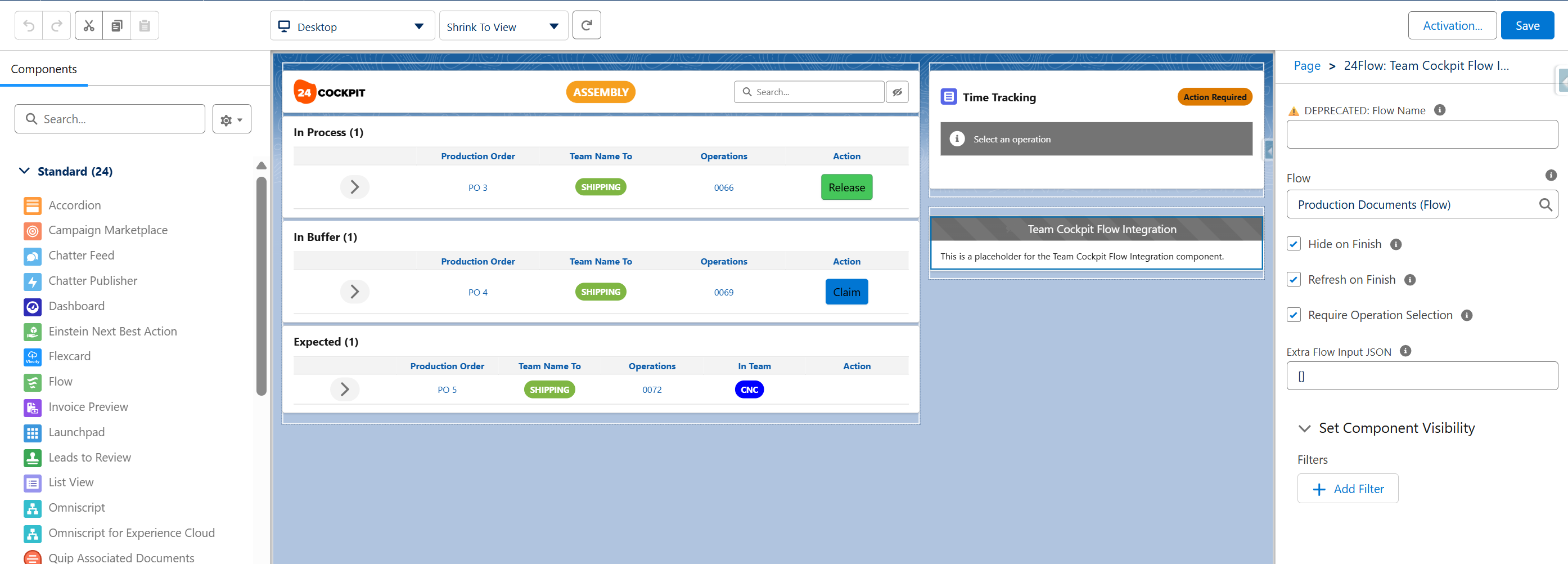
You can add the component to your screen via the Lightning App Builder (Edit Page). Simply drag the Team Cockpit Flow Integration component onto the desired location on your page layout.
In the component settings, select a Flow from the dropdown list (Flow Name is deprecated, and you do not need to enter the API name of the Flow anymore). Your Flow should include an input variable named operationId (type: Text).
This variable will automatically receive the ID of the operation selected by the user in the Team Cockpit. As a result, your flow can perform operation-specific actions based on the user's selection.
There are a couple of checkboxes:
-
Hide on Finish: hide the component when the flow finished.
-
Refresh on Finish: refresh the operation.
-
Require Operation Selection: the component becomes active when an operation is selected.
Extra Flow Input JSON
The component also supports an advanced configuration setting called ‘Extra Flow Input JSON’. This allows you to pass additional context to the flow at runtime, without needing to create extra custom fields on the object. The value must be provided in JSON format, like so:
[ { "name": "documentType", "type": "String", "value": "pdf" } ]
This configuration enables the flow to receive page-specific or team-specific parameters. Suppose you want to display documents related to an operation. Different teams might require different types of documents (e.g., PDF, CSV). Rather than creating a new custom field on the Team object for each variation, you can simply pass the required type using this setting.
In this example:
-
You configure the JSON to pass
"documentType": "pdf" -
In the flow, create an input variable named
documentType(type: Text) -
The flow can now use this value to conditionally show or retrieve the correct type of documents
You can pass multiple parameters in the same JSON array — just define additional name/type/value objects.