
The Barcode Input is a custom screen component built for Salesforce Flows. It allows users to scan or enter barcodes using either their device's camera or a manual text input. Once a value is provided, the component automatically advances the flow — either by triggering the Next or Finish action.
You can use this component in any screen flow where fast, hands-free data capture is helpful, such as in production, warehousing, or scanning environments.
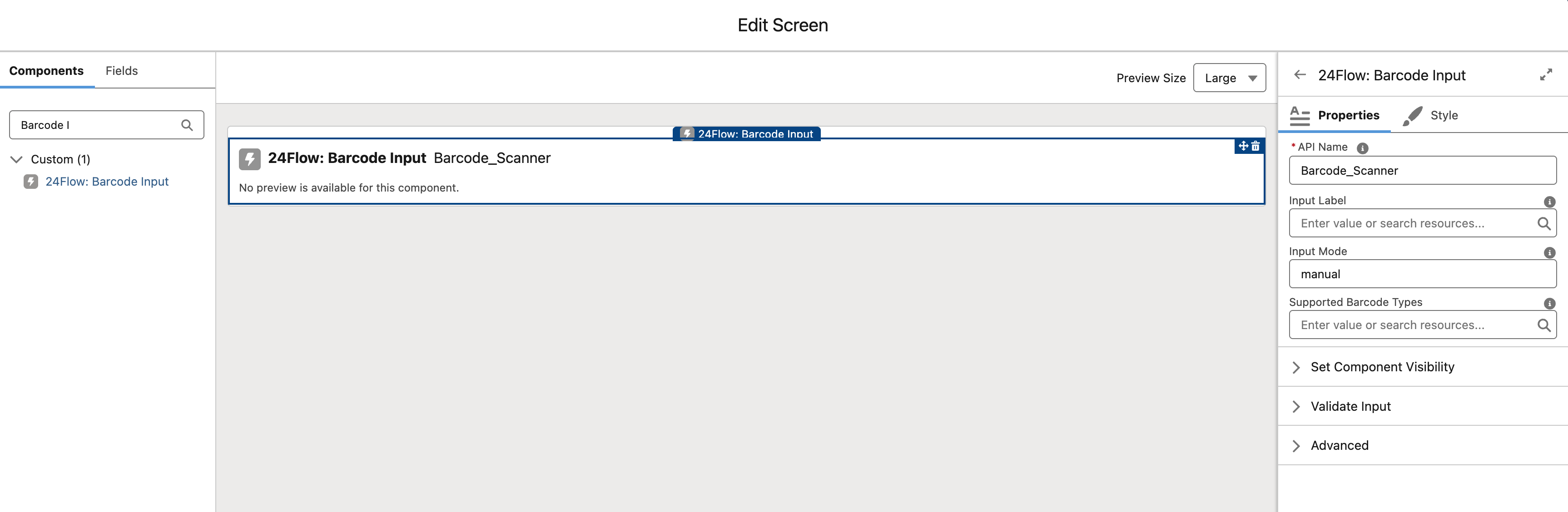
Input Properties
Input Mode defines how the barcode should be captured. You can choose between three modes:
-
"manual" – for manual text input only
-
"camera" – for camera-based scanning only
-
"both" – allows both scanning and manual entry
Supported Barcode Types lets you specify which types of barcodes are valid. If nothing is provided, it defaults to QR.
Barcodes supported by Salesforce : https://developer.salesforce.com/docs/platform/lwc/guide/reference-lightning-barcodescanner-constants.html
Output
The main output of this component is the scanned or entered value. This value is exposed to your flow as a variable and can be used to perform actions such as record lookups, updates, or navigation logic.
Team Cockpit Flow Integration
This component is fully compatible with the Team Cockpit Flow Integration. When used in that context, it can trigger team-specific actions like selecting or filtering operations based on a scanned ID.
To use this feature, your Flow should define two input variables:
-
actionInput: a string that receives the scanned barcode or typed value. This makes it possible to manipulate the input as needed e.g. only accept the first 15 characters.
- actionInput = Formula (Barcode Input) e.g. LEFT(Barcode Input,15) -
actionType: a string that tells the Flow what to do with the input, such as "search" or "select".
- "search" will fill in the processed input inside the search bar in the team cockpit.
- "select" will automatically select an operation based on the corresponding Id.
Both variables should be specified as both input as output variables. If no action type is provided, the component will assume "select" as the default behavior.
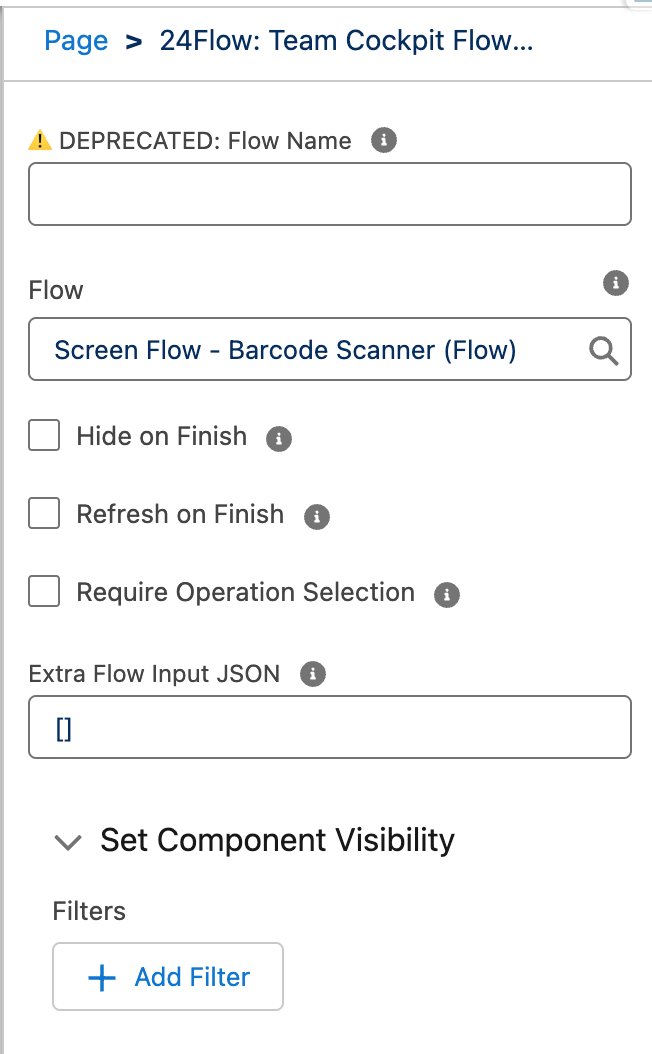
When configuring the flow integration on a specific page, it is important that all flags are unselected. (Hide of Finish, Refresh on Finish, Require Operation Selection)
Example
Imagine you're using the Team Cockpit and want users to scan production order barcodes. With this component, the user can simply scan the order number, and the Flow will highlight the corresponding operation in the cockpit. Depending on the team and context, the action might change — for one team it could be “select”, for another, “search”.