
In case you want to create a new Team Cockpit for your operators, you can follow the following steps, these steps are more elaborated below:
-
Create new Team records
-
Create new Routings
-
Automatically assign Routings (i.e. production type) to production orders via flow
-
Create new Team Cockpit settings pages
-
Create new app pages and add a Team Cockpit to this page
-
Create new apps and add the Team Cockpit app page.
-
Assign the new apps to profiles.
Create a Team
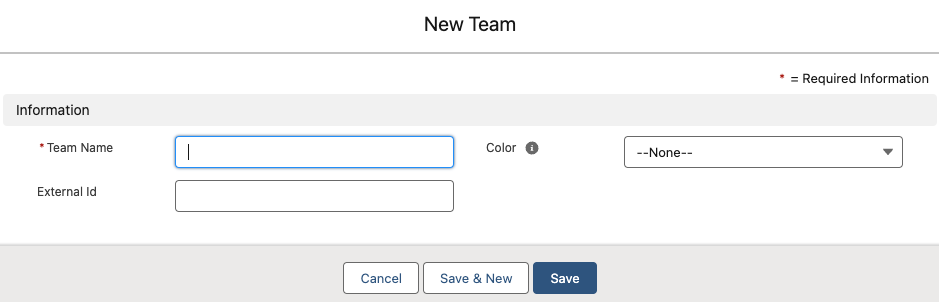
Make sure the required Team is present in your 24Flow org as you will need to link a Team to a Team Cockpit page. Create a Team record in case it is not yet present by executing the following steps:
-
Search for Team in your app or in the app launcher when it’s not visible as a tab.
-
Click on New.
-
Fill in the Name of the Team and copy the name value into the External Id field.
-
Click Save.
Create a Routing
Please read the “Configuring production types, operation types and operation type assignments” in the basic concepts section.
Assign a routing to a production order
Fill in field Production Order Type on the production order. This can be done manually or automated via a flow.
Create new Team Cockpit settings
Create new app page for each team cockpit
Please proceed as follows:
-
Navigate to Setup and use Quick Find to search and select Lightning App Builder.
-
Click New, select the App page type,
-
Note : you can also clone an existing cockpit App page
-
-
Give it a relevant name and choose a layout template template
-
Once this is done click on edit and the Lightning App Builder will open
-
Drag the cockpit LWC element from the left-hand panel under Custom to the desired location on the page layout.
-
Select the cockpit LWC to configure its properties in the right-hand panel as necessary such as the preferred cockpit setting
-
Activate and save the page
-
Save your page and use Preview to test its appearance and functionality.
-
Activate the page by setting visibility and assigning it as the default for the intended users or profiles.
-
Test the page in its intended location to ensure it functions correctly.