
You can integrate 24Files in Team Cockpit to contextually show SharePoint files and folders to workers on the shopfloor, as shown in the example below.
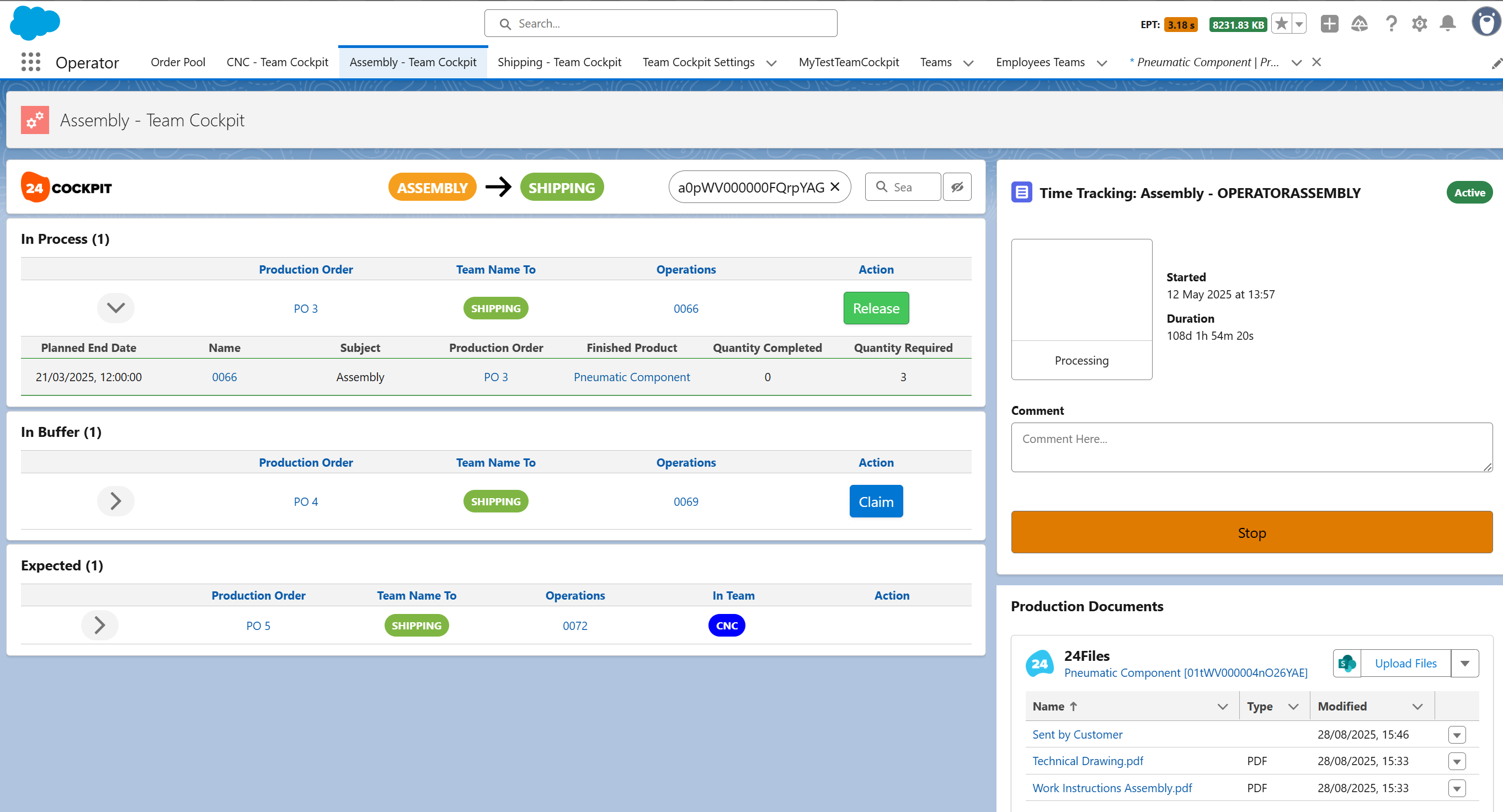
This integration make use of the aforementioned Team Cockpit Flow Integration.
Add the Team Cockpit Flow Integration component
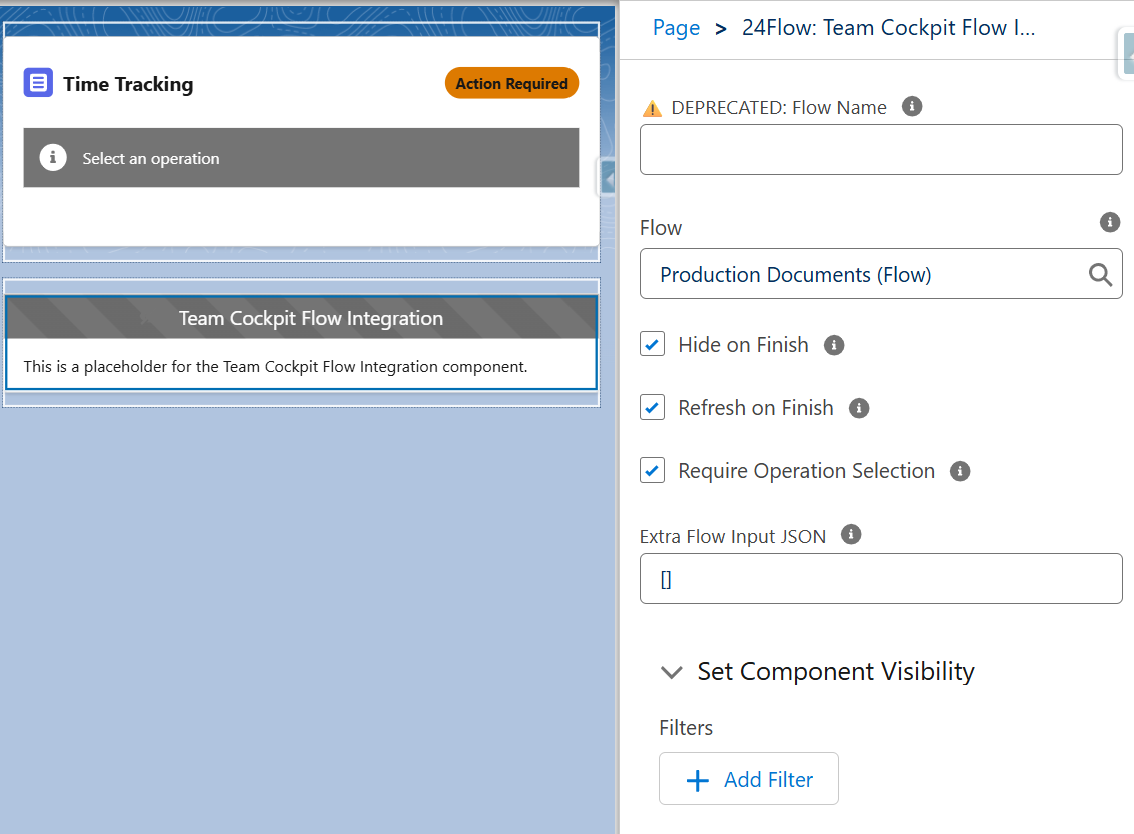
On the Team Cockpit Page Layout, add the Team Cockpit Flow Integration component.
Select the applicable Flow from the dropdown list (it is no longer required to enter the API name of the Flow). We will explain below how you can build the screenflow that will be used here.
Also check the Require Operation Selection box, as we want to show the documents relevant for the selected operation only.
Build the screenflow
Now we will build the screenflow that is called from the Team Cockpit Flow Integration component.
We will use as an example a common use case where you store the documentation in SharePoint at the product level and not at the individual operation level. Hence, when an operation is selected in the Team Cockpit, we would like to show the documents related to the associated product.
In order to do this, we need to follow the following steps.
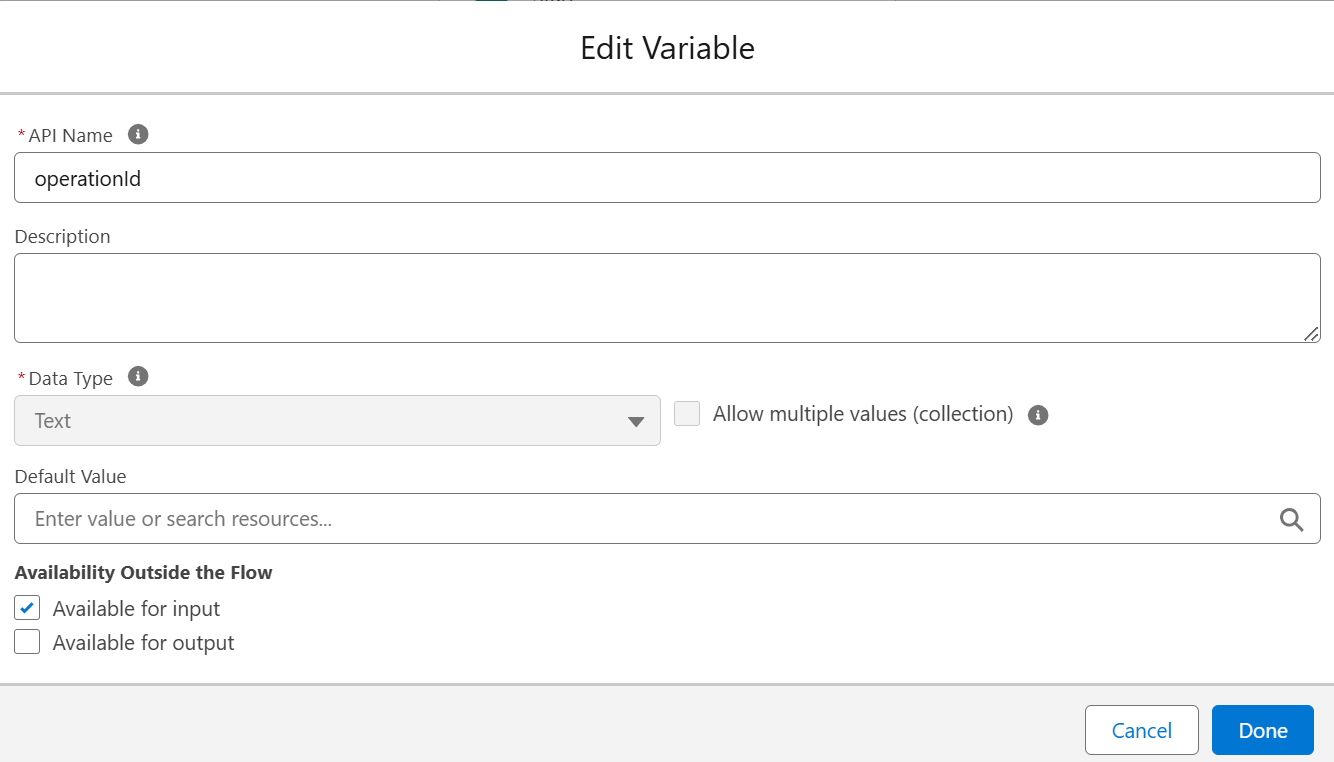
1. Create an operationId variable
First we will capture the operationId variable that is passed to the screenflow from the Team Cockpit
2. Get the Operations Record for the recordId
Next we get the operation record for the recordId.
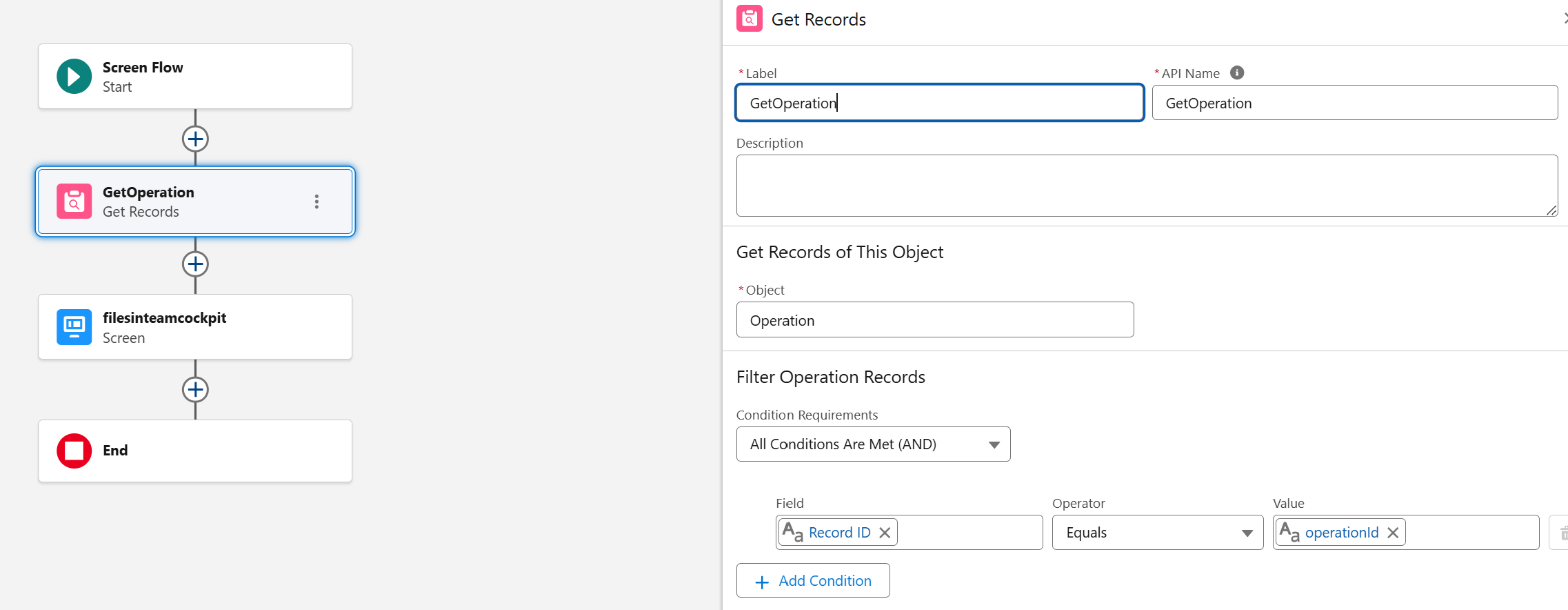
3. Screen component with 24Files
Use the 24Files LWC component (this will not work for Aura). In our case, we want to show the documents for the recordId of the product related to the operation.
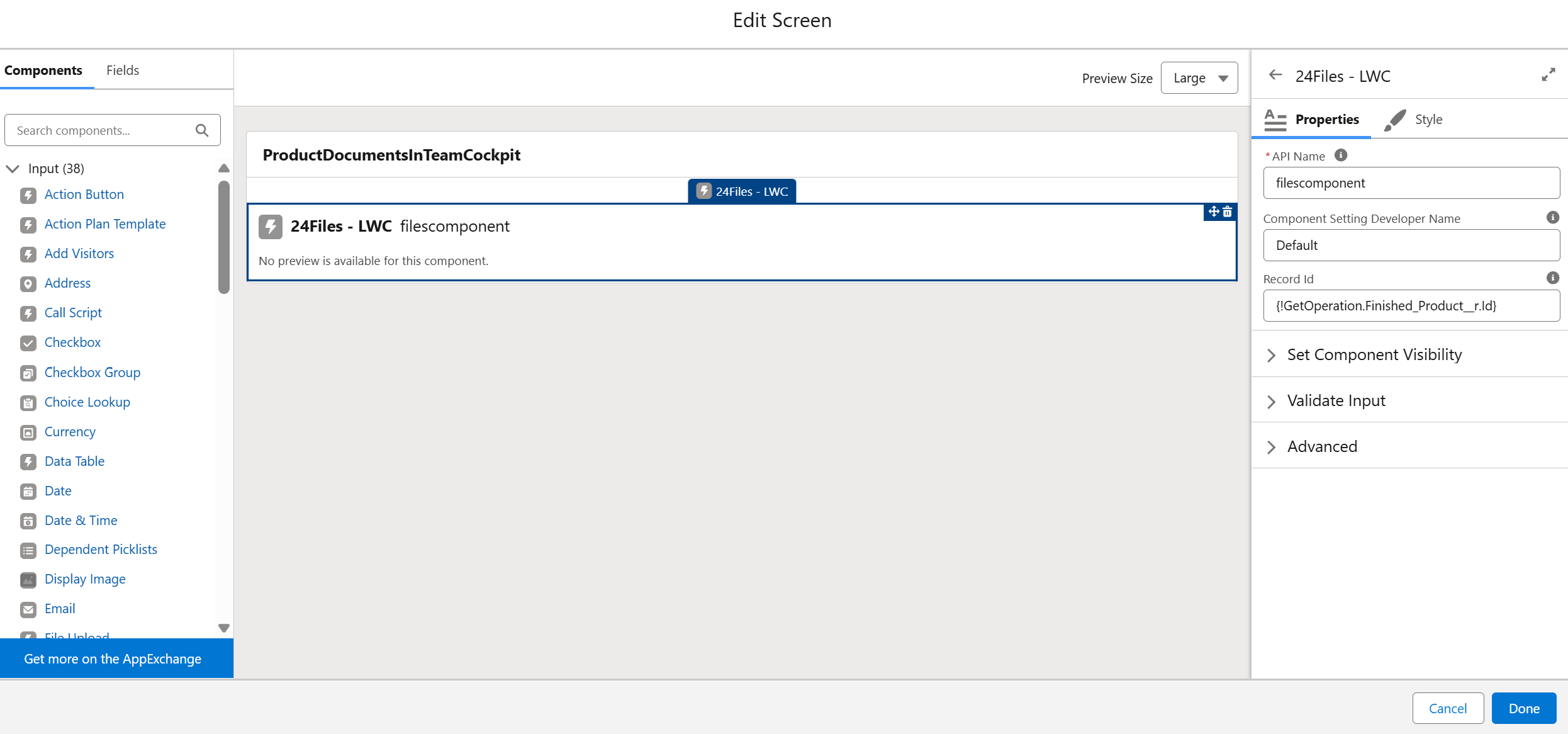
Obviously, for this to work, you need to have set up 24Files for the product object. Please consult the 24Files documentation in case you are not yet familiar with that.