General Settings
-
Name: The name of the Team Cockpit Setting. This will be used as a reference to link it to one or more Team Cockpits.
-
Show Progress Bar: Show a progress bar for operations / operation routings. The progress is computed as (actual operation duration)/(estimated duration) and provides an indication of how far the Operations have progressed.
-
Allow Multiple Operation Selection: When checked, users can select multiple operations from the same status. Selection is limited to one status at a time. This allows to e.g. release multiple orders in one go.
-
View Type:
-
Operation: Choose to only display the operation records.
-
Operation Routing: Choose to show the operation routing and the underlying operation records.
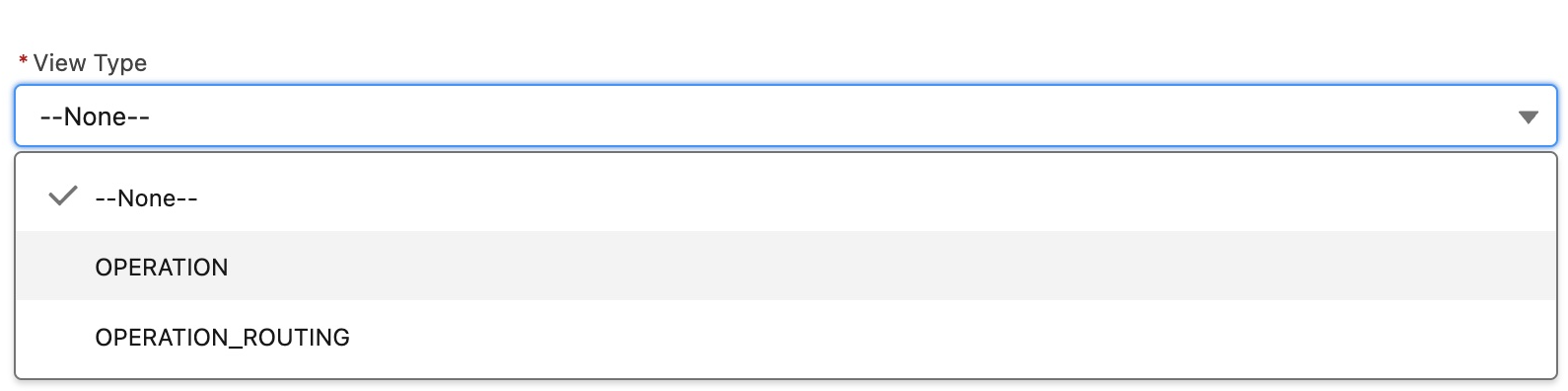
Choose your View Type for each Team Cockpit Settings record. 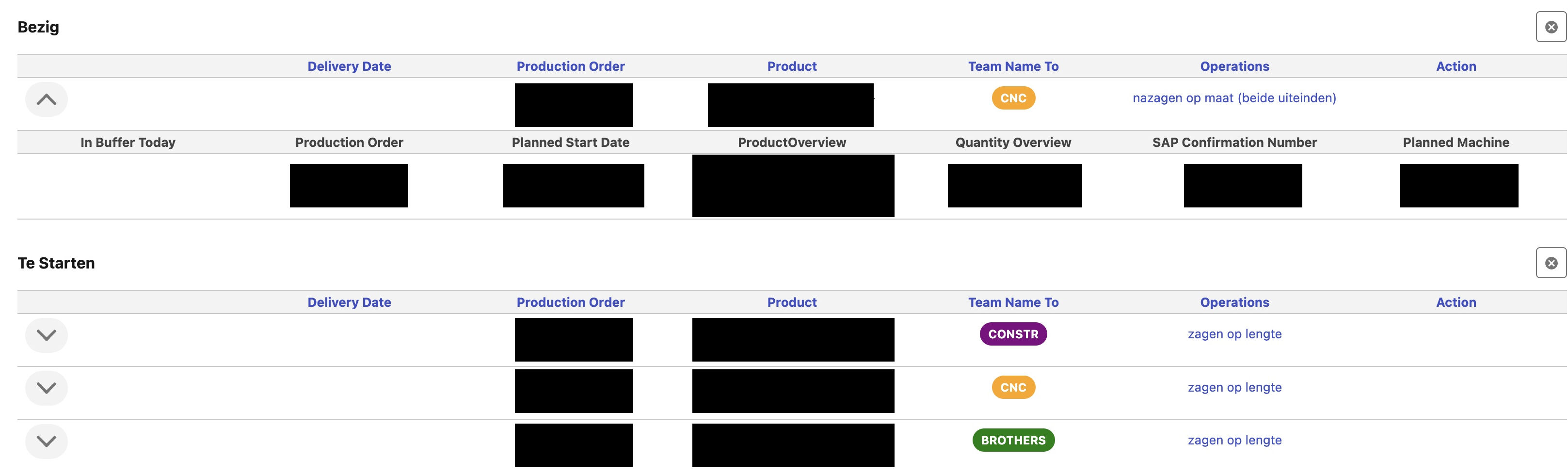
Team Cockpit when View Type = Operation Routing. Expand the operation routing row to see the related operations. 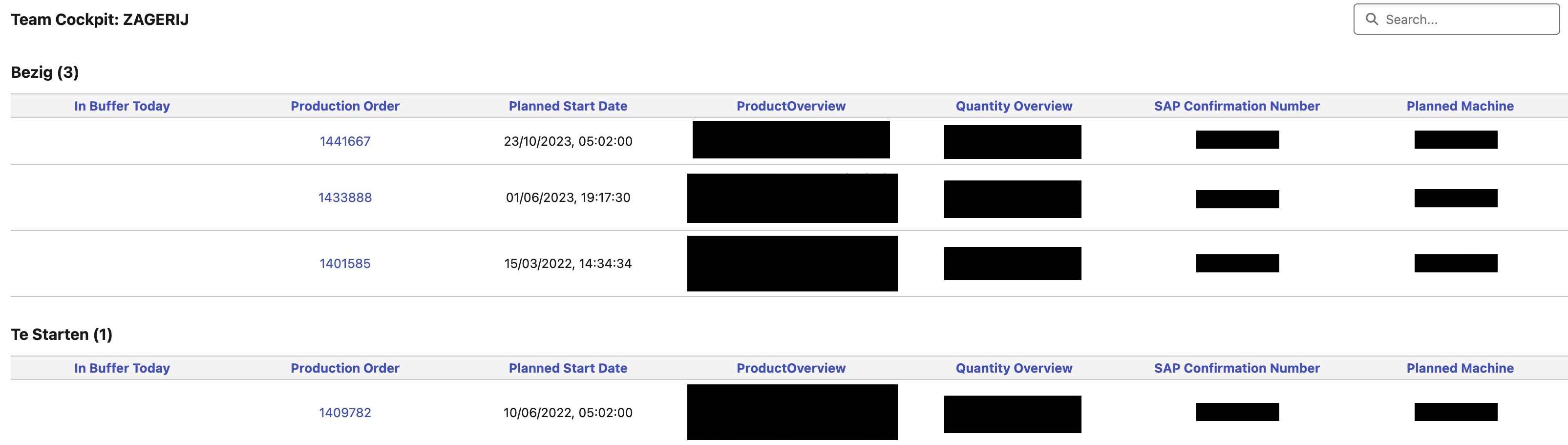
Team Cockpit when View Type = Operation Routing. Each Operation is displayed in the status of its Operation Routing. -
Depending on whether the VIEW TYPE is OPERATION or OPERATION ROUTING, you will see different parameters on the Team Cockpit settings page
In case you are using the VIEW TYPE Operation Routing, it may still be handy to see a summary of the underlying Operations at the Operation Routing level. This is done using the following 2 parameters:
-
Operations Summary Column nr: Only applicable in case the View Type is OPERATION_ROUTING. Determines the column where the Operations Summary is shown.
-
Operation Column Label Field: Only applicable in case the View Type is OPERATION_ROUTING. Defines which field on the object Operation you want to show as summary field on each operation routing row. Most commonly, the field Subject is used as this is a descriptive name of the Operation(s).
-
Selected Operation Pill Name Field: When you select an operation in a Team Cockpit, a pill will appear. Via this setting you can define the content of the pill, e.g. the operation name or the name of the production order.
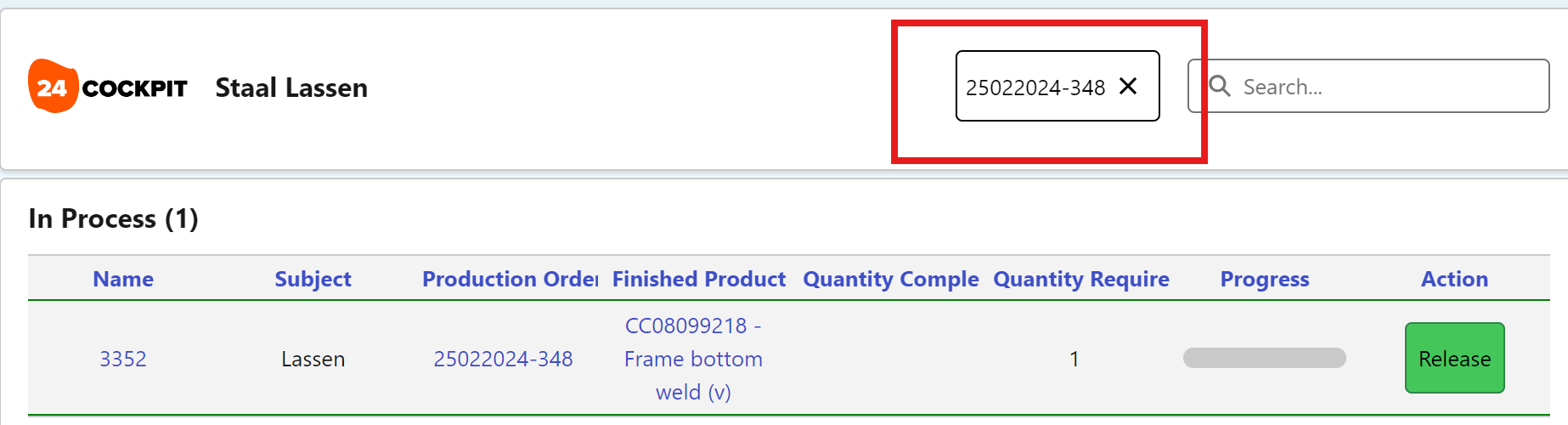
-
Pill size: You can choose the size of the pill in Team Cockpit. The pill color is the color configured on the corresponding Team record.
Pill color configuration
-
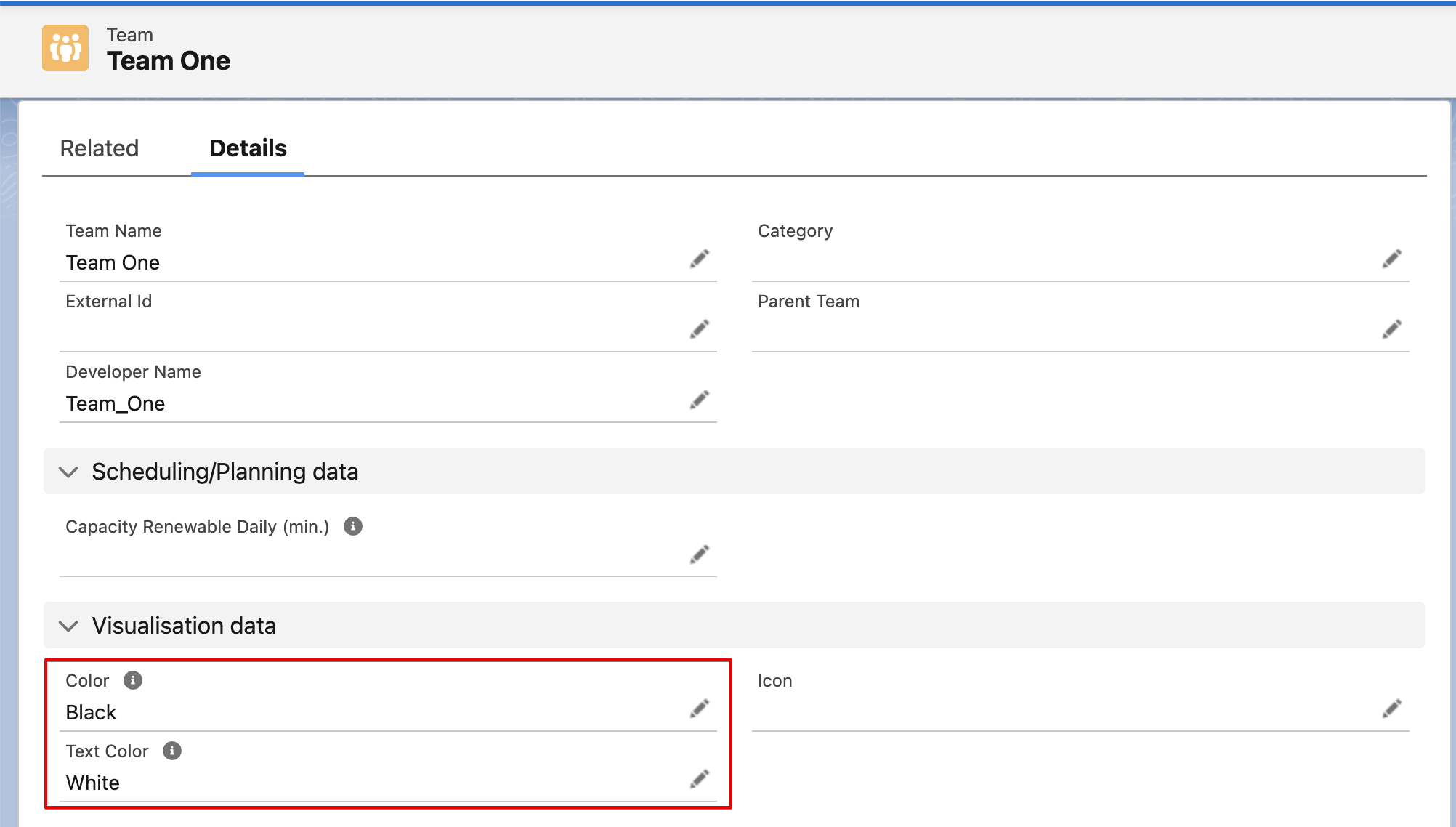
The pill color is the color configured on the corresponding Team record.
-
To configure it, go to the Team record and edit the color field.
-
This will change to background color of the pill.
-
In addition, also the text color of the pill can be changed by editing the text color field.