
Manually Refresh Team Cockpit
By default, when Operation Routings change, a platform event is generated that is consumed by all Team Cockpit browser windows. It is now possible to ignore these Platform Events and manually refresh the Team Cockpit. The settings are available in the Advanced tab of the Team Cockpit Settings.
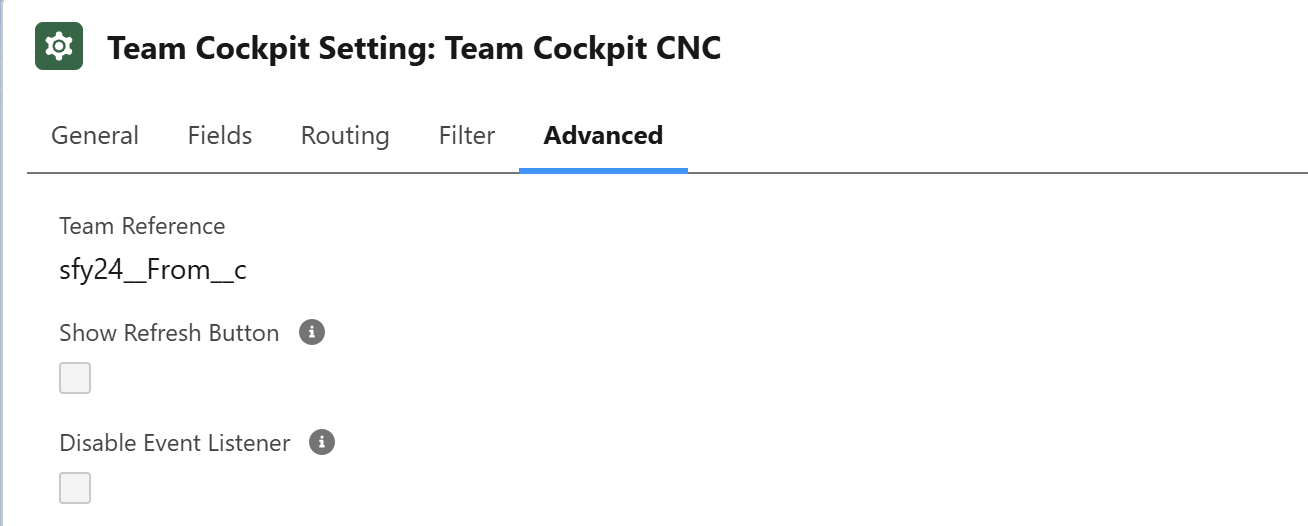
Advanced Platform Event Filter
We have introduced more advanced configuration options that scale the platform when the number of Teams increases and/or the number of open Team Cockpit tabs in browsers rise; as both of these will have an impact on the number of Platform Events being generated/consumed.
The advanced platform event filter allows to define in more granular way to which specific Teams specific Platform Events should be delivered.
Please contact the 24Flow solution team for more info on how to configure this for your environment. Should you want to give it a shot yourself, you can dive into the next segment.
Time To get Technical
Every time the status of an Operation Routing changes — except when it changes to INIT — a Platform Event is generated. These events are consumed by the Team Cockpits, allowing them to instantly react to changes without requiring a manual refresh. This is a powerful feature. However, Salesforce imposes limits on event consumption: by default, an org can listen to up to 25,000 events per day.
It’s important to understand the difference between events being generated (1 event per status change) and events being listened to (potentially multiple times if several cockpits are subscribed). For example: one change to an Operation Routing record may generate a single platform event, but if 10 Team Cockpits are subscribed, that counts as 10 event deliveries against the daily limit.
By default, all Team Cockpits listen to all Operation Routing events — regardless of whether those changes are relevant to their specific team or work center. This results in irrelevant updates being processed and excessive event traffic. Platform Event Channels allow you to control which Team Cockpits listen to which events — ensuring that each cockpit only receives relevant updates.
In the interface (see screenshot), you’ll see how these channels are configured. Let’s walk through the key components and fields:
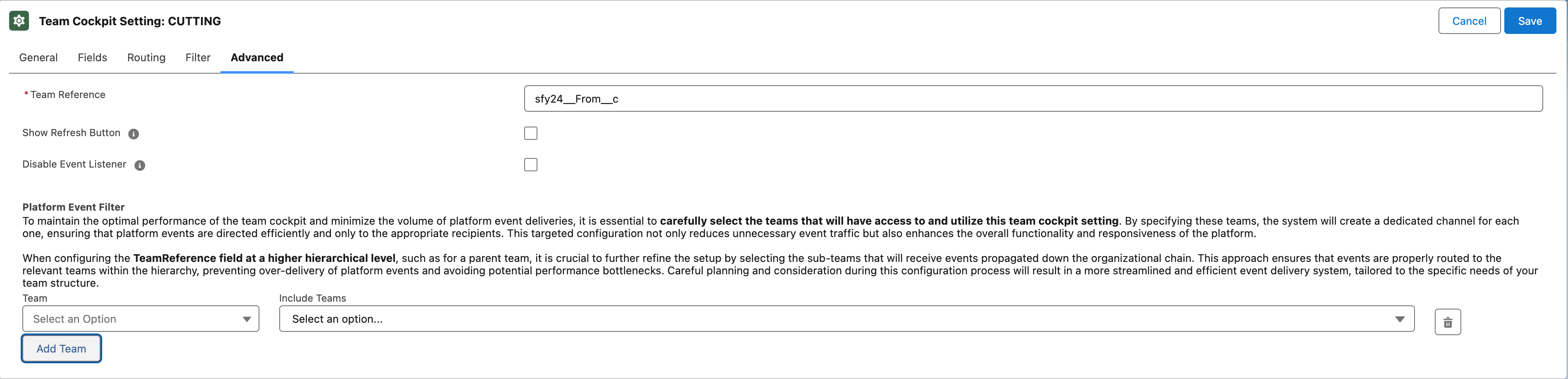
Team Reference
This setting determines what team level the Team Cockpit is focused on — especially important if your org uses a team hierarchy.
Example hierarchy:
-
Cluster Team (e.g. Machinery) → Cell (e.g. Welding, Cutting) → Workcenter
Each of these levels can be stored in a separate field and referenced via the Team Reference. The Team Reference controls what the cockpit displays:
-
If it points to the top level (e.g. Machinery), the cockpit shows all underlying cells and workcenters
-
If it points to the lowest level (e.g. a single workcenter), it shows only that scope
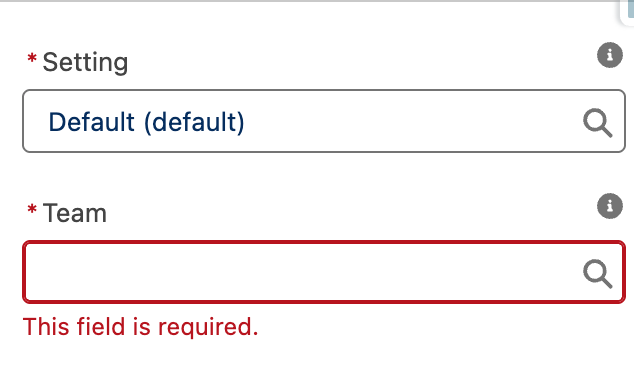
This setting also determines what team value should be filled in when configuring the Team Cockpit component on a Lightning page.
sfy24__From__c
The field sfy24__From__c on the Operation Routing object is the field that links an Operation Routing change to a Team Cockpit. It is the field that decides how the channels should be configured. Typically it refers to a workcenter (the lowest level of your team hierarchy).
In the platform event channel configuration, this field is used to filter incoming routing changes. Only events where sfy24__From__c matches a configured team in the channel will be delivered to that cockpit.
In the event channel configuration UI, there are two dropdowns. In the running example the team reference is configured on cell level.
Left Dropdown — Based on the Team Reference
-
Lists teams of the level specified by the Team Reference (Cell level => Welding, Cutting). If the Team Reference is set at a higher level (e.g. Cluster), then all underlying cells and workcenters should be included for each cluster.
-
When configuring a cockpit on a Lightning page, only these teams should be selected. Otherwise no channel exists for the team and the page must be manually refreshed.
Right Dropdown — Mapping to sfy24__From__c
-
Optional, but crucial when your Team Reference and
sfy24__From__cpoint to different levels. When the Team Reference points to the workcenter (likesfy24__From__c) no teams need to be listed in the right dropdown, as the fieldsfy24__From__cis already represented in the channel. -
Connects the team in the left dropdown (e.g. a Cell) to the underlying teams in
sfy24__From__c(e.g. Workcenters). If a workcenter is excluded, the Team Cockpit won’t receive events for it — and changes will only be visible after a manual refresh.