
Built on the Salesforce platform, 24Flow offers its customers a secure & scalable platform to host composable apps in a low-code environment.
With the advent of AI technology, Salesforce has extended its platform capabilities to interact with third-party LLM services via MCP (Model Context Protocol). MCP enables seamless integration between LLM-based applications and external data sources such as 24Flow. It provides a standardized way for LLM applications to discover and access contextual information, tools and capabilities that can be used with LLM “function-calling” features.
In the context of 24Flow, the Salesforce Model Context Protocol (MCP) bridges the gap between your 24Flow environment and third-party AI assistants like Claude, ChatGPT, or Cursor. It acts as a universal, secure connector that allows LLMs to query data, run SOQL, or trigger business logic—all while strictly enforcing your existing Salesforce user permissions and OAuth governance.
Salesforce provides built-in, generally available MCP servers that act as managed endpoints. You don’t need to build custom APIs; you simply configure the integration using standard OAuth 2.0 and let your users work directly in external chat tools like Claude Desktop.
Connecting 24Flow to Claude Desktop
Keep in mind, the MCP is capable of changing objects & metadata, before Claude launches a tool it asks for permission, make sure you do not give permission (always) to edit metadata or objects.
Prerequisites
Before you begin, ensure you have the following software installed:
-
Node.js: The minimum required version is 22.17. You can download the installer from the official Node.js website. Alternatively, developers can use a version manager like NVM (Node Version Manager).
-
Salesforce CLI: Install the command-line interface from the official Salesforce CLI page.
-
Claude Desktop: Download and install the desktop application from the Claude website.
Configuration
-
Install Salesforce MCP: Open your terminal and run the following command to install the Salesforce Managed Package Connector (MCP) globally.
npm i -g @salesforce/mcp -
Authenticate with Your Salesforce Org:
-
Production Org: Authenticate and connect to your production org.
sf org login web --instance-url https://login.salesforce.com --alias <YOUR_ALIAS> -
Sandbox/Scratch Org: Authenticate and connect to your sandbox or scratch org.
sf org login web --instance-url https://test.salesforce.com --alias <YOUR_ALIAS>
Replace
<YOUR_ALIAS>with a descriptive name for your ORG. -
-
Configure the Claude Desktop App:
-
Launch the Claude desktop app and log in with your credentials.
-
Navigate to the settings menu by clicking Settings in the bottom left corner.
-
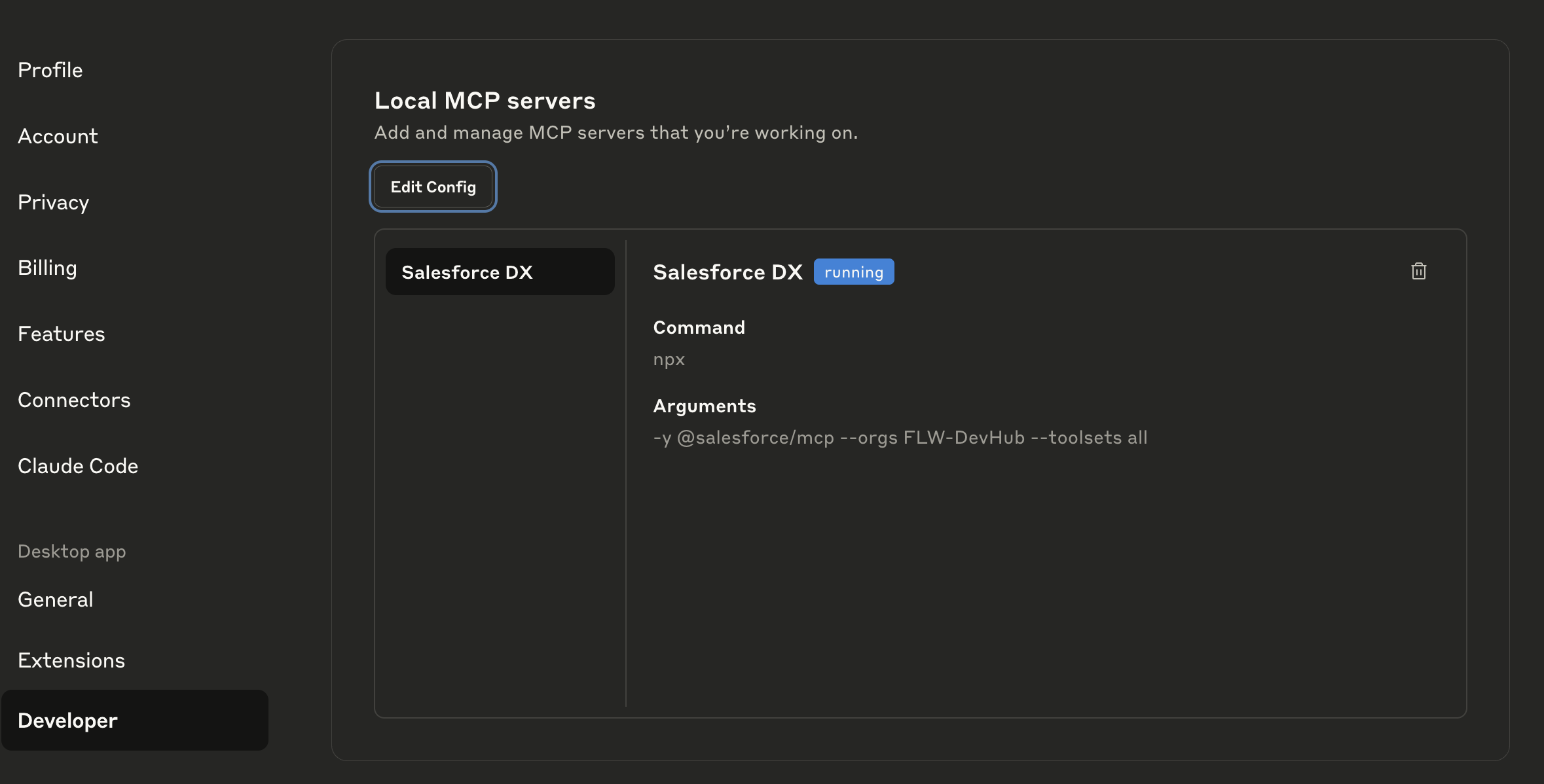
Select the Developer tab, and then click Edit Config. This will open a JSON configuration file in your default text editor.
-
-
Update the Configuration File:
-
Copy the JSON snippet below and paste it into the opened configuration file.
-
Important: Replace
ORG_NAMEwith the exact alias you chose in step 2.
{ "mcpServers": { "Salesforce DX": { "command": "npx", "args": ["-y", "@salesforce/mcp", "--orgs", "ORG_NAME", "--toolsets", "all"] } } } -
Verification
After completing the configuration, follow these steps to verify your setup.
-
Restart Claude: Close and restart the Claude desktop app.
-
Verify Connection: Go back to Settings -> Developer and check the status of the MCP server to ensure it is running correctly.
-
Test the Connection: Ask Claude a question to confirm it can access your Salesforce org, such as "Can you see my Salesforce org?" or "Can you retrieve the API name of the Account object?"