API Permissions
24Files operates using delegated permissions because it is designed to work with an integration user rather than relying on the client credentials grant flow. As a result, application permissions (which are typically used in system-to-system authentication) are not supported in 24Files.
Microsoft Graph Permissions
We will configure Microsoft Graph permissions.
Navigate to API permissions in the Azure portal. Click on Add a permission, scroll down and select Microsoft Graph.
Now select ‘Delegated permissions’. Use the search bar to quickly navigate to the options below.
Select following options:
-
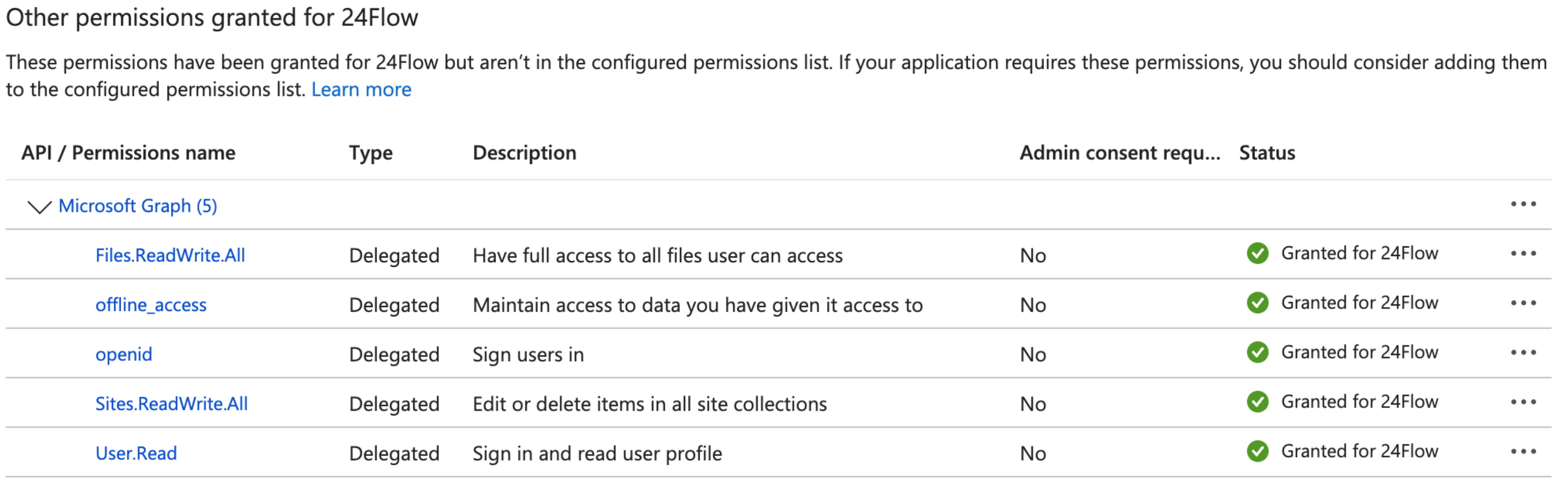
Files.ReadWrite.All
-
offline_access
-
openid
-
Sites.ReadWrite.All
-
User.Read
After selecting these options, click “update permissions”.
A few more words on the permission:
Files.ReadWrite.All — access to files you can access (read/write)
This allows 24Files to create, read, update, and delete files in SharePoint that you have access to. We use this to: upload files, update file versions, and manage documents in the connected location.
Sites.ReadWrite.All — access to SharePoint sites you can access (read/write)
This allows the app to create, read, update, and delete items in SharePoint site collections that you have access to. We use this to: browse SharePoint sites/libraries and write documents to the correct SharePoint library.
User.Read — basic profile information
This lets 24Files read basic profile info (name, user ID/email) to identify the signed-in user and complete the sign-in process.
openid — sign-in
This is required to sign you in securely using Microsoft.
offline_access — keep access when you are not actively signed in
This allows the app to keep the connection active (via a refresh token) so it does not require you to log in again each time and can continue to perform authorized actions without interrupting users.
important notes
-
24Files can only access files/sites that the signed-in user is allowed to access in SharePoint, as we make use of delegated permissions.
-
Because read/write permissions include delete capability, we recommend:
-
connecting with a dedicated service account (if your IT policy requires it), and/or
-
restricting that account’s SharePoint access to only the libraries needed for the integration.
-
Grant admin consent
Click “Grant admin consent for {your_company}” next to “Add a permission”.
After you granted the permissions as described above, your granted permissions should look as follows: