
Why Multi-Factor Authentication (MFA)
As the security landscape evolves and threats that compromise user credentials grow more common, it’s important to implement strong security measures to protect your business and customers. Multi-factor authentication is one of the easiest & most effective ways to help prevent unauthorized account access and safeguard your data!
Usernames and passwords alone don’t provide sufficient safeguards against unauthorized account access. Multi-factor authentication (MFA) adds an extra layer of protection against threats like phishing attacks, credential stuffing, and account takeovers.
How to set up MFA in 24Flow for Web
Here is a step-by-step guide on how to setup MFA.
You can enable MFA in 2 different ways:
Setup
-
-
Setup > Identity Verification > 'require multi-factor'
-
You can configure MFA in 2 different ways:
-
Via Profiles.
-
Via Permission Sets.
Profile Settings
If you configure MFA via Profiles, all users with that profile will be required to use MFA.
-
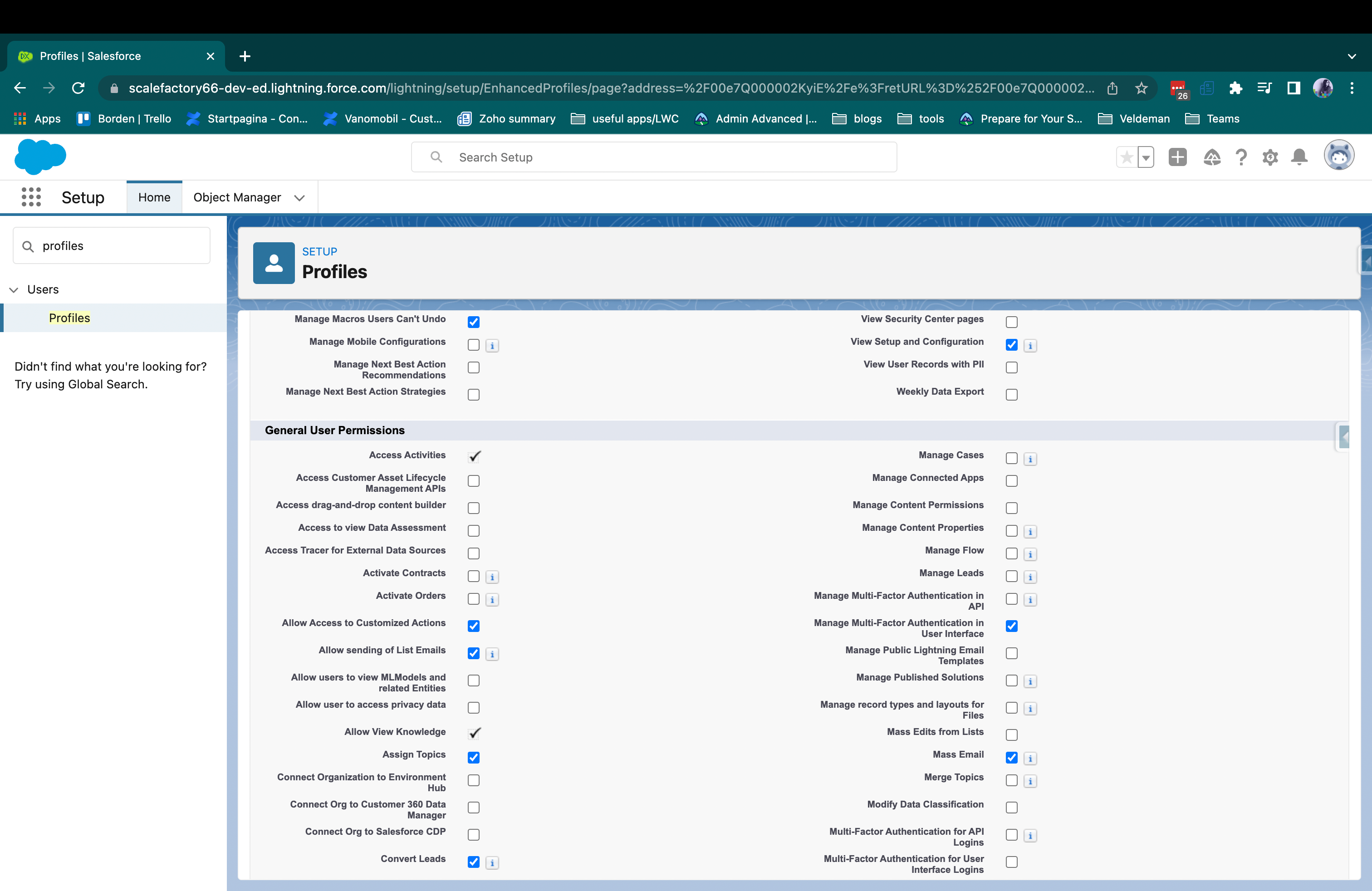
Navigate to the particular profile.
-
Click edit.
-
Check the “Manage Multi-Factor Authentication in User Interface” in the General User Permissions.
-
Save.
Permission Sets
If you configure MFA via Permission Sets, you can manage which users get MFA and develop a rollout strategy:
-
In Setup, navigate to Permission Sets.
-
Click new.
-
Give the permission set a name and description.
-
Click on System Permission.
-
Click on edit.
-
Check the “Manage Multi-Factor Authentication in User Interface logins” in the General User Permissions.
-
Save.
-
On the pop up, click save.
-
Click Manage assignments.
-
Click Add assignments.
-
Choose the users you need and save.
How to set up MFA in 24Flow for Mobile App - iOS & Android
Steps in Lightning Experience:
-
Navigate to Setup | Apps | Connected Apps | Manage Connected Apps | Salesforce for iOS / Android.
-
Click Edit.
-
In the 'OAuth Policies' section, set the IP Relaxation setting to Relax IP restrictions for Activated Devices.
-
In the 'Session Policies' section, click the High assurance session required checkbox.
-
Click Save.
Note: You will need to repeat these steps in Salesforce for Android as well.
Once these steps are completed, open the mobile app and log in. You will be prompted to verify your identity.
Mandatory MFA for All Direct UI Logins (2026 Enforcement)
What this means in practice:
-
Users who log in via Single Sign-On (e.g. Microsoft Entra / Azure AD) must use a strong MFA method through their company account. If Salesforce doesn’t recognize that MFA already happened at the identity provider, it will still prompt for an extra verification step at login.
-
Users who log in directly to Salesforce (username + password) must register a verification method. Without one, Salesforce forces enrollment on the very next login — this cannot be skipped or postponed.
Phishing Resistant MFA
Salesforce is separately enforcing phishing-resistant Multi-Factor Authentication (MFA) for all privileges users including admins.
Salesforce’s phishing-resistant MFA verification methods leverage FIDO2/WebAuthn Authenticators and Certificate-Based Authentication (CBA).
FIDO2/WebAuthn Authenticators
-
Built-in Authenticators: Device-bound passkeys that use the device's secure hardware protected by a PIN or biometric. Examples include:
-
Windows Hello for Business: Uses the device's Trusted Platform Module (TPM) chip with a PIN or biometric; keys are tied to the device and cannot be exported.
-
Apple Passkeys (Touch ID / Face ID): Built into the Apple ecosystem (iPhone, Mac, iPad); keys can be kept device-bound or synced via iCloud Keychain.
-
Android/Google Passkeys: Uses the device's secure enclave and biometrics
-
-
Security Keys: External FIDO2/WebAuthn security keys (e.g., YubiKey), including those that connect via USB, NFC, or Bluetooth.
-
Cloud-Synced Passkeys: Passkeys managed through a password manager or cloud keychain (e.g., 1Password, Bitwarden, iCloud Keychain). While not device-bound, they are FIDO2-compliant and meet the phishing-resistant MFA requirement, provided the password manager is FIDO2/WebAuthn-compliant.
Certificate-Based Authentication (CBA)
Certificate-Based Authentication uses x.509 client certificates to verify a user's identity. A corporate certificate is installed on the user's device, and mutual TLS (mTLS) is used to authenticate with Salesforce. The certificate's private key is protected in secure hardware such as a TPM (Trusted Platform Module) or secure enclave, making it resistant to phishing and credential theft. See Certificate-Based Authentication for configuration details
More info can found here.
.png?cb=510763bbd3ca535a67b167ce2723a0af)
What are your options for setting up MFA?
Phishing-Resistant MFA:
-
Passkey (recommended for workstations)
No hardware required. Also allows logging in without a password, using only a username + passkey. The browser remembers the passkey; at login you simply select your key.
-
Physical hardware key (FIDO2 / YubiKey)
Ideal for shared workstations or production floors without mobile devices. USB or NFC key, stays plugged into the device.
Standard MFA:
-
Authenticator app (TOTP codes)
Salesforce Authenticator, Microsoft Authenticator, or Google Authenticator on a smartphone. Generates a new code every 30 seconds.
Guide: setting up a registered method in Salesforce - MFA per user
Each user completes the steps below on their own computer, one time only. It's best for the administrator to do this together with the user.
Option 1 (Phishing-Resistant MFA): Setting up a passkey (recommended)
-
Log in to Salesforce.
-
Click your avatar/profile picture in the top right → select Settings.
-
In the left menu, go to My Personal Information → Advanced User Details.
-
Find the Verification Methods section and click Register next to "Built-In Authenticator" or "Security Key" (depending on your device).
-
Your browser will automatically show a prompt: choose Windows Hello, Touch ID, or Face ID.
-
Follow the on-screen instructions (scan your fingerprint, show your face, or enter the device's PIN code).
-
Done. On your next login, Salesforce will automatically prompt you to use this passkey.
Option 2 (Phishing-Resistant MFA): Physical hardware key (FIDO2 / YubiKey)
-
Insert the hardware key (e.g. YubiKey) into a USB port on the device, or hold it against the device if it supports NFC.
-
Log in to Salesforce.
-
Go to avatar → Settings → My Personal Information → Advanced User Details.
-
Click Register next to "Security Key (U2F or WebAuthn)".
-
The browser will ask you to touch/confirm the key. Touch the metal contact point on the key when it flashes.
-
Optional: set a PIN code for the key during initial registration.
-
Done. On every future login on this device, insert the key and touch it when prompted.
Option 3 (Standard MFA): Authenticator app (TOTP)
-
Install an authenticator app on your smartphone: Salesforce Authenticator, Microsoft Authenticator, or Google Authenticator (via the App Store / Google Play).
-
Log in to Salesforce on your computer.
-
Go to avatar → Settings → My Personal Information → Advanced User Details.
-
Click Register next to "Authenticator App".
-
Salesforce will display a QR code on screen.
-
Open the authenticator app on your smartphone and select "Add account" or "+" → scan the QR code with your phone's camera.
-
The app now shows a 6-digit code. Enter this code into Salesforce and confirm.
-
Done. On every future login, open the app and enter the current code.
More detailed info on this option can be found under Passwordless Login .
Single Sign On (SSO) & MFA
Is it necessary to activate MFA both on the SSO provider and on 24Flow?
No. If MFA is enabled for your SSO identity provider, you don’t need to enable MFA for users who log in via SSO. But if you have admins or other privileged users who log in 24Flow directly, we recommend to set up Salesforce’s MFA for these users.
Is Windows Hello required for saving a passkey in Windows Edge?
Saving a passkey in Microsoft Edge on Windows requires Windows Hello to be activated and configured. Make sure Windows Hello is available on the device before registering a passkey.
Is it possible to perform Google login with Microsoft Entra ID?
Google Cloud and Google Workspace can use Microsoft Entra ID as the identity provider through SAML-based single sign-on (SSO). After the configuration is completed, users authenticate with their company Microsoft Entra account instead of a separate Google password.
-
Provision the user: In Microsoft Entra ID, add the Google Cloud / G Suite Connector by Microsoft enterprise application and configure automatic provisioning to Cloud Identity or Google Workspace. Ensure that the user’s email address or UPN mapping matches the Google account.
-
Configure SAML SSO: Create or configure the Google Cloud enterprise application in Microsoft Entra ID, select SAML, and exchange the Entity ID, ACS/Reply URL, sign-in URL, and Base64 signing certificate with the Google Admin Console.
-
Assign access: Assign the application to the appropriate Microsoft Entra users or groups, and assign the Entra ID SAML profile to the corresponding Google organizational units or groups. Keep automation or service accounts outside the SSO assignment when required.
-
Test the login: Open Google Cloud Console or a domain-specific Google service URL, enter the user’s Google email address, and continue to Microsoft Entra ID. Complete the Microsoft Entra authentication and any required MFA or security verification. On the first login, the user may also need to accept Google’s terms and confirm Google Cloud preferences.
For implementation details, see Google Cloud: Microsoft Entra ID user provisioning and single sign-on and Microsoft Learn: Configure Google Cloud / G Suite Connector for SSO.
How can we disconnect a User’s Authenticator App
Besides Salesforce Authenticator, one other mobile authenticator app that generates verification codes (time-based one-time passwords) can be connected to a user’s account at a time. If your user loses access to the app by replacing or losing the mobile device, disconnect the app from your user’s account. The next time your user logs in with multi-factor authentication (MFA), if no other identity verification method is connected, Salesforce prompts the user to register a new method.
-
From Setup, enter Users in the Quick Find box, then select Users.
-
Click the user’s name.
-
On the user’s detail page, click Disconnect next to the App Registration: One-Time Password Authenticator field.
Note : Your users can disconnect the app from their own account too. In personal settings, they go to the Advanced User Details page and click Disconnect next to the App Registration: One-Time Password Authenticator field.
How can we “remember” trusted devices
You can use the Salesforce authenticator app to remember trusted devices.
Here you can download the https://www.salesforce.com/solutions/mobile/app-suite/security/ app
Salesforce will send a notification to the device when you try to login.
When you get the notification you have a choice (on the top of the screen) to automatically approve the sign-in request when requested from the same device & location for 60days.
More info : https://help.salesforce.com/s/articleView?id=000389323&language=en_US&type=1 & https://help.salesforce.com/s/articleView?id=sf.salesforce_authenticator_automate_trusted_requests.htm&type=5
What if mobile devices are used with Salesforce mobile app installed?
To reduce the frequency of logouts, you can adjust the session timeout in the user profiles.
For MFA on mobile devices (such as smartphones and Android scanners) with the Salesforce mobile app (Android or iOS), TOTP codes in combination with an authenticator app like Salesforce Authenticator, Google Authenticator or Microsoft Authenticator must be used.
For these mobile devices we recommend using the Salesforce mobile app together with Salesforce Authenticator. Both apps can be installed on the same device, making authentication quick and convenient. Salesforce Authenticator sends a push notification when an authentication request is received, so you can approve the request directly from the notification.
Other authenticator apps, such as Google Authenticator and Microsoft Authenticator, are also supported. With these apps, you must open the authenticator app, retrieve the current six-digit verification code, and enter or copy it into Salesforce.