
Using MCT Maps & the QRM Number - Examples
In this section, we list the most common use cases for an MCT map in the context of a production order.
MCT map for an order with sequential steps
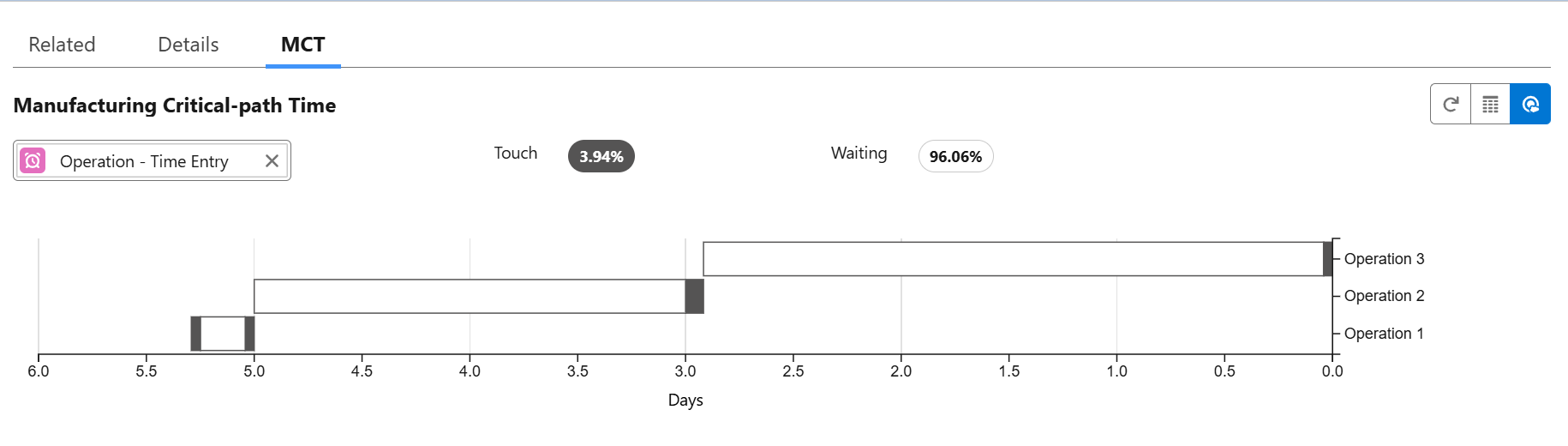
There are two ways in which this can be configured:
Option 1
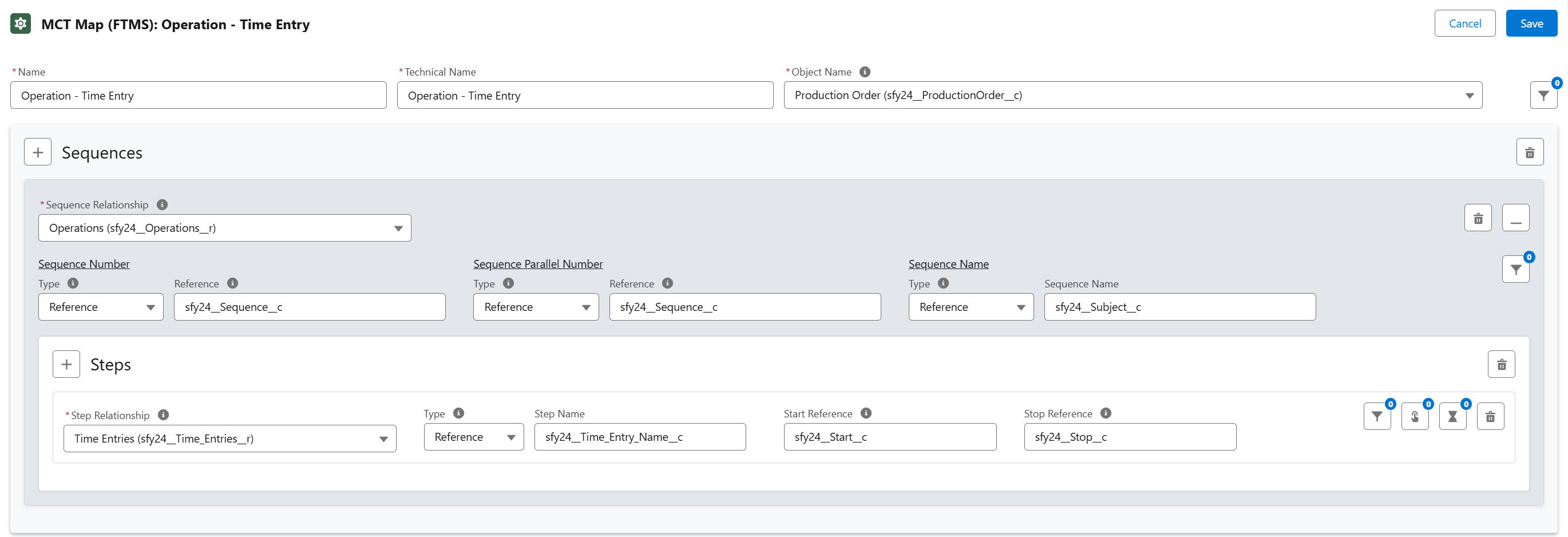
Option 2
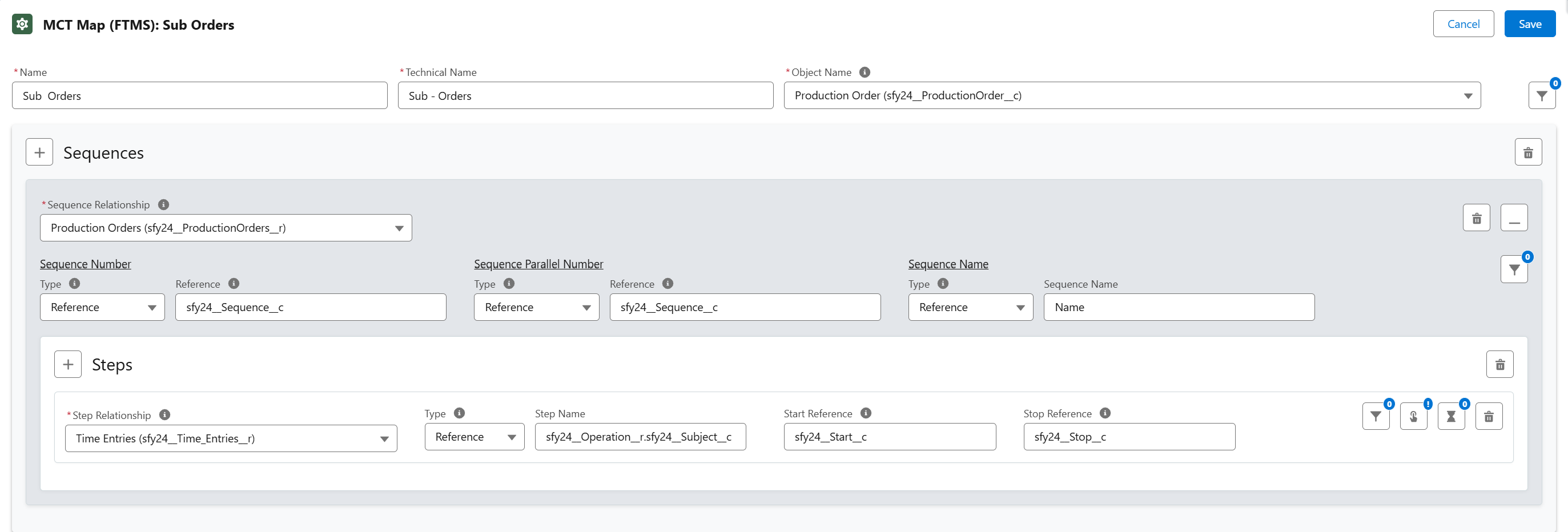
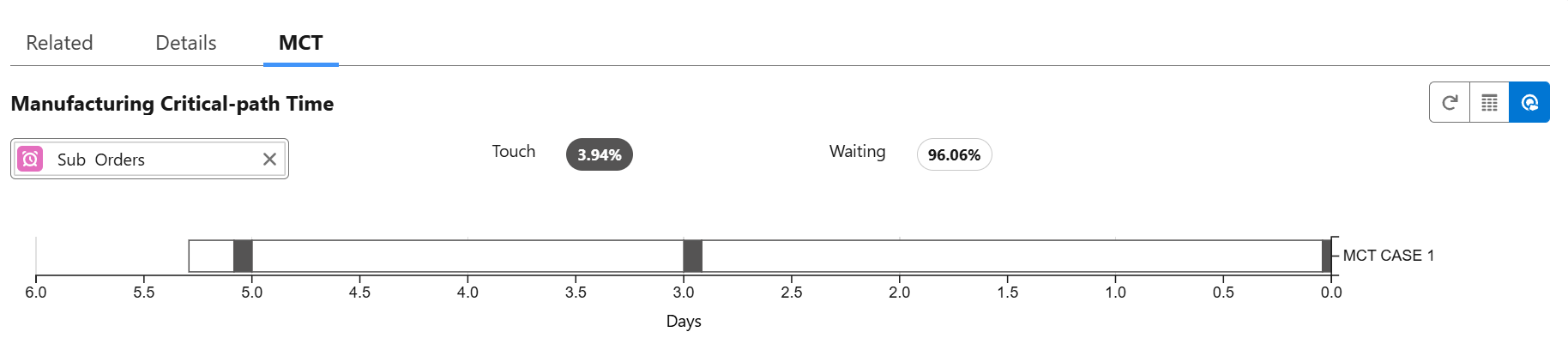
The configurations are pretty similar in both cases, but in the second case the MCT map is shown as one horizontal segment whereas in the first case, the operations are shown as separate line segments.
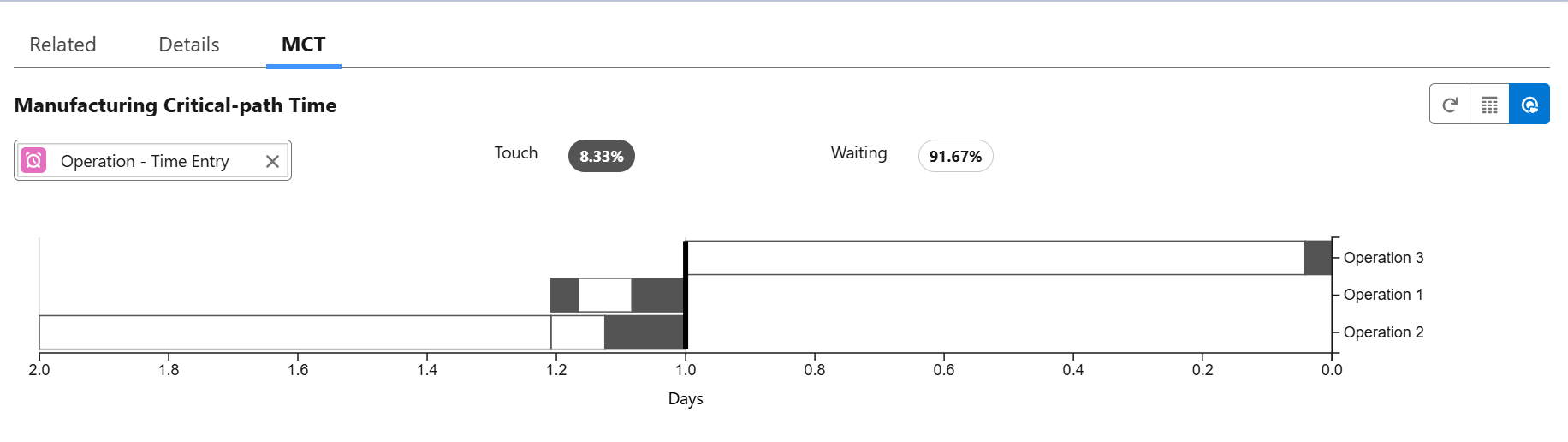
MCT map for a mix of parallel and sequential steps
In this example, we apply the same configuration as in option 1 above.
Operations 1 and 2 have the same sequence number and can be executed in parallel.
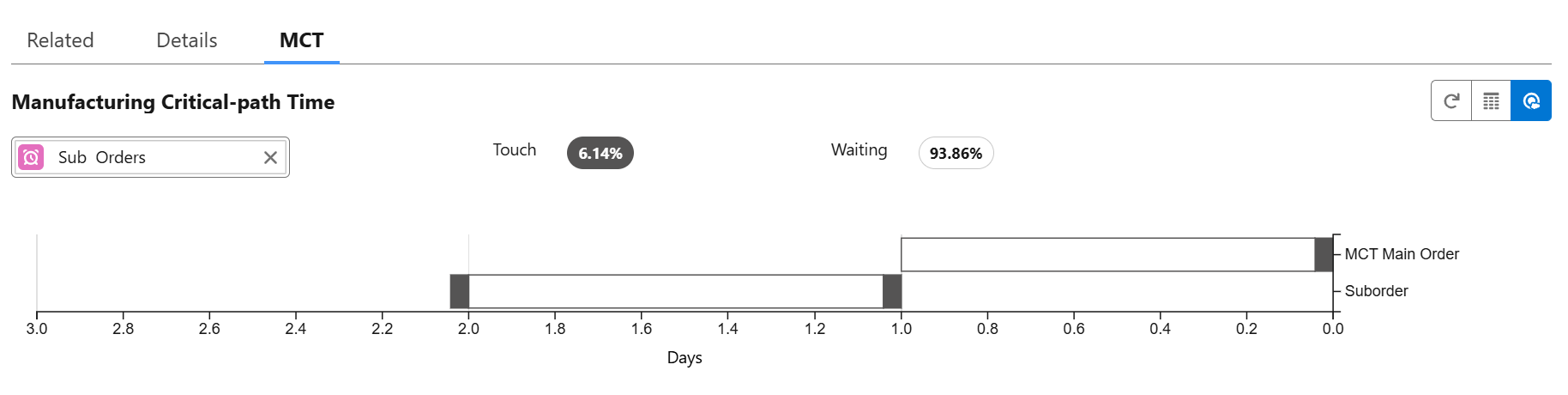
MCT map when working with subassemblies
In this example, we apply configuration option 2 above for a production order with a main order and 1 subassembly.
MCT for a group of production orders
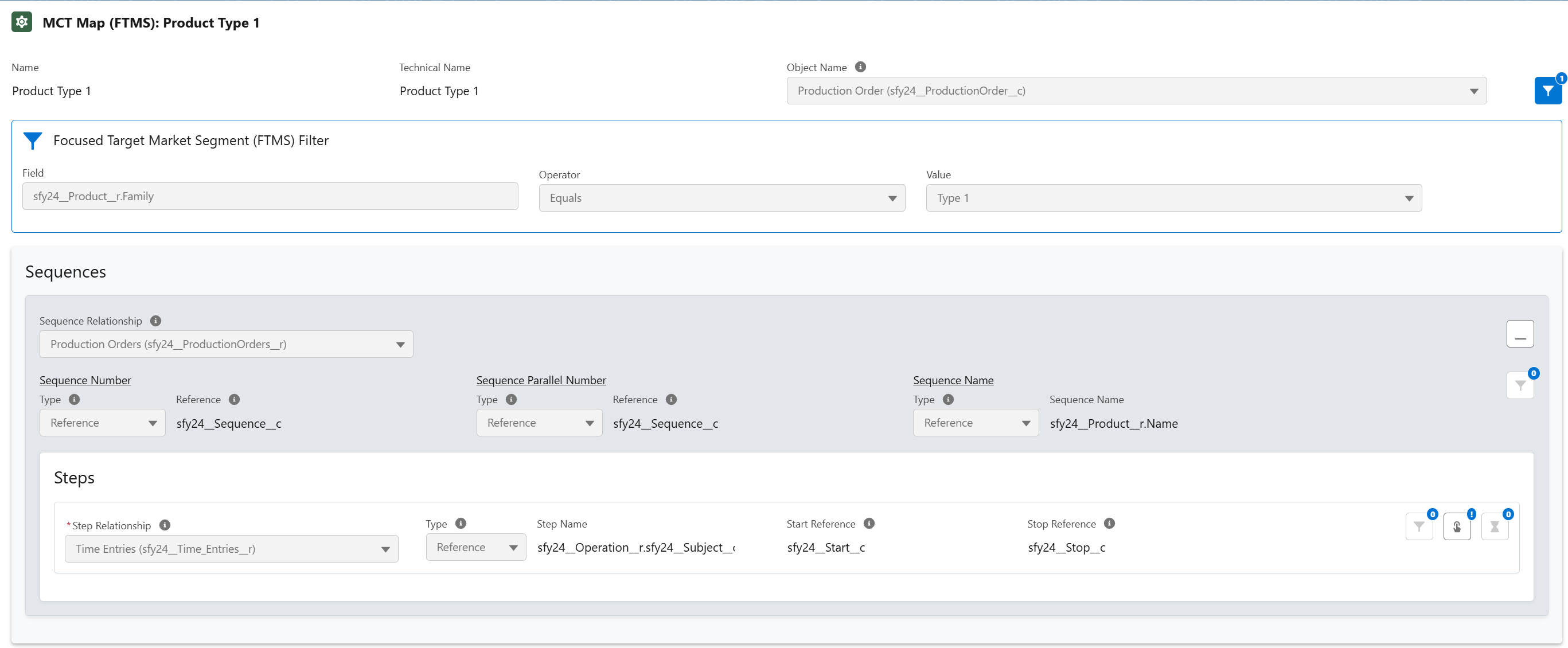
Assume we have several orders of the same production order family, defined via a filter.
When constructing the MCT map for the group of orders, 24Flow will compute the median for each step of the production order and use this as the step size.
In the example below, we have defined a filter for production orders of Type 1.
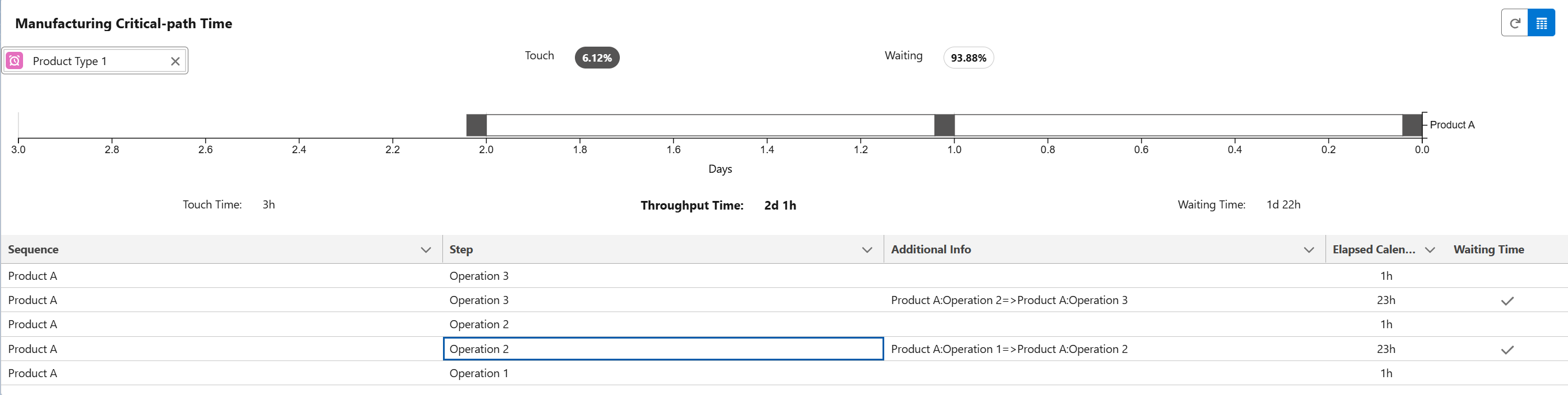

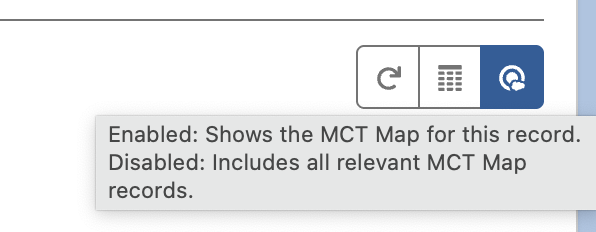
If you have deployed the MCT map on a record page, you should choose the toggle (in blue in the screenshot below), to switch between the MCT map for the specific record and the MCT map for the group of orders (FTMS):
Configuring the QRM number
Assume you would like to track your progress on lead time reduction on a monthly basis. As such you want to compute the QRM number monthly, whereby the MCT of the current period is based on production orders that were finalized over the past 30 calendar days.
In order to accomplish this, apply the following configuration:
Set the QRM Number Baseline Date to that matching the calculation date field of an MCT Calculation record that you want to use as baseline for computing the QRM number.
Apply a filter to the production orders in the MCT Map configuration such that only orders that finished in the last 30 days are taken into account.
Set the Schedule monthly.