
Users and Permissions in Salesforce
Create Users
To create a new user, go to Setup, search for Users and click on New User.
Make sure that the checkbox “Active” and “Flow User” are checked. If you doubt about certain user detail settings, have a look at the user details of existing users.
For User License, use Salesforce or Salesforce Platform.
Salesforce: Administrator users.
Salesforce Platform: All users except administrators.

Note that there are two types of licenses:
24Flow package licenses: assign your users to the 24Flow package license
Salesforce licenses: the 24Flow package licenses consist of a combination of Salesforce and Salesforce Platform licenses.
If you can’t assign a Salesforce or Salesforce Platform license you don’t have sufficient available licenses. Please contact your 24Flow account manager if you need additional licenses.
Create Profiles and Assign Apps
Profiles are used to assign certain apps and page layouts to users. Create a profile if you want one or more users to have visibility on one or more apps which is not yet defined via another profile.
To create a Profile, go to Setup, search for Profiles and click on New Profile.

Please be aware that a profile is linked to license. The relevant licenses are:
Salesforce: Administrator users
Salesforce Platform: All users except administrators.
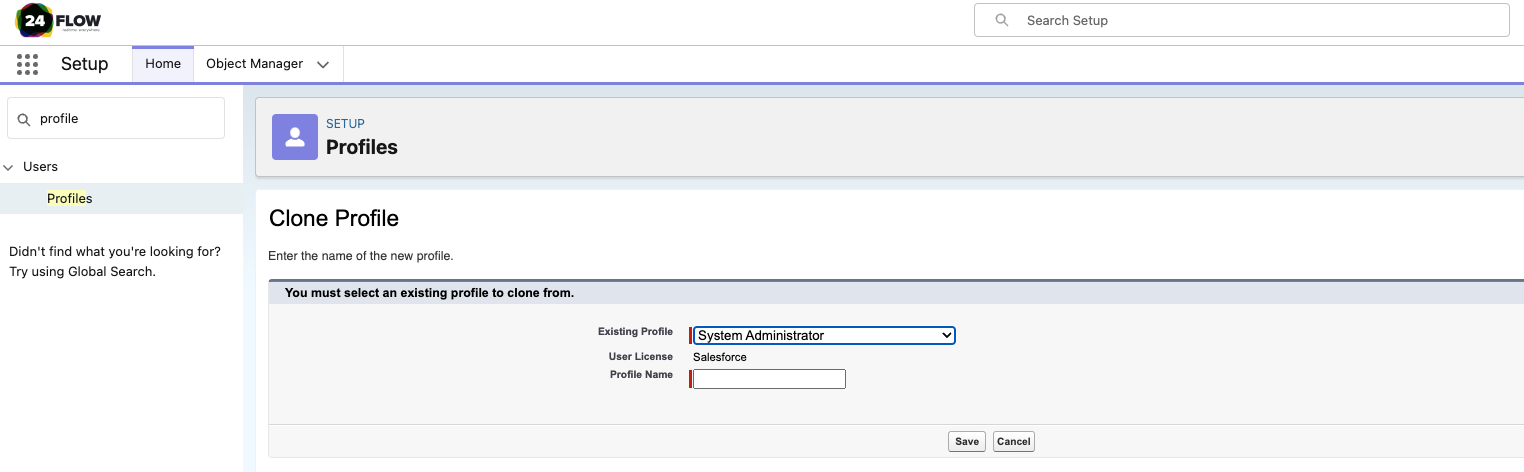
Choose an existing profile to start with. Underneath the User License is shown (see section Create Users for the different relevant licenses).
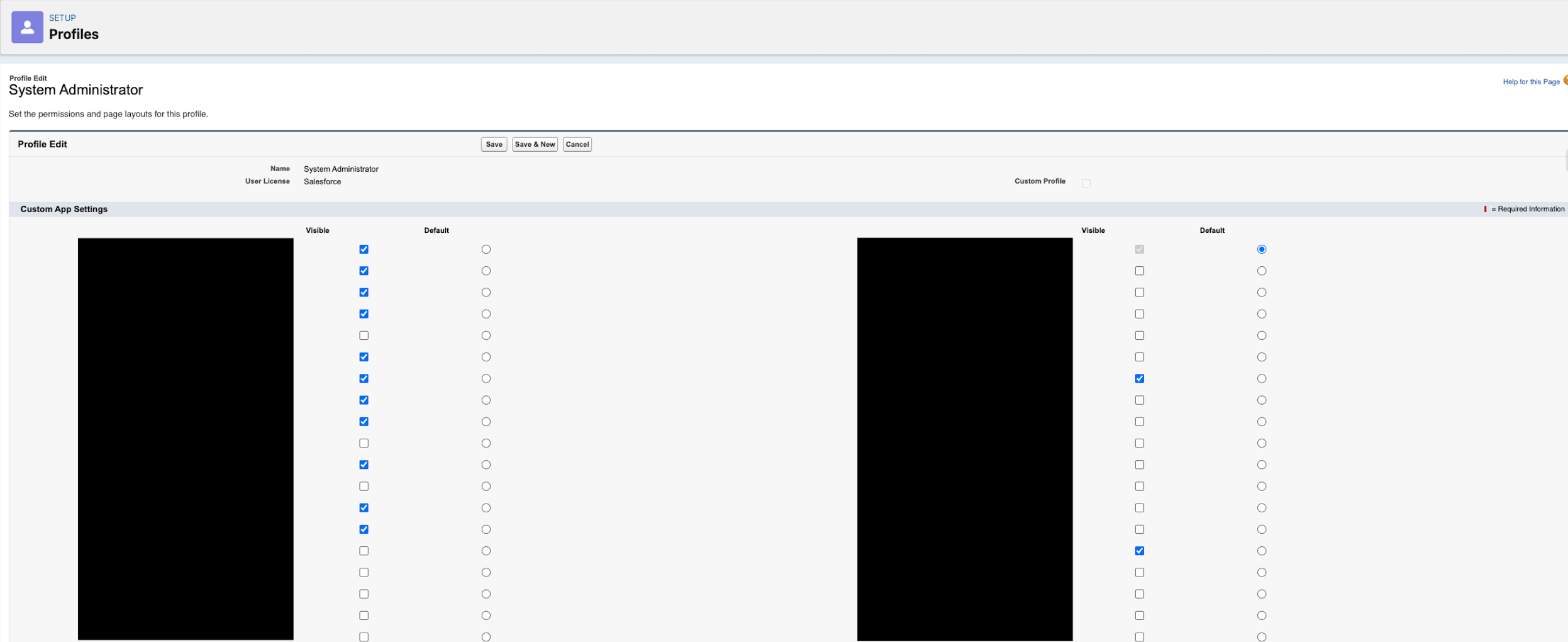
Once your profile is created you can configure it. Choose which apps are visible and which app should be displayed as default (i.e. after login).
Assign a Profile to Users
To assign a profile to a user or to change the profile of a user go to Setup, search for Users and click on Edit. On the right change the Profile.

Fill in or change the profile of a user. Be aware that a profile is linked to a certain license (i.e. “Salesforce or “Salesforce Platform”).
Create Permission Sets
Permission sets are used to define the degree of access users have for objects and their respective fields. You can also set this via the Profile but Permission Set settings will overrule the object settings of a profile. You can have one or more permission sets assigned to a user.
The best practice is the following:
Profile: Used to set your App and Page Layout.
Permission Set: Used to set your Object and Field settings.
To create a Permission Set, go to Setup, search for Permission sets and click on New or start from an existing one by clicking on “Clone”.
Please check the existing permission sets before creating a new one. In most cases there will already exist a permission set that can be assigned to your users.

Create a permission set by creating a new one from scratch or start from an existing one by cloning it.
Please be aware that a permission set is also linked to license. The relevant licenses are:
Salesforce: Administrator users
Salesforce Platform: All users except administrators.
You can only assign a permission set to a user when the assigned profile for that user has the same license as the permission set.
When you have created your permission set, go to Object Settings and configure the accessibility per object.
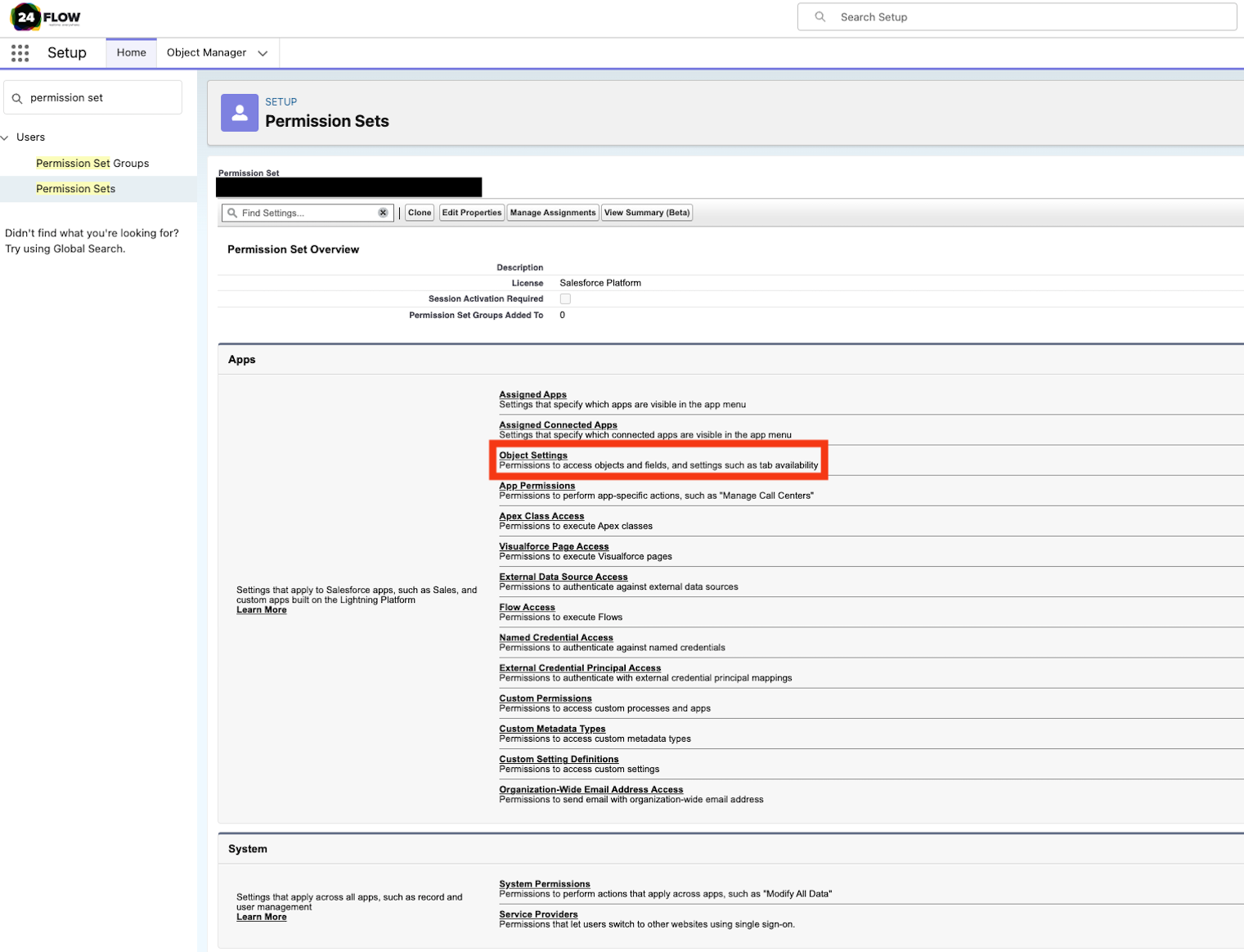
Go the “Object Settings” and configure the accessibility for your relevant objects.
Create Permission Set Groups
A permission set group streamlines permissions assignment and management. Use a permission set group to bundle permission sets together based on user job personas or roles.
From Setup, in the Quick Find box, enter Permission Set Groups, then select Permission Set Groups.
Click New Permission Set Group.
Enter a label and description for the permission set group, and save your work.
To see your new permission set group in a list view, from Setup, select Permission Set Groups again, then from the list view dropdown menu choose All Permission Set Groups.
To delete a permission set group, select the permission set group in the list view to open the Permission Set Group detail page, then click Delete.
Add Permission Sets to a Permission Set Group
After you’ve created a permission set group, you can add permission sets to the group based on the needs of a particular user job role or persona. Create a customized view to filter the permission sets that can be added to a group.
From Setup, in the Quick Find box, enter Permission Set Groups, and then select Permission Set Groups. Click the permission set group name in the list view.
In the Permission Set Group detail page, under Permission Sets, click Permission Sets in Group.
Click Add Permission Set. You can add up to 100 permission sets to a permission set group.
On the Add Permission Sets detail page, select the permission sets that you want to add to the group, and click Add.
Click Done. When the update is complete, the permission set group status changes to Updated.
To filter the list of permission sets that are available to be added to the group, on the Add Permission Sets detail page, click Create New View.
Specify options for view name, filter criteria, fields, and visibility, then click Save.
To open a customized view, select it from the View dropdown menu.
You can see all object, user, field, and custom permissions that are included in the permission set group on its summary page. On the permission set group’s detail page, click View Summary.
Remove Permission Sets from a Permission Set Group
If you no longer need a permission set in a permission set group, you can remove the permission set from the group.
From Setup, in the Quick Find box, enter Permission Set Groups, and then select Permission Set Groups. Click the permission set group name in the list view.
In the Permission Set Group detail page, under Permission Sets, click Permission Sets in Group.
Select the permission sets that you want to remove from the group.
Click Remove Permission Sets.
Click OK to confirm the change, and click Done. When the update is complete, the permission set group status changes to Updated.
Assign Permission Set Groups to Users
After you create a permission set group and add permission sets to it, assign the group to users.
If permissions in the group require a permission set license, assign the permission set license to users before you assign the group to them. You can also assign permission set groups to a single user on the user’s detail page in the Permission Set Group Assignments related list.
From Setup, in the Quick Find box, enter Permission Set Groups, and then select Permission Set Groups. Click the permission set group name in the list view.
Click Manage Assignments and then Add Assignments.
Select each user to whom you want to assign the group, and then click Next.
Optionally, select an expiration date for the user assignment to expire.
Click Assign. When the update is complete, the permission set group status changes to Updated.
You can also remove permission set group assignments from the Manage Assignments page.
Assign Permission Sets to Users
You can assign permission sets to a single user from the user detail page or assign multiple users to a permission set from any permission set page.
To add a permission set for a user, go to Setup, search for Users and open the relevant user. You will find section Permission Set Assignments right below the section User Detail. Add your permission set by clicking on Edit Assignments.
Please be aware that a permission set is also linked to license. The relevant licenses are:
Salesforce: Administrator users
Salesforce Platform: All users except administrators.
You can only assign a permission set to a user when the assigned profile for that user has the same license as the permission set.