
Time Tracking
The Time Tracking Flow is a component of the 24Flow package, enabling efficient tracking of time spent on operations and tasks. Below is a structured explanation of its key aspects.
Time Tracking building blocks
For each time tracking session initiated, a Time Entry record is created. When the session is stopped, all relevant information is saved within this record. The details captured depend on the context and are defined by the Time Activity object. In summary, each time tracking session generates a Time Entry, and its type is determined by the associated Time Activity object.
Time Entries
A Time Entry record contains all relevant details of a time tracking session. It is created when a session starts and is completed when the session ends. The following fields are available in a Time Entry record:
Time Entry : An auto generated name.
Time Entry Name: automatically generated upon creation of a time entry through an after insert trigger.
Start: Date/time when the time registration started.
Stop: Date/time when the time registration stopped.
Stop Type: The stop type of the time entry, defined by the stop type of the underlying time activity.
Duration Hours: The time between start and stop, expressed in hours.
Quantity Completed: If relevant, the quantity completed during this time tracking. (This is copied to the operation, When multiple time trackings are executed on the same operation the quantities are added).
Quantity Required: The total required quantity as defined on the operation.
Percentage of completion: A slider that can be set to a certain percentage. This value is copied to the operation when the time tracking is stopped. E.g. When the progress was set to 80% on an operation and a new time tracking on the same operation is initiated, the progress will automatically be set to 80%.
Completed: A flag indicating whether the task is completed.
Comment: If relevant, comments provided by the employee.
Time Activity: The time activity on which this registration was logged.
Employee: The employee that logged the time registration.
Production Order: The production order on which this registration was logged.
Operation: The operation on which this registration was logged.
Time Activity
Time Activities define the type of Time Entry through a lookup relationship. Four types of activities are available, as specified by the Stop Type field:
None (Default): No specific type is assigned.
Quantity: Captures the quantity processed during the session. If the processed quantity matches the required quantity, the operation status is set to "Finished."
Finished: Indicates that the operation is complete. Checking this flag automatically sets the operation status to "Finished".
Progress: Tracks the percentage of completion. When progress reaches 100%, the operation status is set to "Finished".
Additional Fields of Interest:
Active: Checkbox indicating if the time activity is available in the time tracking component.
Activity Icon: An icon representing the time activity. Use Salesforce Lightning Design System Icons for icon selection.
Require Input at Stop: Ensures that fields like quantity or progress must be filled before stopping a session.
Update Operation Status: Automatically updates the operation's isFinished status based on time entry input.
How to use the Time Tracking component
Custom Metadata Types Setup
The configuration of the time tracking component is managed via Custom Metadata Types.
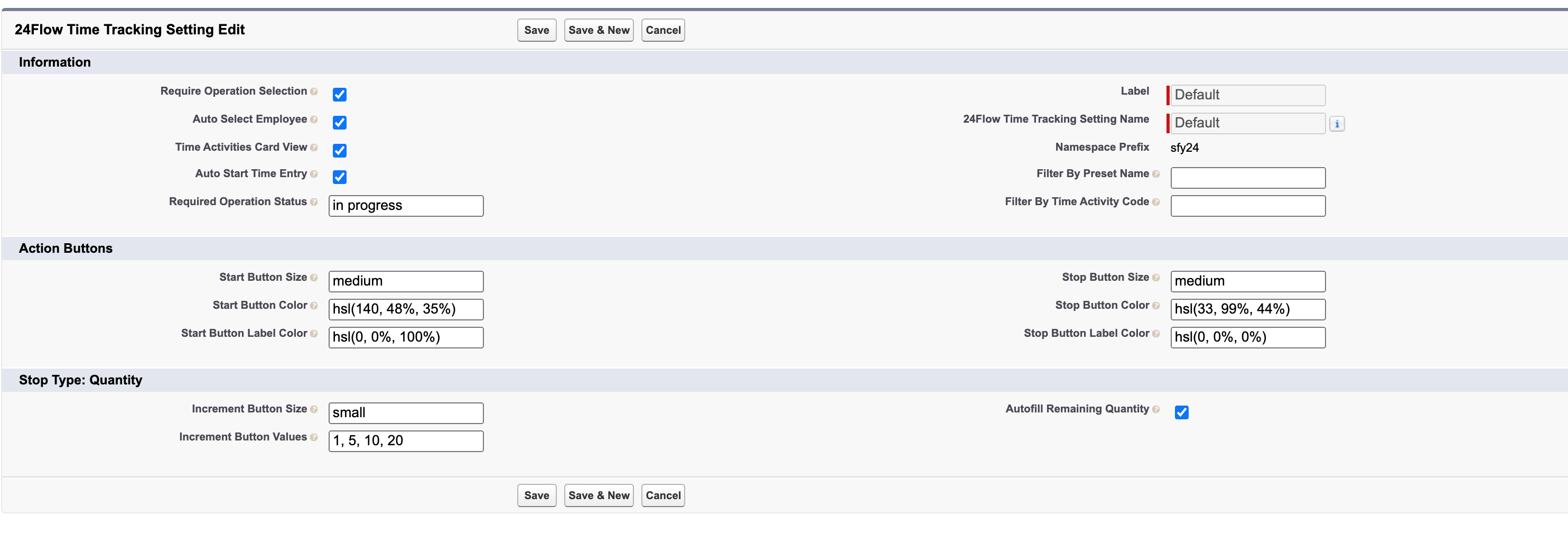
Require Operation Selection: Ensures time tracking cannot start without selecting an operation. When this box is unchecked, time can be logged on an employee without linking it to an operation. However, an employee must always be selected.
Auto-Select Employee: Automatically links the logged-in Salesforce user to the time tracking entry. This requires the Salesforce user to be associated with an employee record (Salesforce user is linked via the field ‘user’ on the specific employee record). If the user is not linked to an employee, an error is displayed. When unchecked, users can manually select from a list of employees assigned to the operation.
Time Activities Card View : When enabled, Time Activities are shown as cards. Otherwise , a dropdownlist is presented
Auto Start Time Entry : Time Tracking will start automatically after selction of Time Activity.
Required Operation Status : When blank, Time Tracking is possible for operations of all statuses. In the example (image), time tracking will only be possible for operations that are in progress.
Label : Name of the Time Tracking setting
24Flow Time Tracking Setting Name : The API name
Filter By Preset Name : To filter the shown time activities by preset, one of the activity preset names is entered here.
Filter By Time Activity Code : To filter the shown time activities, enter one or more time activity codes, separated by commas.
Action Buttons : Setting to manage the size and color of the start and stop button size.
Stop Type Quantity : Settings to manage the size, amount and values of the increment button size in case the time activity is of type quantity.
The different types of Time Activities need to be created. Only create the types needed (e.g., Quantity, Progress) for the desired time tracking functionalities.
By using Time Activity Presets and Time Activity Preset Junctions, you can control which time activities are available in the Time Tracking component, ensuring more tailored and efficient time tracking. Hence it would be possible to show a different collection of time activities, depending on the page/setting you are on. This could be useful when certain operations require a different approach to capturing time.
Time Activity Preset
Via the Time Activity preset you define which time activities can be selected and which time activity (if any) is selected by default.
Name: The name of the Time Activity Preset. The name will be used to link it to a Time Registration component.
Default Option: Which time activity (if any) should be shown as default on the Time Registration component. You will first need to add Time Activity Preset Junction records to the Time Activity Preset record (see next section).
Time Activity Preset Junction
Via the Time Activity Preset Junction records you can link Time Activity Records to a Time Activity Preset.
Time Activity: The time activity you want to enable on the Time Registration component.
Time Activity Preset: The time activity preset for which the time activity will be present.
Modes of use
Several options are available for interacting with the time tracking component, depending on the context. Some of these options are configured through custom metadata types, while others are determined by the specific location and use case within 24Flow. The time tracking component can be utilized alongside the Team Cockpit or directly on the page of a specific operation record.
Team Cockpit
The steps required to use the component depend on the configuration of custom metadata settings.
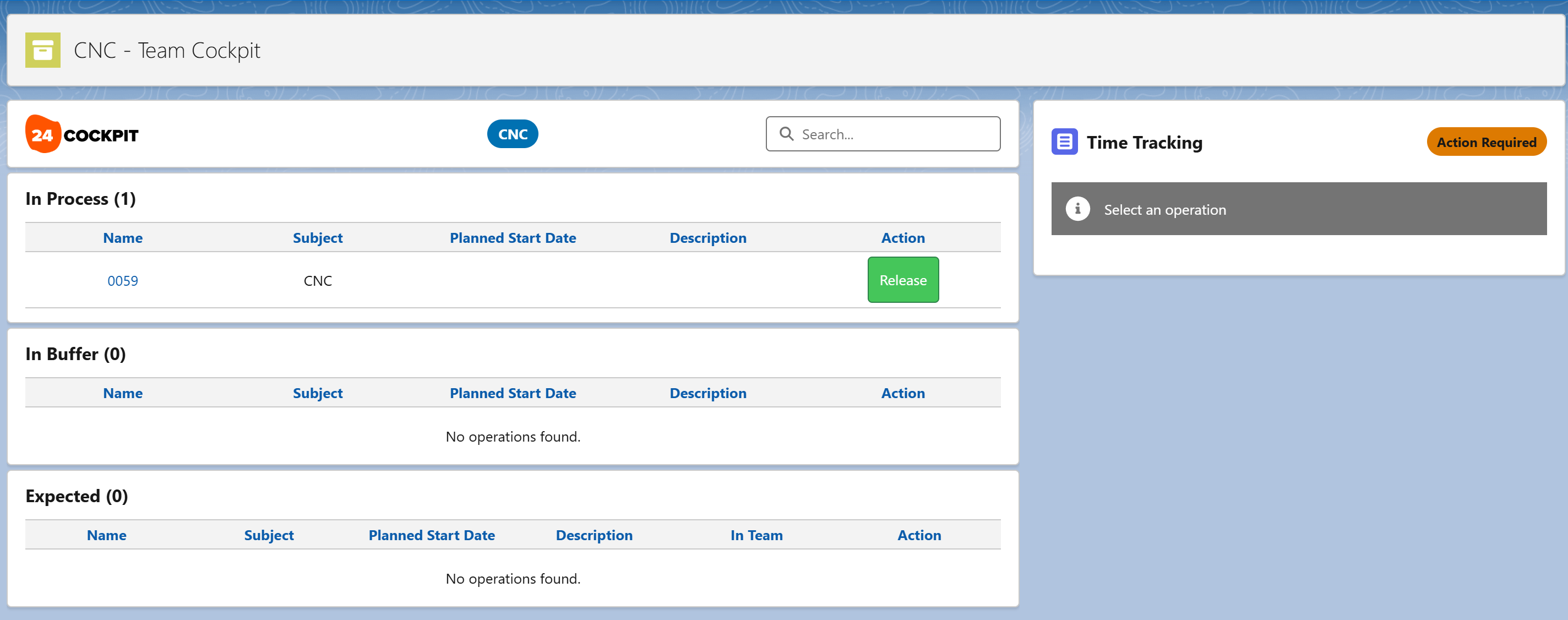
If the Operation Required is checked, users must select an operation before starting time tracking. The component will display a prompt with the message “Action Required” and “Select an Operation” (these messages are customizable). If this setting is disabled, selecting an operation is optional, but still possible.
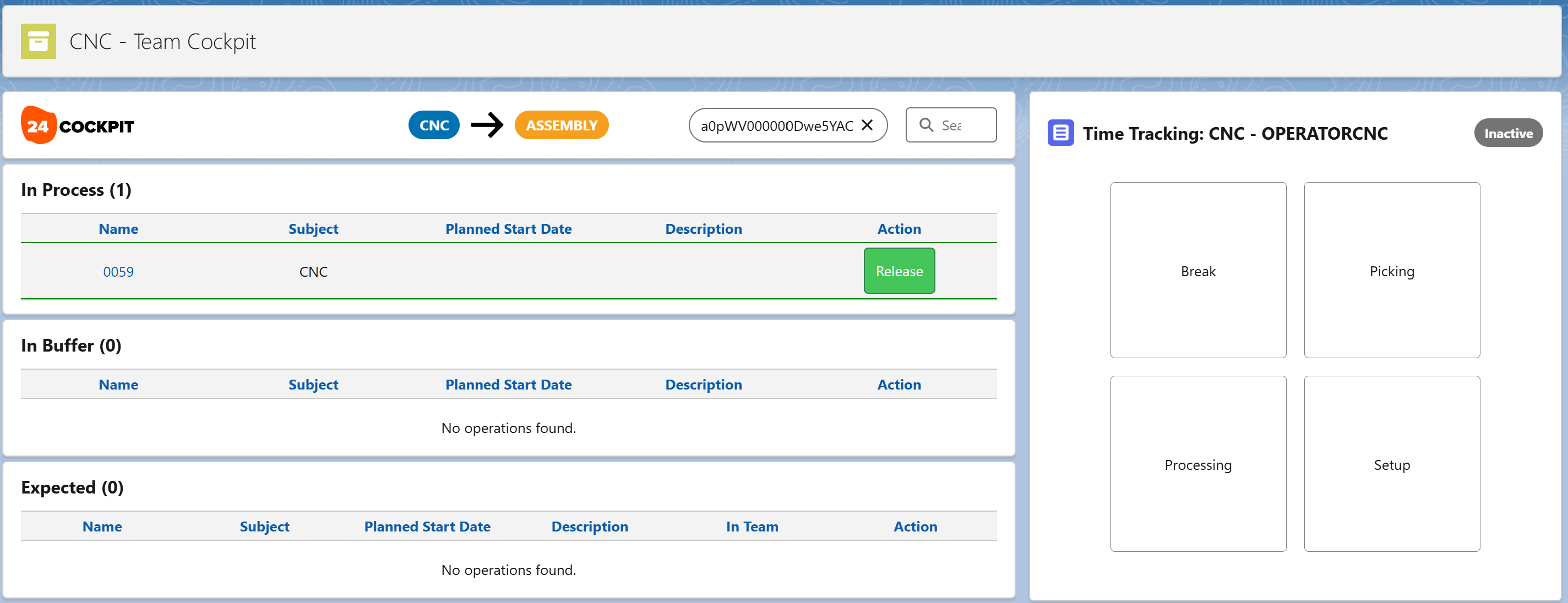
When the Auto-Select Employee is enabled, the system automatically links the logged-in user to the time tracking session. This eliminates the need to manually select an employee, simplifying the process. When this setting is active, the available time tracking options are immediately displayed, and a Time Entry object is created upon selection. The component also shows the subject of the operation and the employee assigned to the time tracking session.
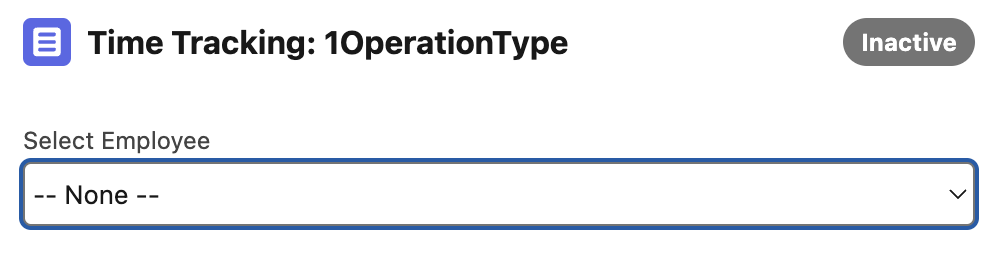
If Auto-Select Employee is disabled, users must manually select an employee from a list of team members responsible for the selected operation. After selection, the same screen will be shown. Only those employees who are part of the team that is responsible for the selected operation can be picked.
An employee can work on multiple tasks at the same time. However, the system prevents an employee from starting a new time tracking session for an operation they are already tracking. Instead, the component redirects them to their active time entry.
It is also possible for multiple employees to track time on the same operation concurrently.
The visualization of the different possibilities are shown below. Other necessary information can be saved through the comment field.
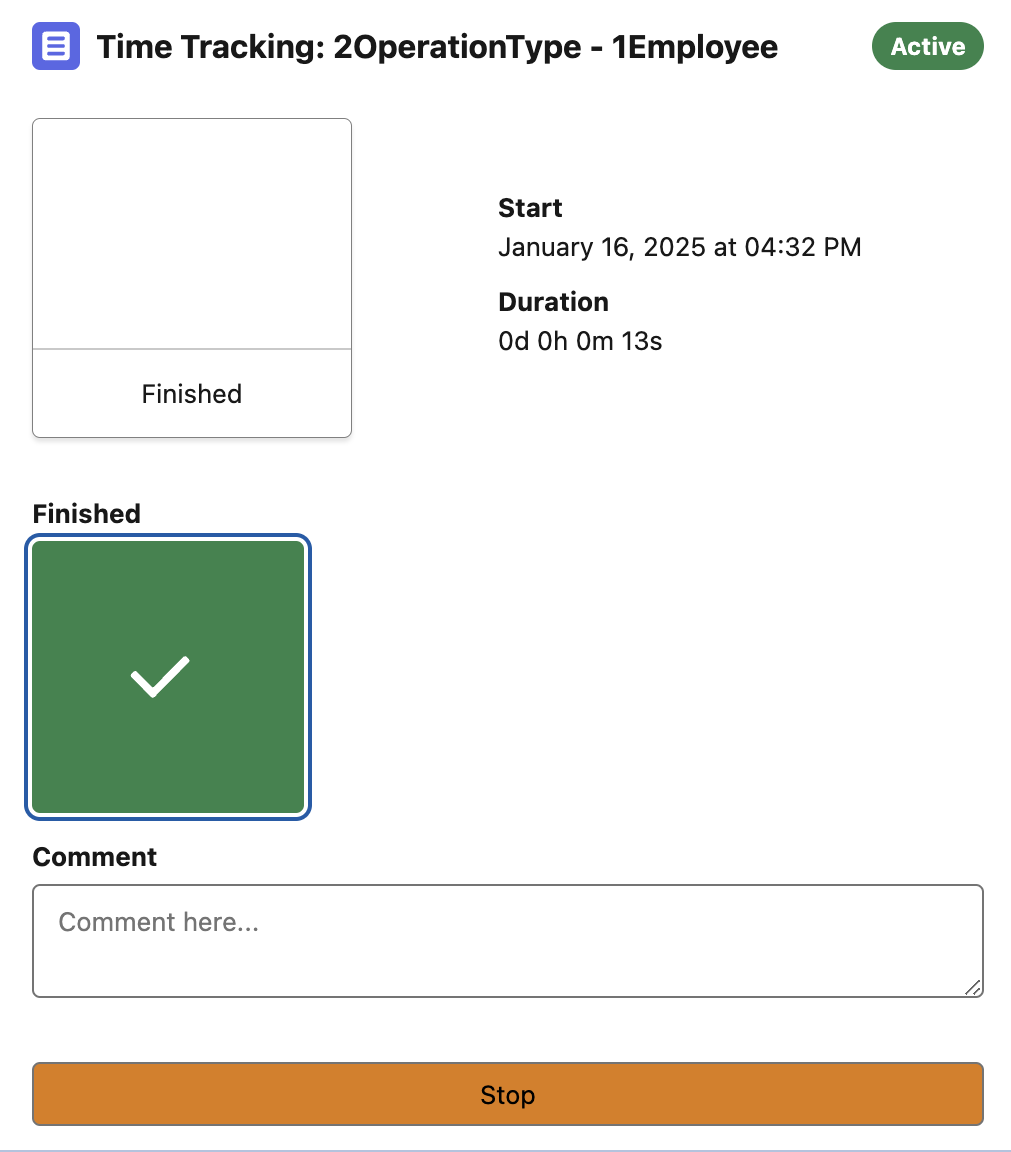
Finished (already set to True)
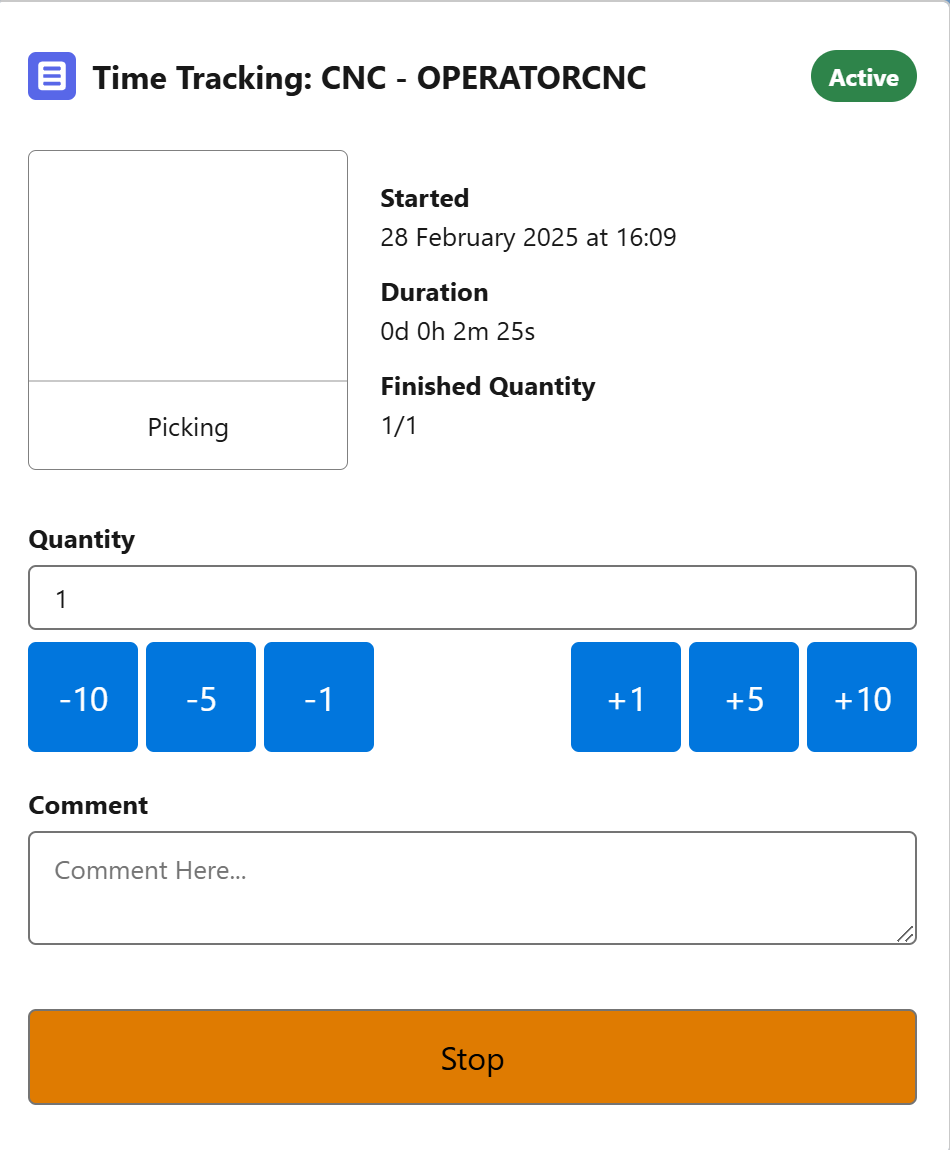
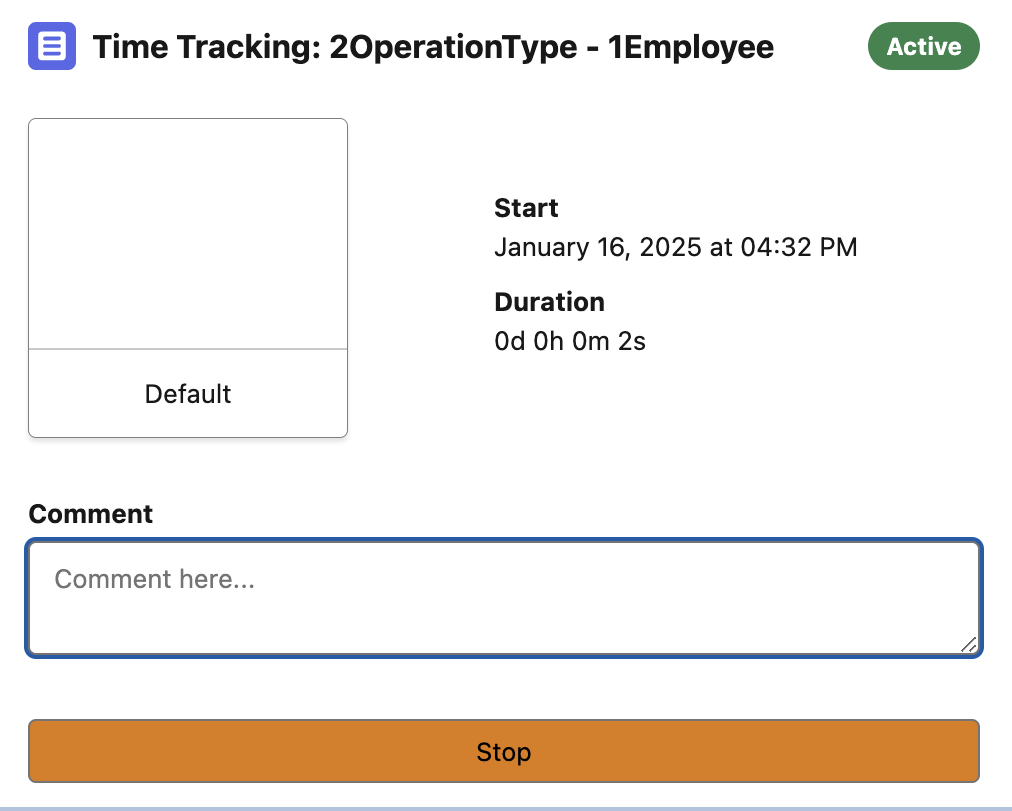
Set up
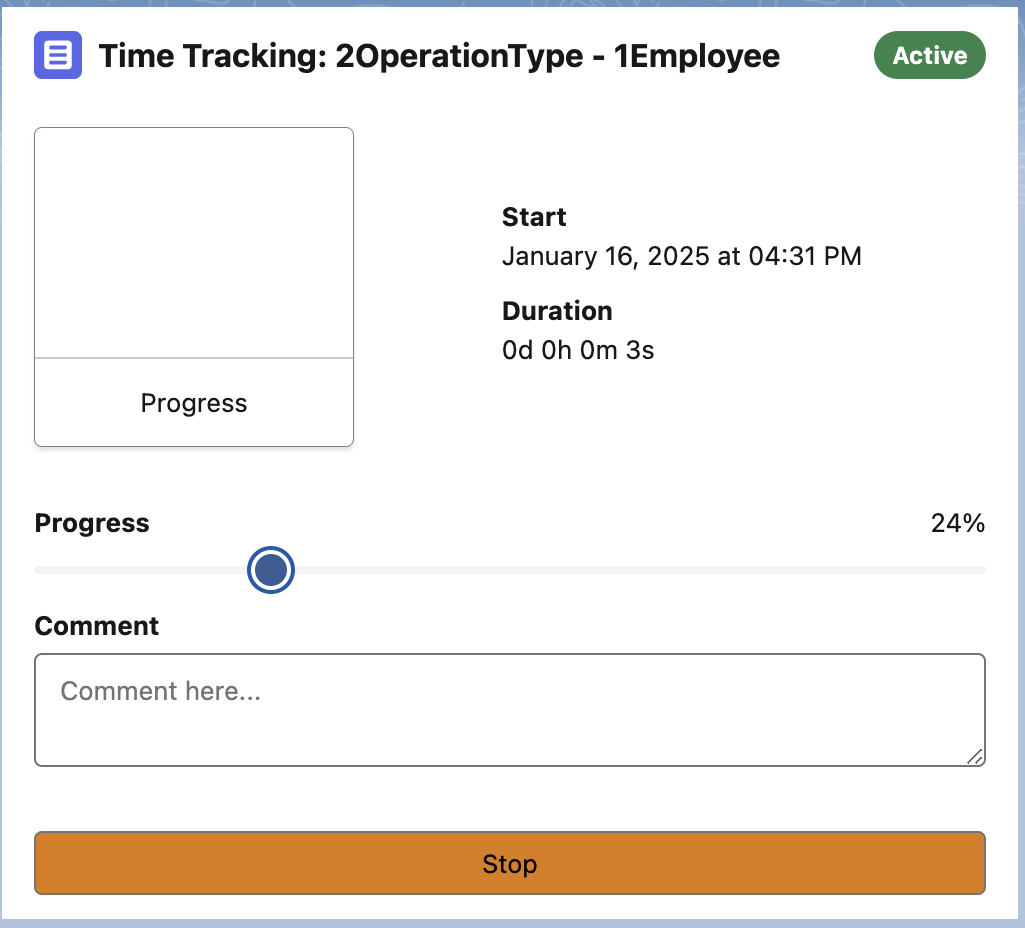
Progress
Operation Record
With the setting ‘Operation Required’ set, the time tracking component can also be used on the page of an operation record, as this operation will automatically represent the operation that is being measured. The functionalities remain the same.
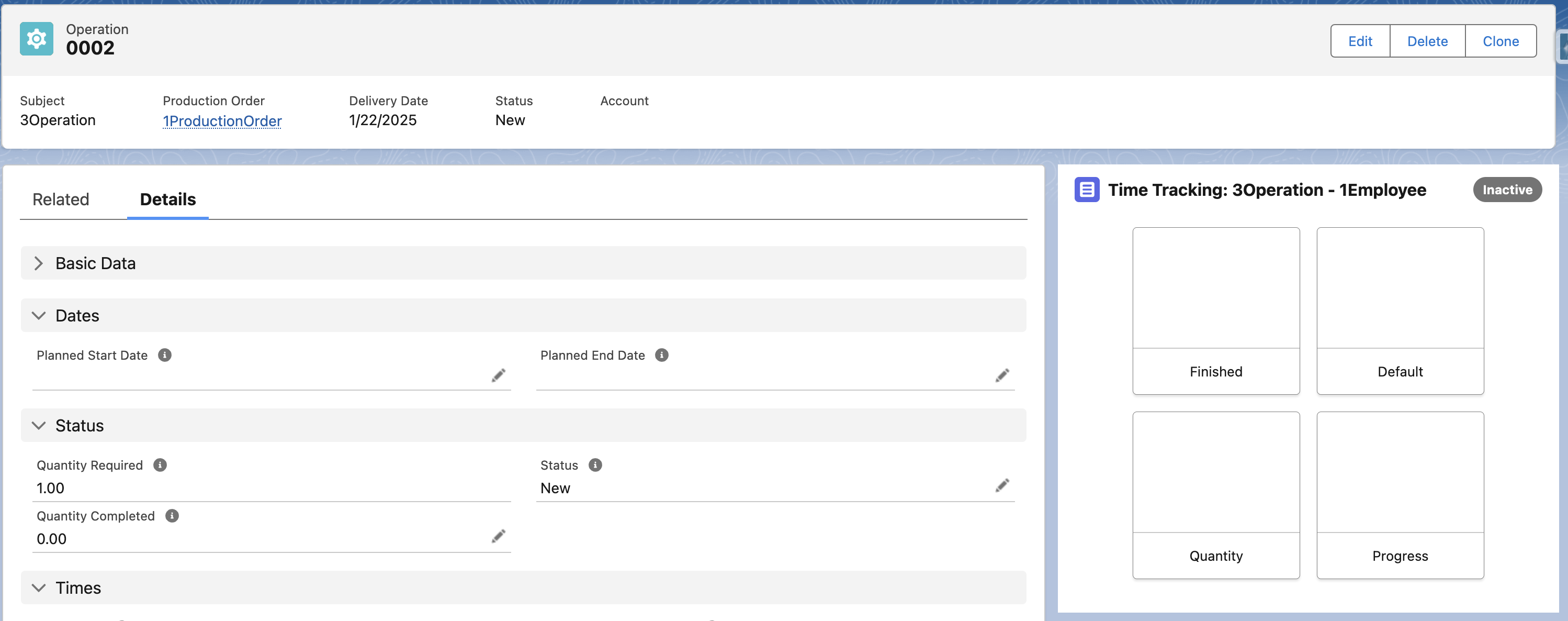
Template Flow
This component is powered by the X24Flow_Time_Tracking screen flow, which is included in the managed package as part of 24Flow. The flow can be customized further to align with the specific context and needs of the user, ensuring a flexible and tailored time tracking experience.
Use Cases
Use Case 1: Multi-Operator Work Cells with Finished Status Tracking
Scenario: Multiple employees work at the same station, each tracking their time on specific operations. It is important to capture the time each individual employee is busy with an operation. Operations require confirmation when completed. If an operation is not marked as finished when the time tracking ends, it is considered incomplete, and progress is nullified and not recorded.
Configuration:
Disable Auto-Select Employee to allow operators to manually select an employee, this could be done by supervisors as well.
Require Operation Selection to ensure time is tracked against operations.
Use the component within the Team Cockpit for structured tracking.
Time tracking type: Finished.
Alternative: If multiple operators are assigned to a workstation and it is of no interest how much time a particular employee is working on an operation, enable Auto-Select Employee to simplify the process.
Use Case 2: Long Operations with Progress Tracking and Breaks
Scenario: A single operation spans multiple days, requiring detailed progress tracking. Operators may take over tasks from others, so clear progress updates and comments are essential. Breaks must also be tracked separately.
Configuration:
Disable Auto-Select Employee to allow tracking of individual operators.
Do not require Operation Selection in order to enable tracking for non-operation activities, such as breaks.
Time tracking type: Progress to allow percentage completion updates.
Require Comments to provide details about work progress or to label a session as a "break."