
Team Cockpit Setting
Configure a Team Cockpit Settings Page
Via the Team Cockpit Settings page you can configure the behavior and the layout of Team Cockpits. A Team Cockpit Settings page can be applied to one or multiple Team Cockpits and every Team Cockpit can have the same or a specific Settings page associated with it.
To create a new Team Cockpit Settings page, navigate to the 24Flow Settings app, select the tab Team Cockpit Settings and click on “New”.
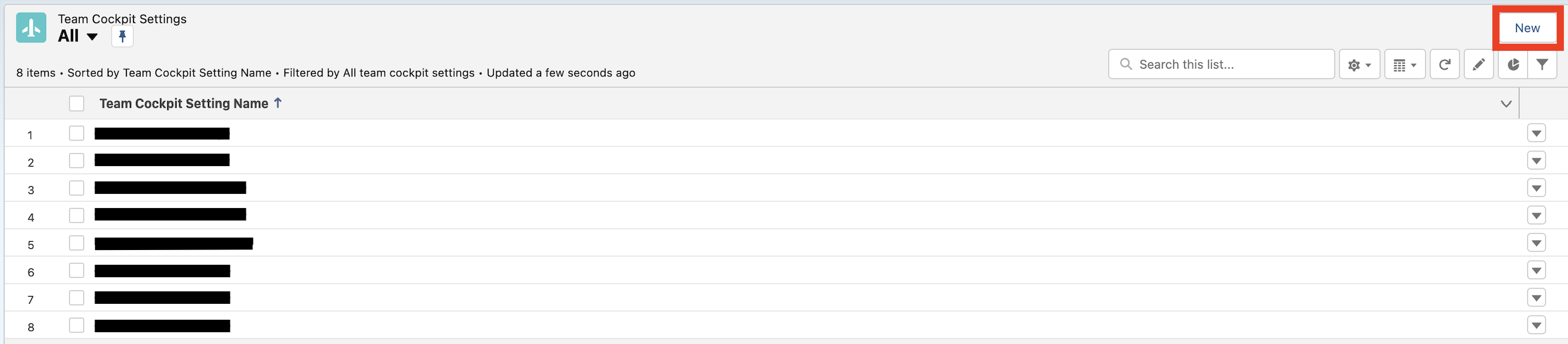
An overview of all Team Cockpits Settings records. On the top right click on “New” to create a new settings record.
General Settings
Name: The name of the Team Cockpit Setting. This will be used as a reference to link it to one or more Team Cockpits.
Show Progress Bar: Show a progress bar for operations / operation routings. The progress is computed as (actual operation duration)/(estimated duration) and provides an indication of how far the Operations have progressed.
Pill size: You can choose the size of the pill in Team Cockpit. The pill color is the color configured on the corresponding Team record.
View Type:
Operation: Choose to only display the operation records.
Operation Routing: Choose to show the operation routing and the underlying operation records.
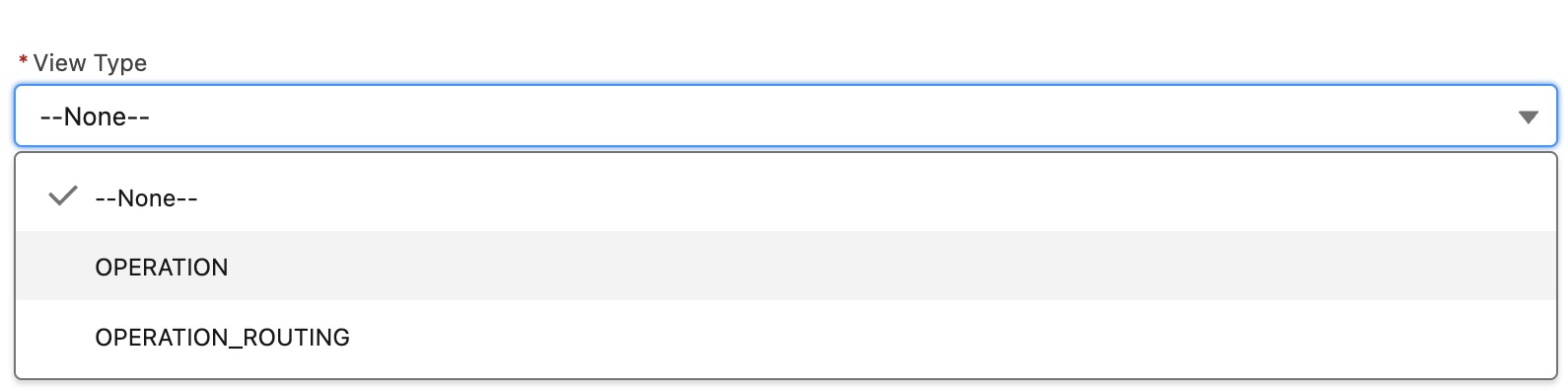
Choose your View Type for each Team Cockpit Settings record.
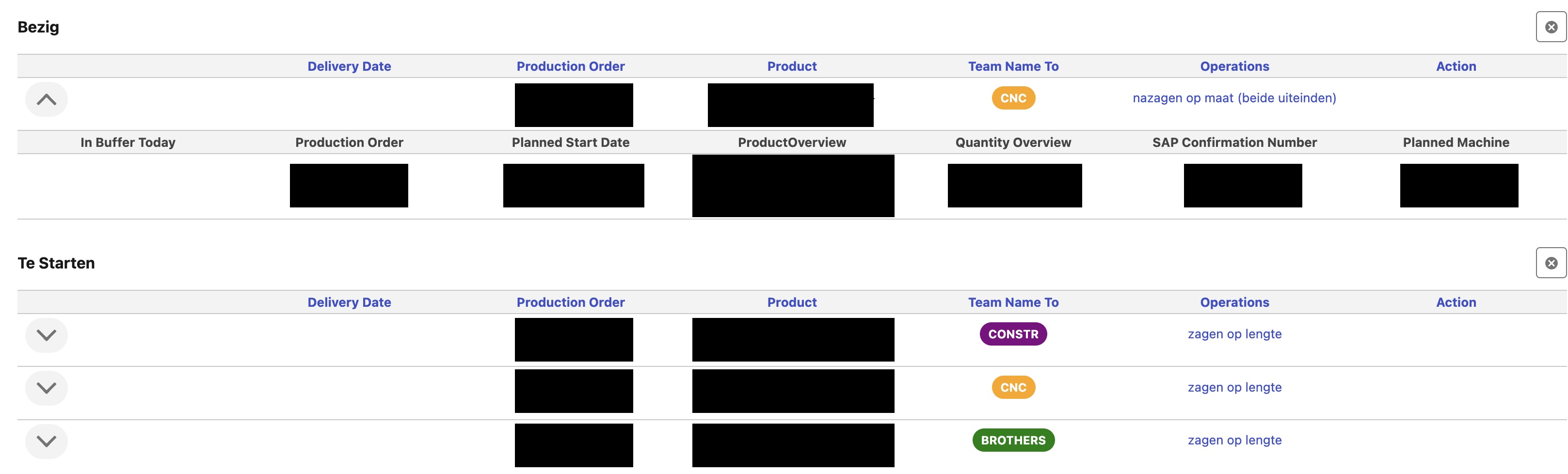
Team Cockpit when View Type = Operation Routing. Expand the operation routing row to see the related operations.
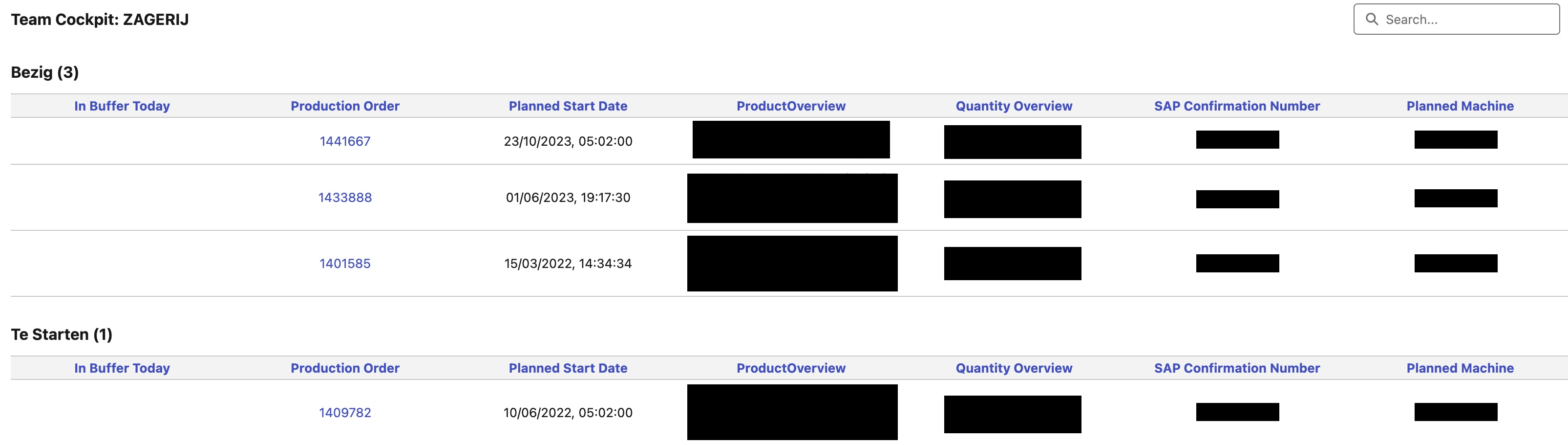
Team Cockpit when View Type = Operation Routing. Each Operation is displayed in the status of its Operation Routing.

Depending on whether the VIEW TYPE is OPERATION or OPERATION ROUTING, you will see different parameters on the Team Cockpit settings page
In case you are using the VIEW TYPE Operation Routing, it may still be handy to see a summary of the underlying Operations at the Operation Routing level. This is done using the following 2 parameters:
Operations Summary Column nr: Only applicable in case the View Type is OPERATION_ROUTING. Determines the column where the Operations Summary is shown.
Operation Column Label Field: Only applicable in case the View Type is OPERATION_ROUTING. Defines which field on the object Operation you want to show as summary field on each operation routing row. Most commonly, the field Subject is used as this is a descriptive name of the Operation(s).
Selected Operation Pill Name Field: When you select an operation in a Team Cockpit, a pill will appear. Via this setting you can define the content of the pill, e.g. the operation name or the name of the production order.
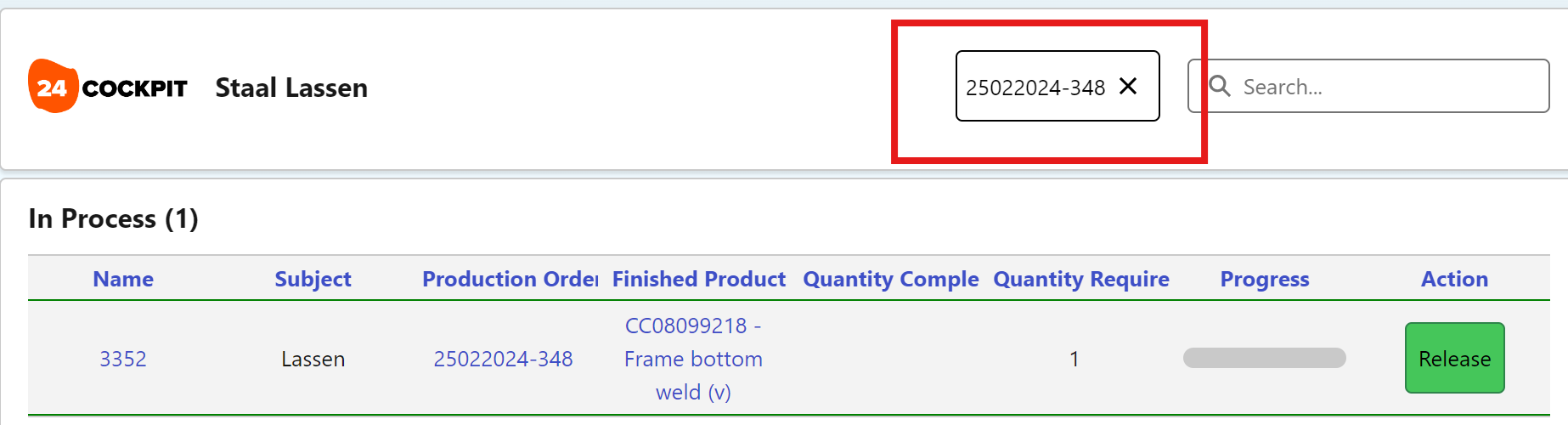
Action button size: You can choose the size of the action buttons in Team Cockpit.
Pill color configuration
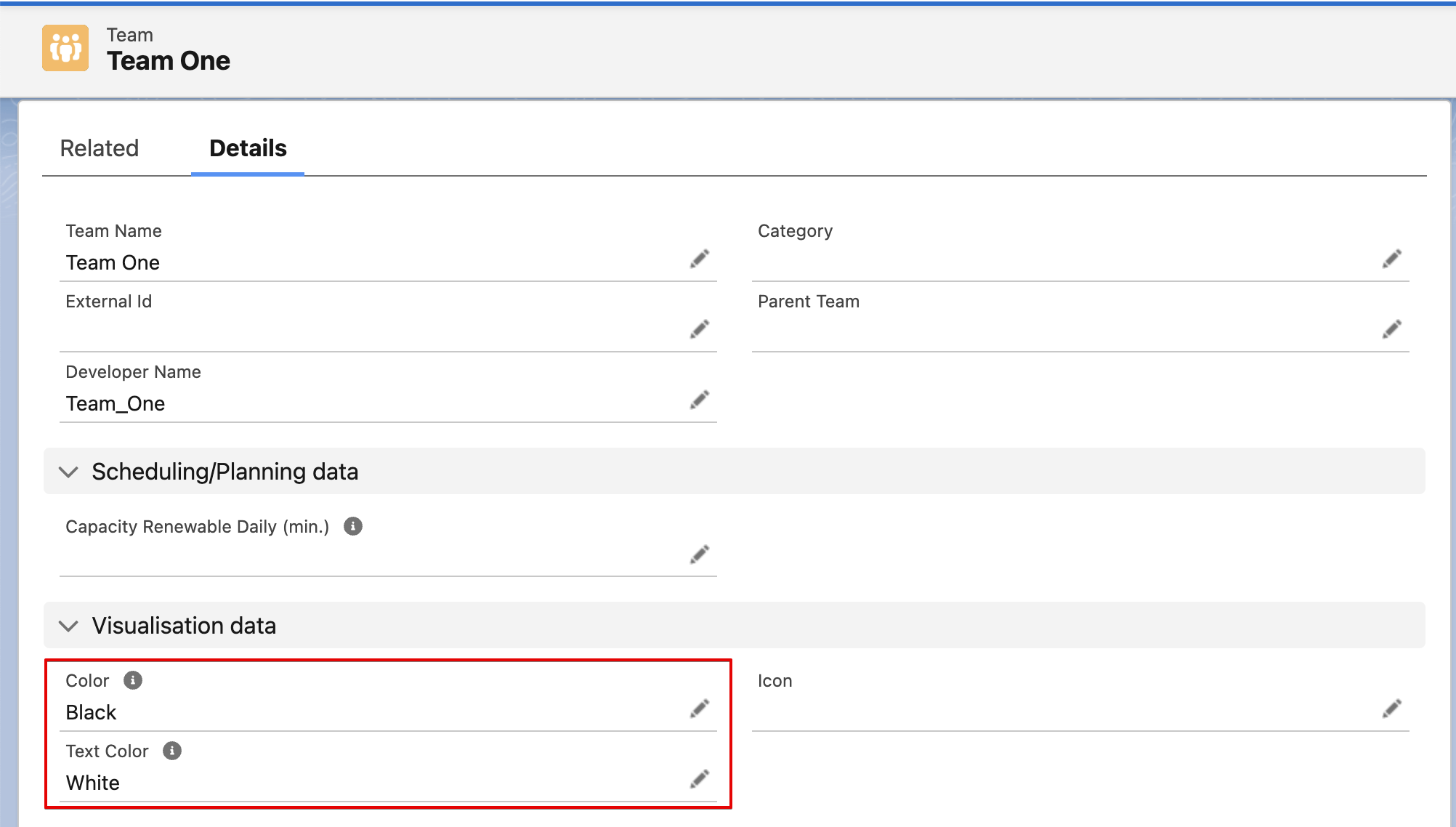
The pill color is the color configured on the corresponding Team record.
To configure it, go to the Team record and edit the color field.
This will change to background color of the pill.
In addition, also the text color of the pill can be changed by editing the text color field.
Select Operation Routing Fields
Select the Operation Routing fields that you want to be displayed as columns in the Team Cockpit, in case the View Type has been set to OPERATION_ROUTING.
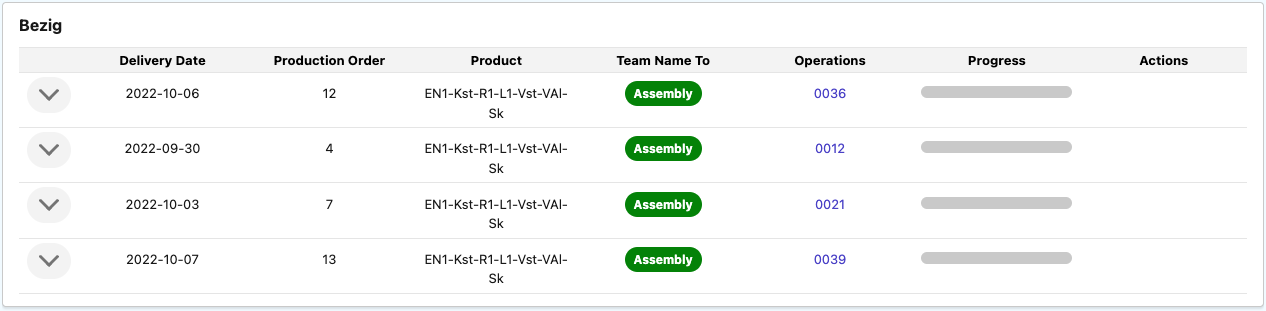
In this example, the following Operation Routing fields have been selected: Delivery Date, Production Order, Product, Team Name To. The operation label chosen in Operation Column Label Field is the Operation Name in this case (i.e. 00xx).
Select Operation Fields
Select the fields of the object Operation that you want to see displayed in the Team Cockpit for the underlying operations of each operation routing.
The number of fields that can be shown in the Operation Routings and Operations sections of the Team Cockpit is by default set to 7. This ensures maximum readability and avoids an overload of information for operators. On a tablet is recommended to limit the number of fields to 5.
In case you would like to override this default setting, navigate to Setup > Custom Settings > 24Flow Settings and edit the Team Cockpit Field Count parameter.
Team Cockpit Search
Search on relevant inputs to immediately see the statuses of the operation routings and/or operations in the respective Team Cockpit. You can select the fields on which the user can search via the section Select Fields to Search in the Team Cockpit Settings record.
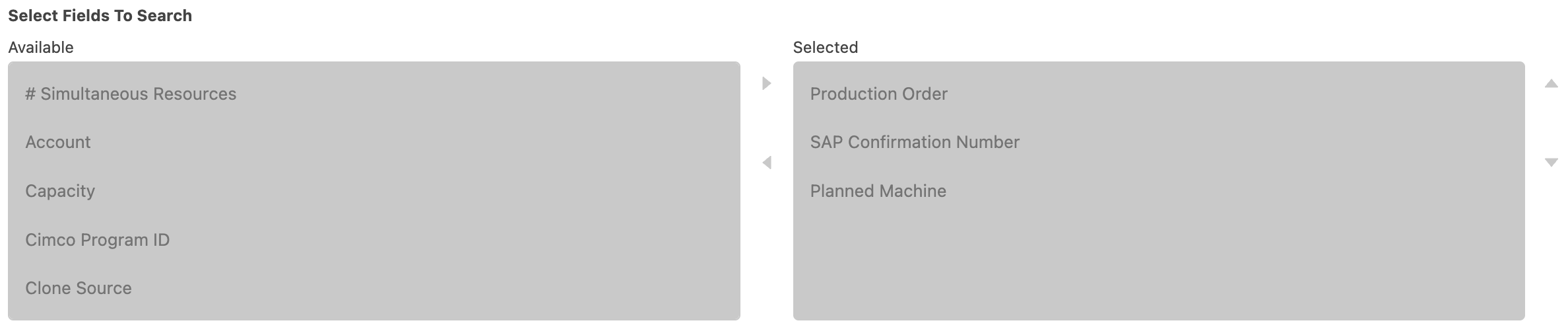
Add fields to Select Fields to Search in the respective Team Cockpit Settings record.
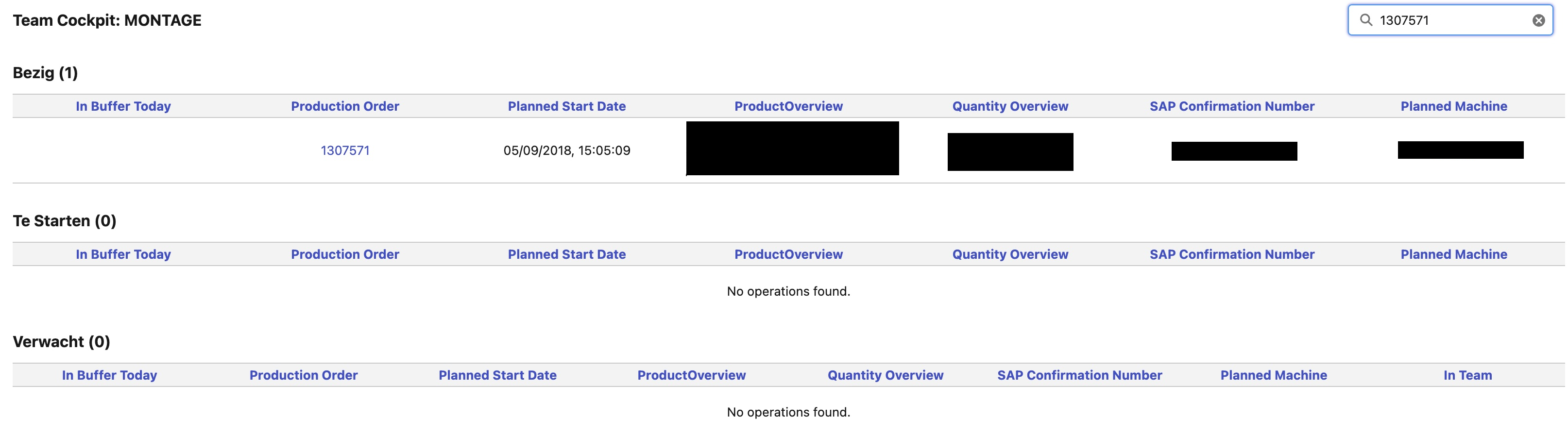
Search Bar has been added on the top right. In this example, the user searched on the production order name to display all relevant operations in the Team Cockpit.
Sorting
Via the Select Fields To Sort, you can implement a hierarchical sorting of operations or operation routings with a combination of both Ascending and Descending sorting.
Field: the field on which you want to sort
Direction: Ascending or Descending sorting

Add fields and define the sorting. In this case, the team cockpit will firstly be sorted on field “Priority Flag”, then on “Order Finish Date” and at last on “Production Order Name”.
Team Cockpit Statuses
Each status will have a table in the Team Cockpit.
Standard we use 3 statuses in Team Cockpit: In Process, In Buffer and Expected.
Label: Your custom name for a certain status.
Status: The status value. The following Operation Routing statuses are support by default: INIT, EXPECTED, INBUFFER, INPROCESS and DONE.
Weight: The sorting of the different statuses / tables in the Team Cockpit. The lower the weight the higher the table will be shown in the layout with respect to the other tables.
Enable Scroll: whether or not you can scroll in a Team Cockpit component.
#Visible Lines: number of operations or operation routings that are shown by default.
#Load More Lines: number additional operations or operation routings that are loaded.
Status Flow
The Status Flow determines the behavior of the Operation Routing.
From Status → To Status: Set how the operation routing will move between statuses / tables in the Team Cockpit. Typically this is as follows:
EXPECTED → IN BUFFER
IN BUFFER → IN PROCESS
IN PROCESS → DONE
Reserve POLCA: If enabled, the Claim button will be present in order to move the operation routing from the From Status table to the To Status table. Most commonly, the Claim button is on Operation Routings in the IN BUFFER section of the Team Cockpit and Claiming the Operation Routing moves it to the IN PROCESS section of the Team Cockpit.
Release POLCA: If enabled, the Release button will be present in order to move the operation routing from the From Status table to the To Status table. Most commonly, the Release button is on the Operation Routings in the IN PROCESS section of the Team Cockpit and Releasing the Operation Routing moves it into the DONE status, the downstream Operation Routing then moves from the EXPECTED to the IN BUFFER status.
Actions
24Flow has introduced the Action tab in the Team Cockpit Settings to allow you to add additional buttons in the Team Cockpit, scroll down to see an example.
The configuration has been made flexible such that you can configure size, color & alignment of buttons as well as toggle between icons & text. Moreover you can configure for which Operation Routing statuses you want to see the actions via filters.
Action Button Layout: This setting controls the button layout in Team Cockpit.
Stacked: single column.
Inline: single row with scroll (no support for alignment adjustments).
Wrapped: row that wraps to next line when space runs out.
Action Alignment: This setting controls how the actions are aligned on the Team Cockpit screen.
Center
Left
Right
Stretch
Action Button Size: This setting controls the size of the action buttons (Medium, Large, Extra Large).
Action View Mode: Controls the the preferred view mode: whether buttons should show icons, labels, or both.
Show Label Toggle: Shows a toggle button to expand or collapse action labels in Icons Only view mode.
Show Action Expander: Check this to hide or show extra action buttons using the expander toggle. If disabled, all actions are always visible.
As an example, here we have 3 additional actions defined. The action expander button is visible and we have the toggle between icons and labels. Each action has a Flow associated with it and you can set the order and colors of the actions as well.

In case you do not want to show all buttons for all Operation Routing statuses, you can add filters in the action definition. See the example below to show the button only when the Operation Routing status is INPROCESS.

Filter
In some cases, you may want to further filter the Operations or Operation Routings that are visible in a particular Team Cockpit. For this you can use filters:
Field: the field on which you want to filter.
Operator: Equals, Does Not Equal, Contains, Does Not Contain, In, Not In, Is Null, Is Not Null.
Value: the value you want to filter on.
Add Group: Via add group you can create your own AND OR custom filter logic.
Be aware that you can also filter on fields of all higher objects in the hierarchy, starting from the operation object. This is simply indicated via “>” after the object name.
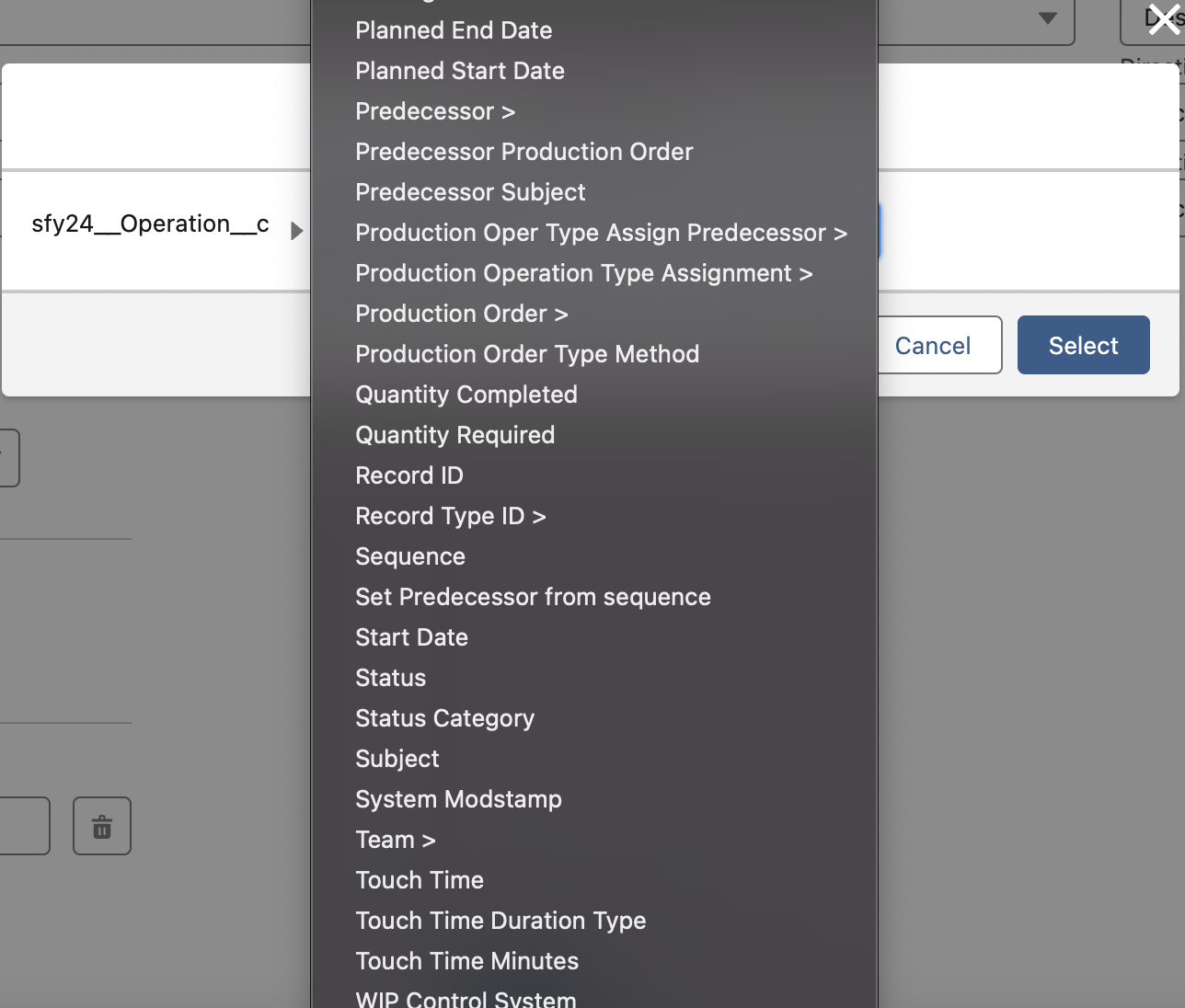
In this example, the user can filter on fields that are defined on Production Order, Team, etc.
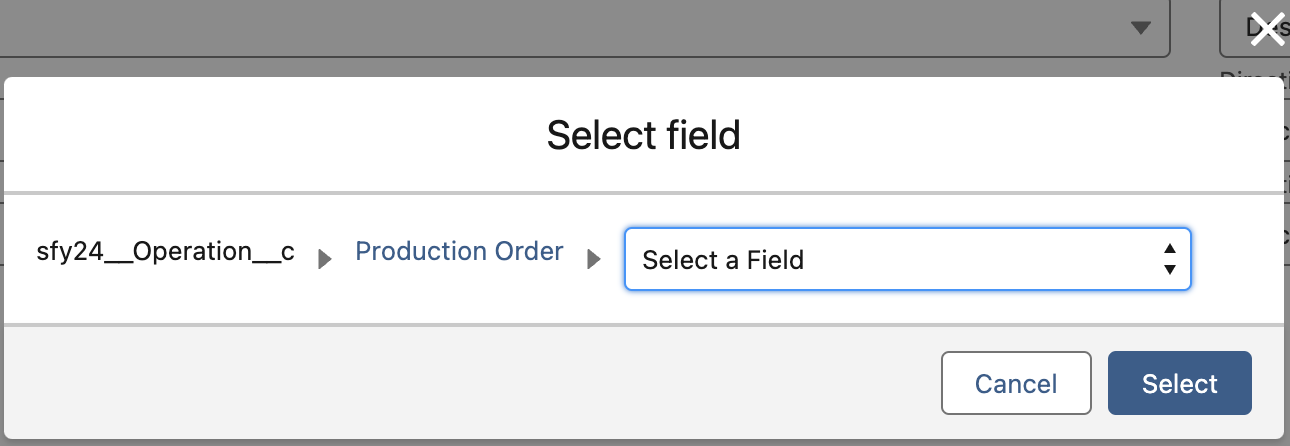
Choose your field on the higher object. In this case, Production Order.
Advanced settings
Manually Refresh Team Cockpit
By default, when Operation Routings change, a platform event is generated that is consumed by all Team Cockpit browser windows. It is now possible to ignore these Platform Events and manually refresh the Team Cockpit. The settings are available in the Advanced tab of the Team Cockpit Settings.
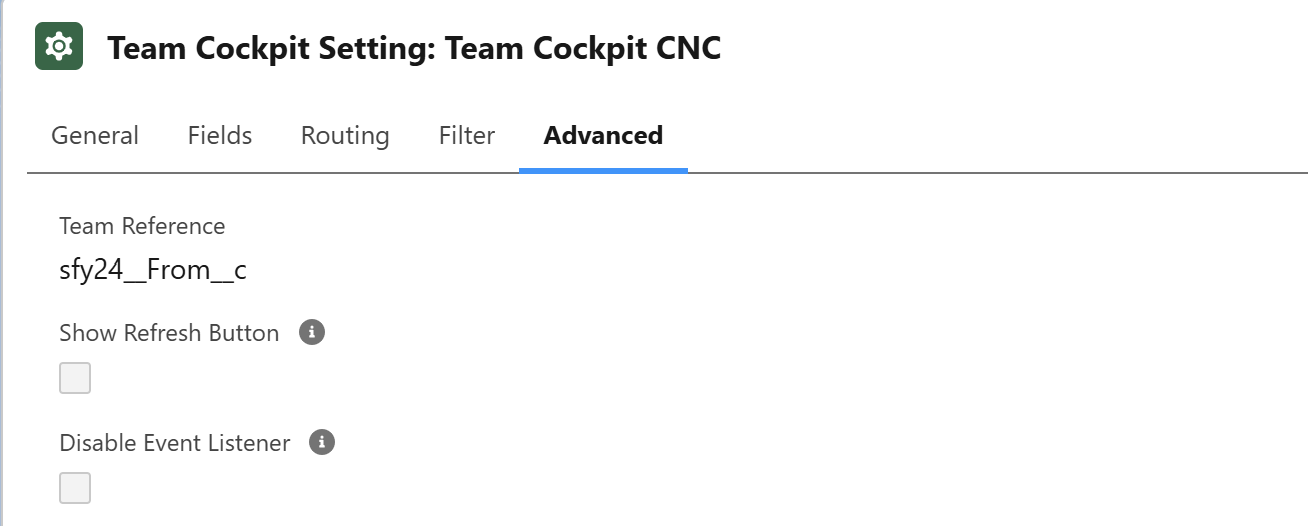
Advanced Platform Event Filter
We have introduced more advanced configuration options that scale the platform when the number of Teams increases and/or the number of open Team Cockpit tabs in browsers rise; as both of these will have an impact on the number of Platform Events being generated/consumed.
The advanced platform event filter allows to define in more granular way to which specific Teams specific Platform Events should be delivered.
Please contact the 24Flow solution team for more info on how to configure this for your environment. Should you want to give it a shot yourself, you can dive into the next segment.
Time To get Technical
Every time the status of an Operation Routing changes — except when it changes to INIT — a Platform Event is generated. These events are consumed by the Team Cockpits, allowing them to instantly react to changes without requiring a manual refresh. This is a powerful feature. However, Salesforce imposes limits on event consumption: by default, an org can listen to up to 25,000 events per day.
It’s important to understand the difference between events being generated (1 event per status change) and events being listened to (potentially multiple times if several cockpits are subscribed). For example: one change to an Operation Routing record may generate a single platform event, but if 10 Team Cockpits are subscribed, that counts as 10 event deliveries against the daily limit.
By default, all Team Cockpits listen to all Operation Routing events — regardless of whether those changes are relevant to their specific team or work center. This results in irrelevant updates being processed and excessive event traffic. Platform Event Channels allow you to control which Team Cockpits listen to which events — ensuring that each cockpit only receives relevant updates.
In the interface (see screenshot), you’ll see how these channels are configured. Let’s walk through the key components and fields:
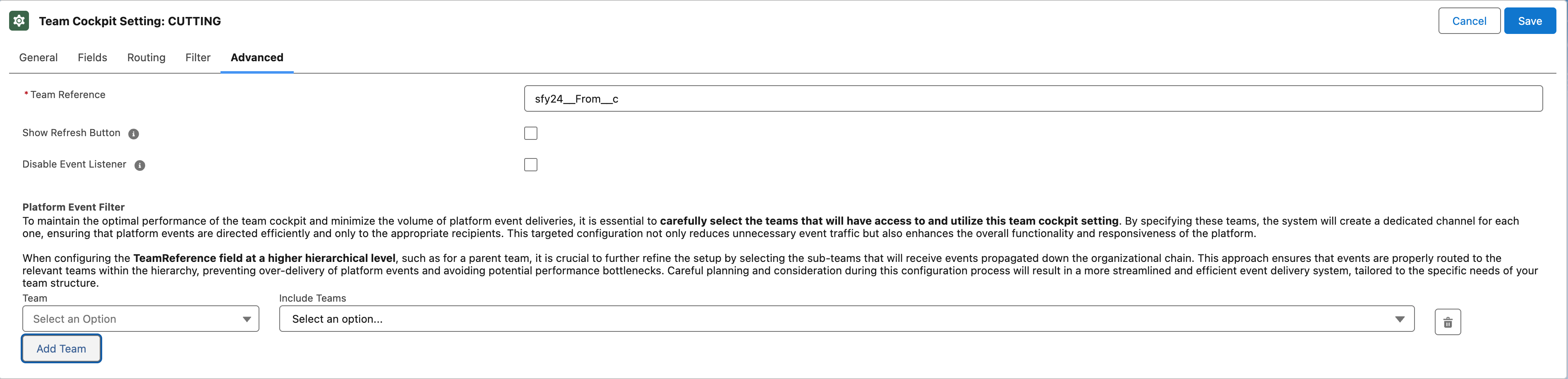
Team Reference
This setting determines what team level the Team Cockpit is focused on — especially important if your org uses a team hierarchy.
Example hierarchy:
Cluster Team (e.g. Machinery) → Cell (e.g. Welding, Cutting) → Workcenter
Each of these levels can be stored in a separate field and referenced via the Team Reference. The Team Reference controls what the cockpit displays:
If it points to the top level (e.g. Machinery), the cockpit shows all underlying cells and workcenters
If it points to the lowest level (e.g. a single workcenter), it shows only that scope
This setting also determines what team value should be filled in when configuring the Team Cockpit component on a Lightning page.
sfy24__From__c
The field sfy24__From__c on the Operation Routing object is the field that links an Operation Routing change to a Team Cockpit. It is the field that decides how the channels should be configured. Typically it refers to a workcenter (the lowest level of your team hierarchy).
In the platform event channel configuration, this field is used to filter incoming routing changes. Only events where sfy24__From__c matches a configured team in the channel will be delivered to that cockpit.
In the event channel configuration UI, there are two dropdowns. In the running example the team reference is configured on cell level.
Left Dropdown — Based on the Team Reference
Lists teams of the level specified by the Team Reference (Cell level => Welding, Cutting). If the Team Reference is set at a higher level (e.g. Cluster), then all underlying cells and workcenters should be included for each cluster.
When configuring a cockpit on a Lightning page, only these teams should be selected. Otherwise no channel exists for the team and the page must be manually refreshed.
Right Dropdown — Mapping to sfy24__From__c
Optional, but crucial when your Team Reference and
sfy24__From__cpoint to different levels. When the Team Reference points to the workcenter (likesfy24__From__c) no teams need to be listed in the right dropdown, as the fieldsfy24__From__cis already represented in the channel.Connects the team in the left dropdown (e.g. a Cell) to the underlying teams in
sfy24__From__c(e.g. Workcenters). If a workcenter is excluded, the Team Cockpit won’t receive events for it — and changes will only be visible after a manual refresh.