
Tailor your 24Flow org

Please read first the “Before you start” section to acquire the basic knowledge of our platform
Create Pages
To get an overview of all existing pages and in order to create a new page, go to Setup and search for Lightning App Builder.
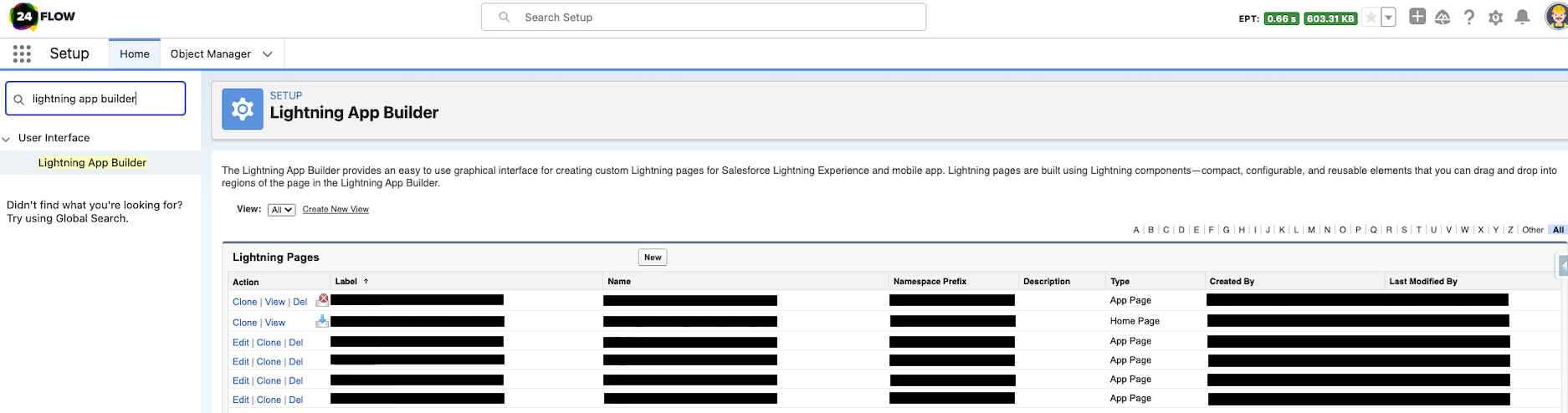
To create a new page, search for “Lightning App Builder” and click on “New”.
Once you have clicked on New, the below screen will be shown.
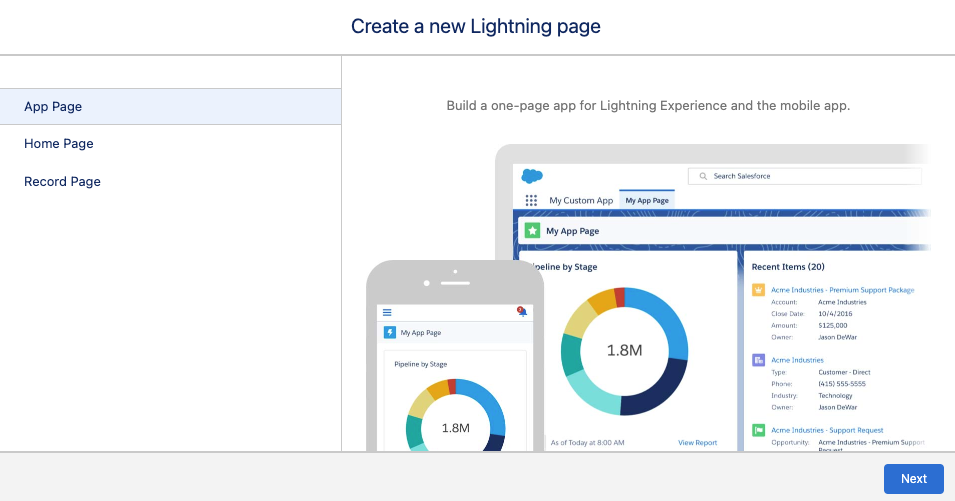
Choose which type of page you want to create.
Record page: create a page for an object.
Home page: create a home page.
App page: create a page with some standard, custom (a custom component made specifically for your use case) or managed components (for example a “24Flow: Team Cockpit”, “24Flow: Order Pool”, etc.).
Once you have selected the type of page, enter the name of your page. Choose your layout and start adding components, fields etc. to your page.
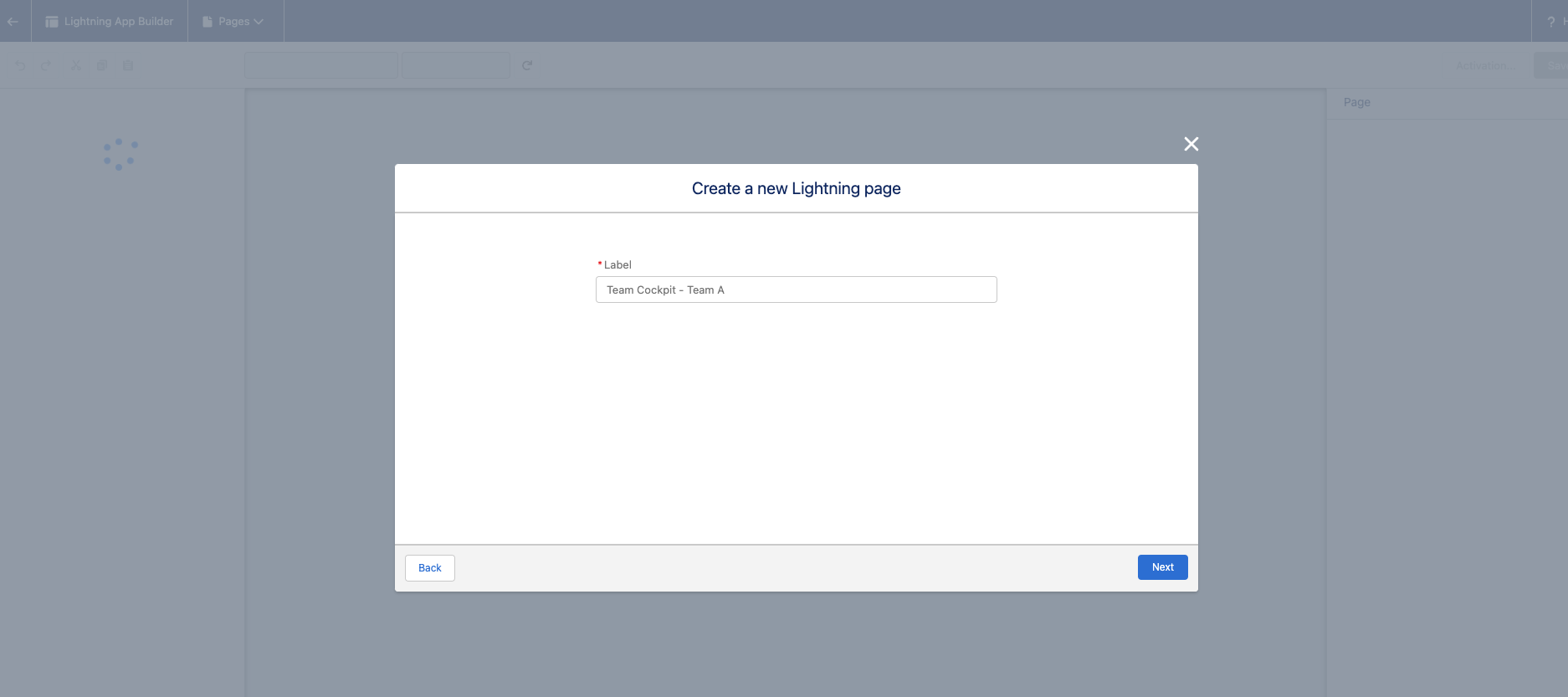
Example: choose “App page” if you want to create a page for a new team cockpit.
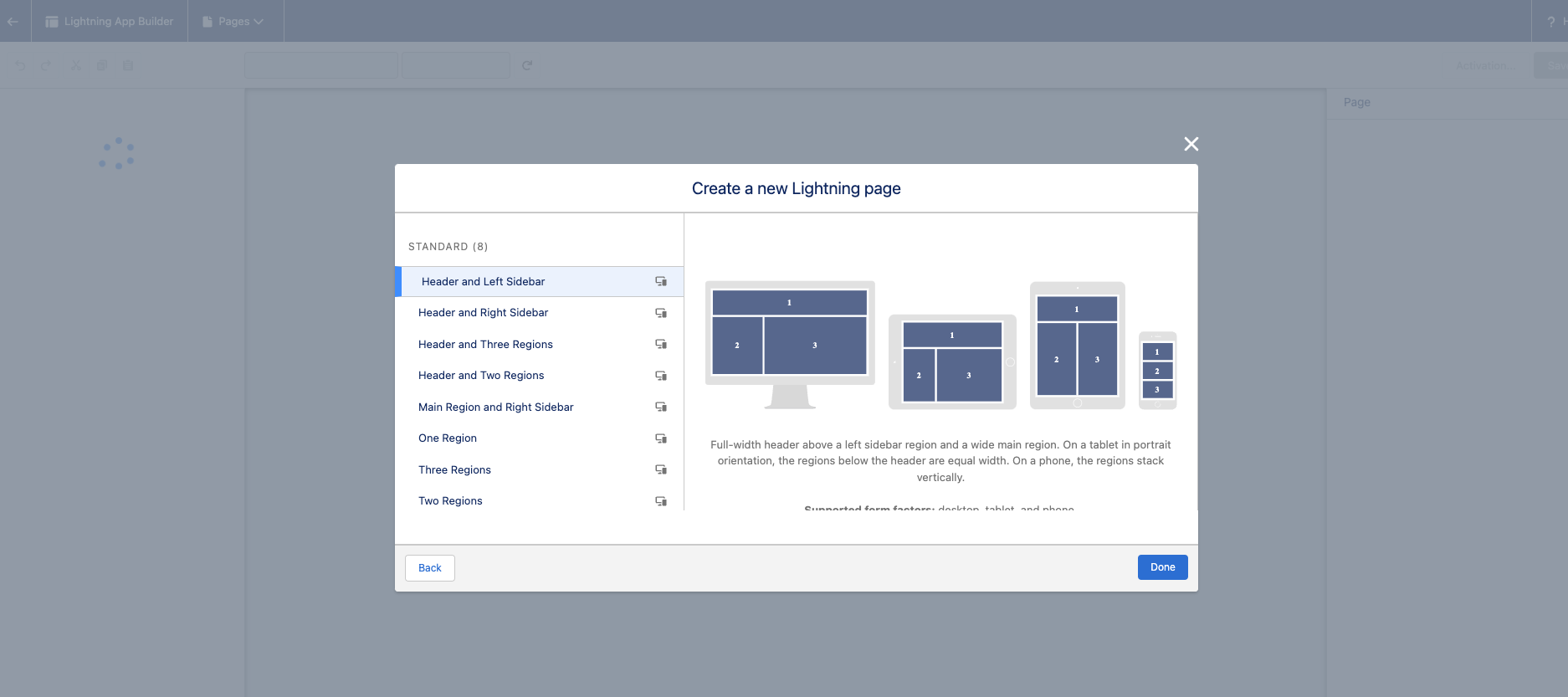
Choose your layout.
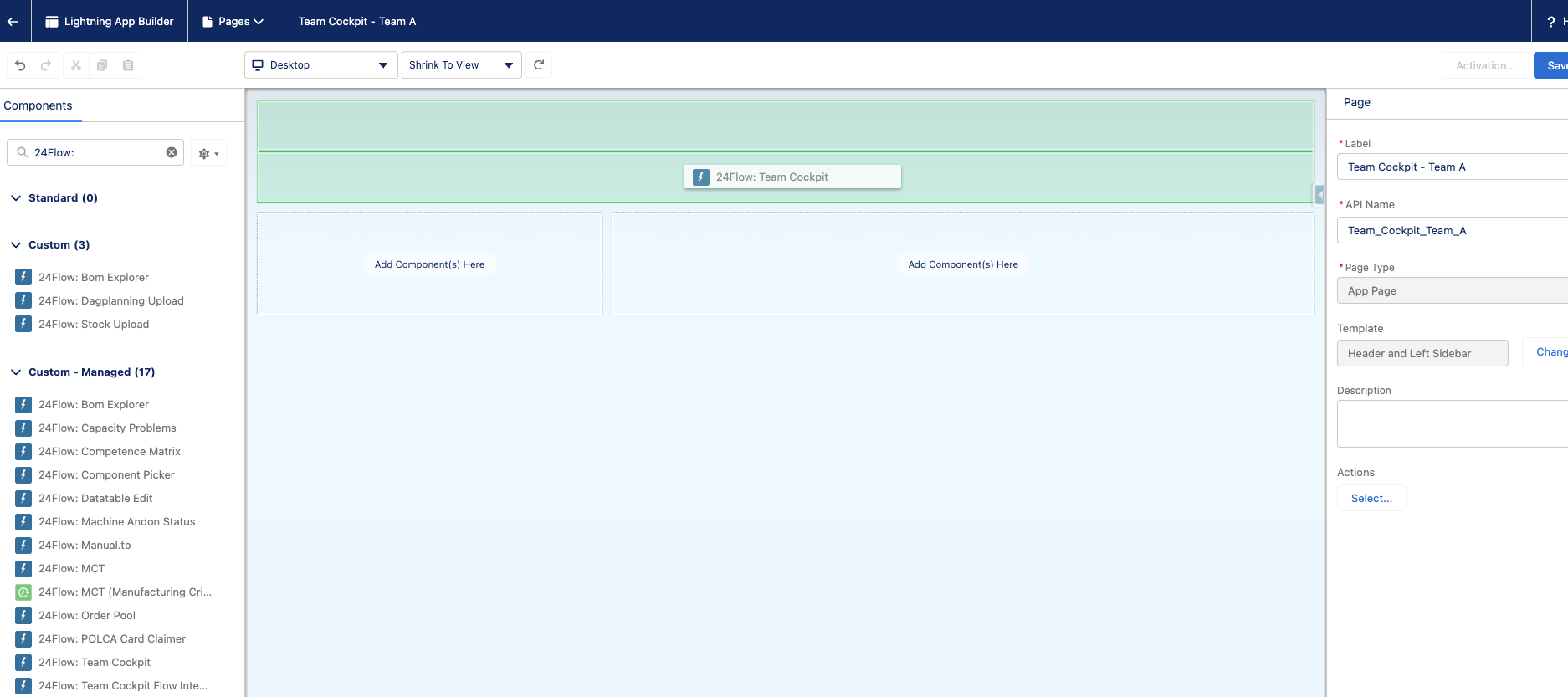
Search for the component you want to add and drag and drop it on the page.
Once you have saved your page, click on Activate to add it to one or more apps as a tab.
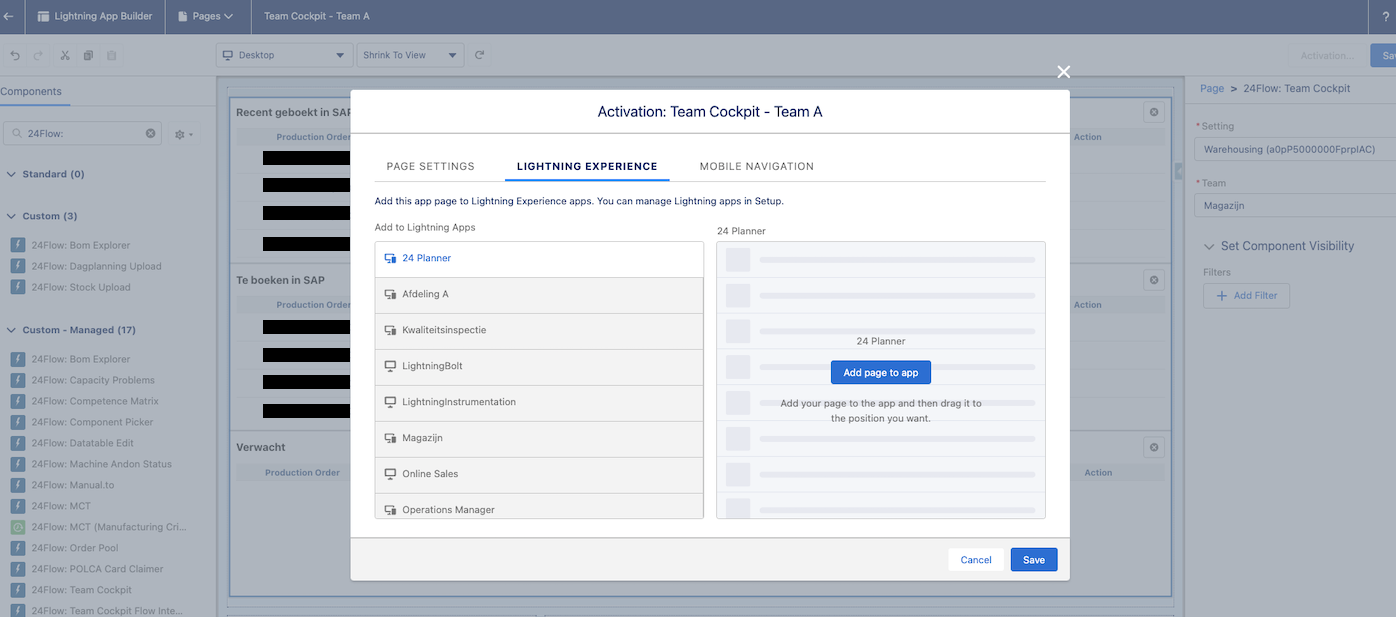
Save your page and, if possible, add it to a certain app.
Create Custom Tabs
New tabs can be created for pages. After creation you can add your tab to an app and make it available to your users by assigning the app to the relevant profiles.
To get an overview of all existing tabs and to create a new tab, go to Setup and search for Tabs. In the overview, the existing tabs are displayed in different sections. The following sections will be relevant for you:
Custom Object Tabs: All tabs for custom objects. By clicking on the tab, you will see a list view of records for this object.
Lightning Page Tabs: All tabs that refer to an app page.
Create Apps
To get an overview of all existing apps and in order to create a new app, go to Setup and search for App Manager.

An overview of all existing apps in your org. Click on “New Lightning App” or edit an existing app.
When you want to create a new app, click on “New Lightning App” and follow below steps.
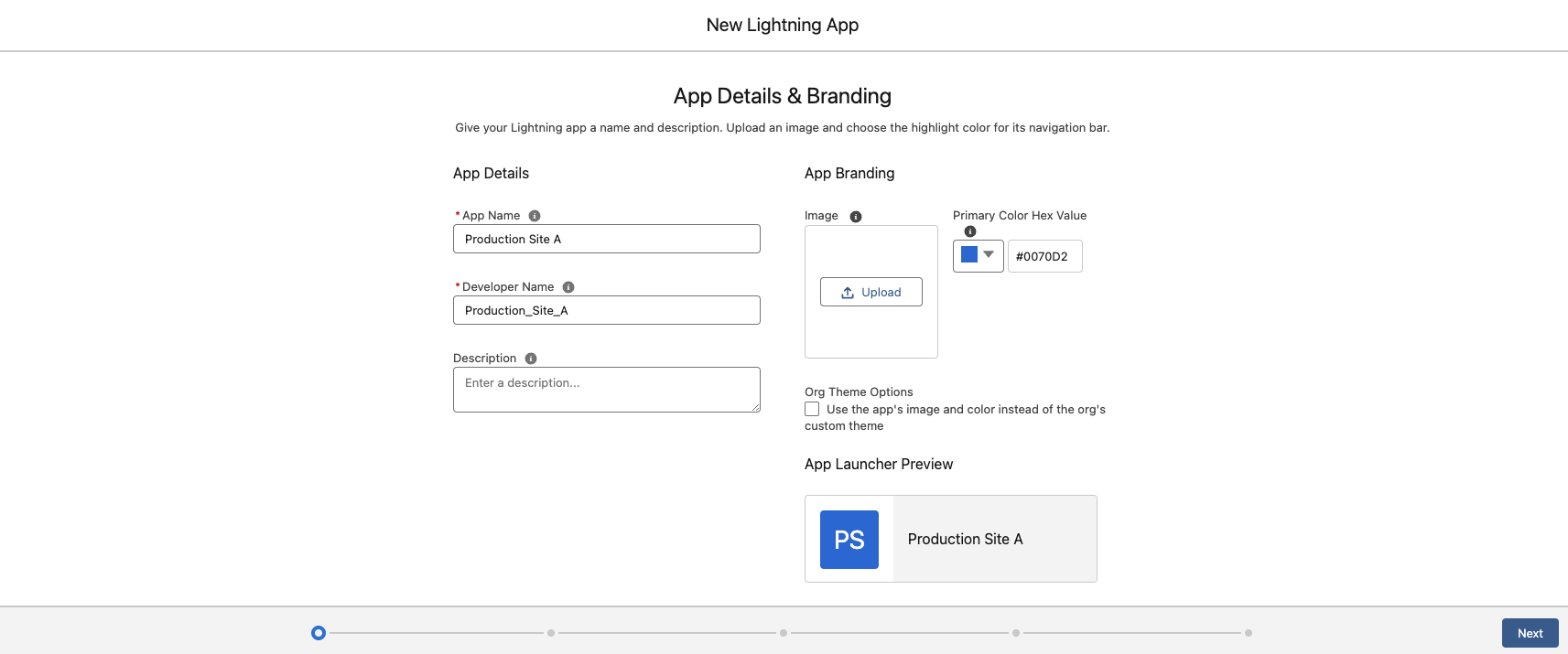
Enter the name of your app.
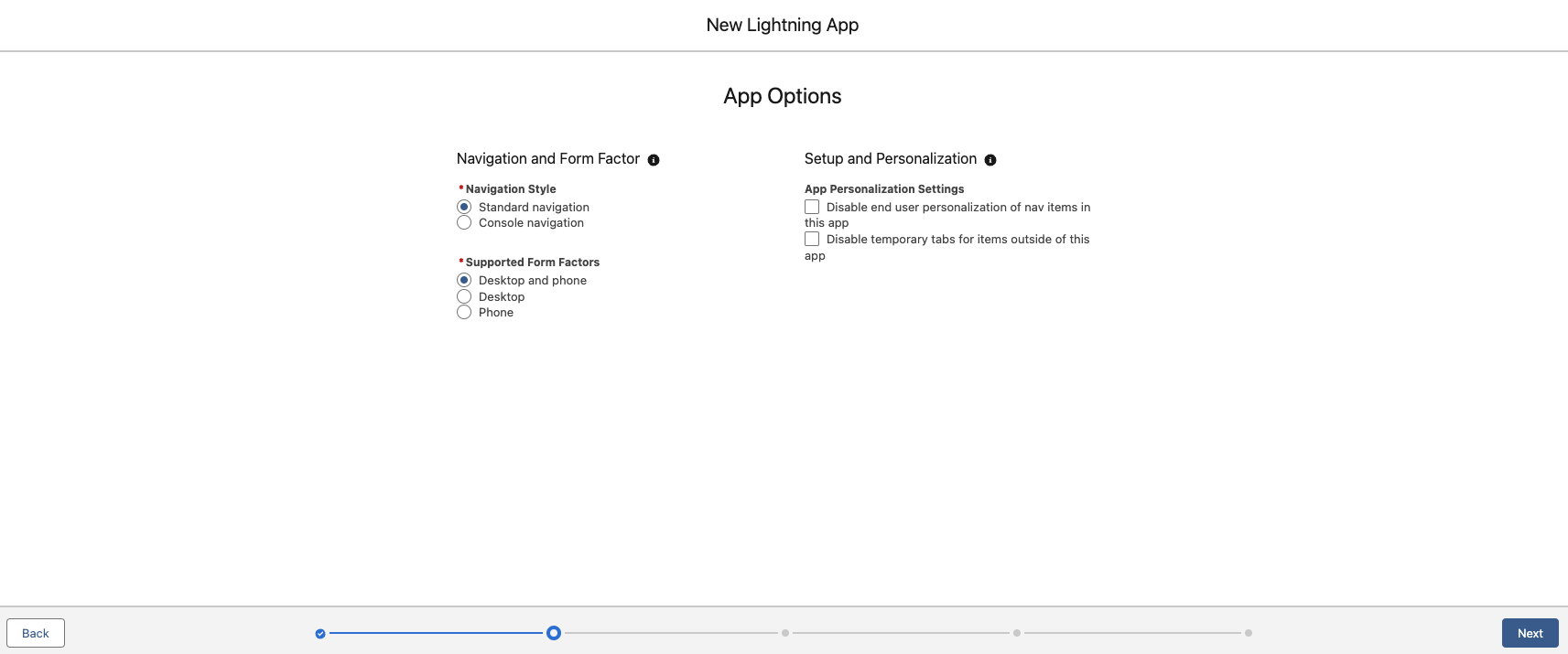
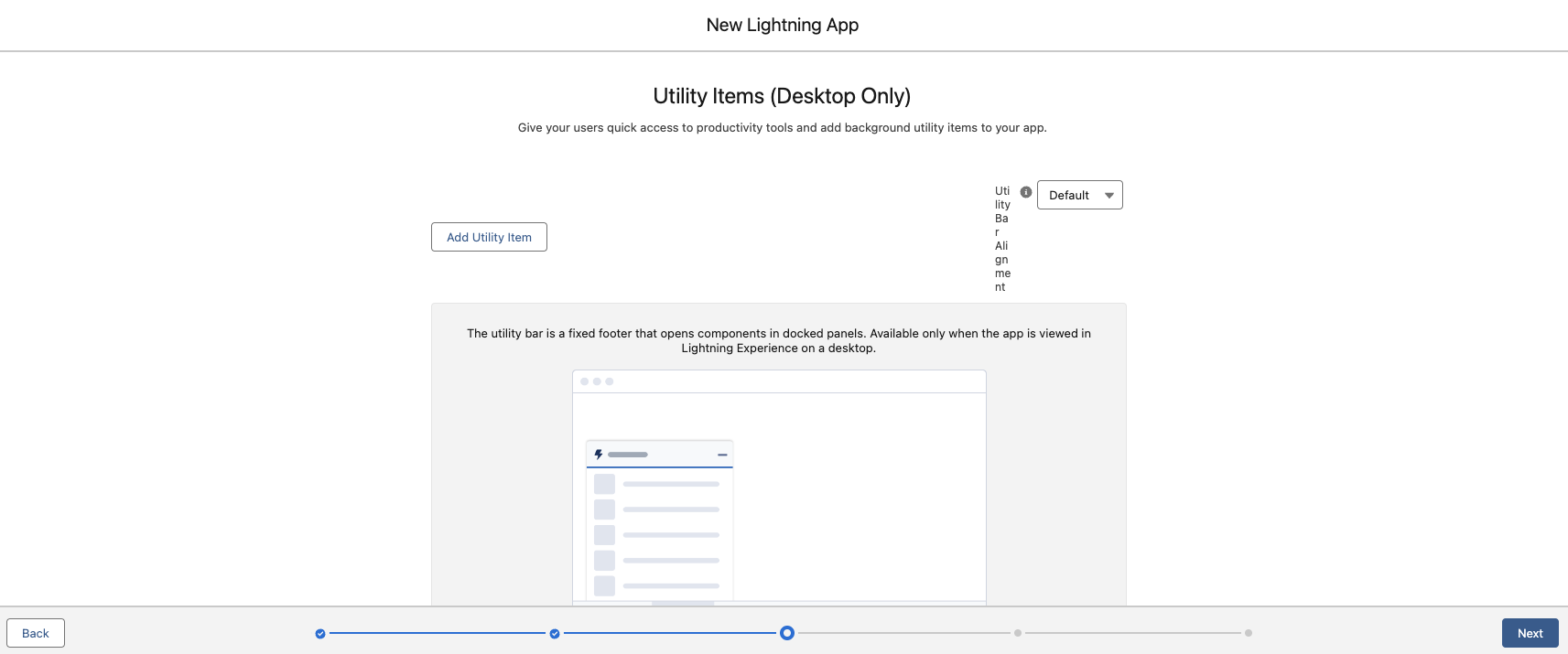
Use the default app options as shown.
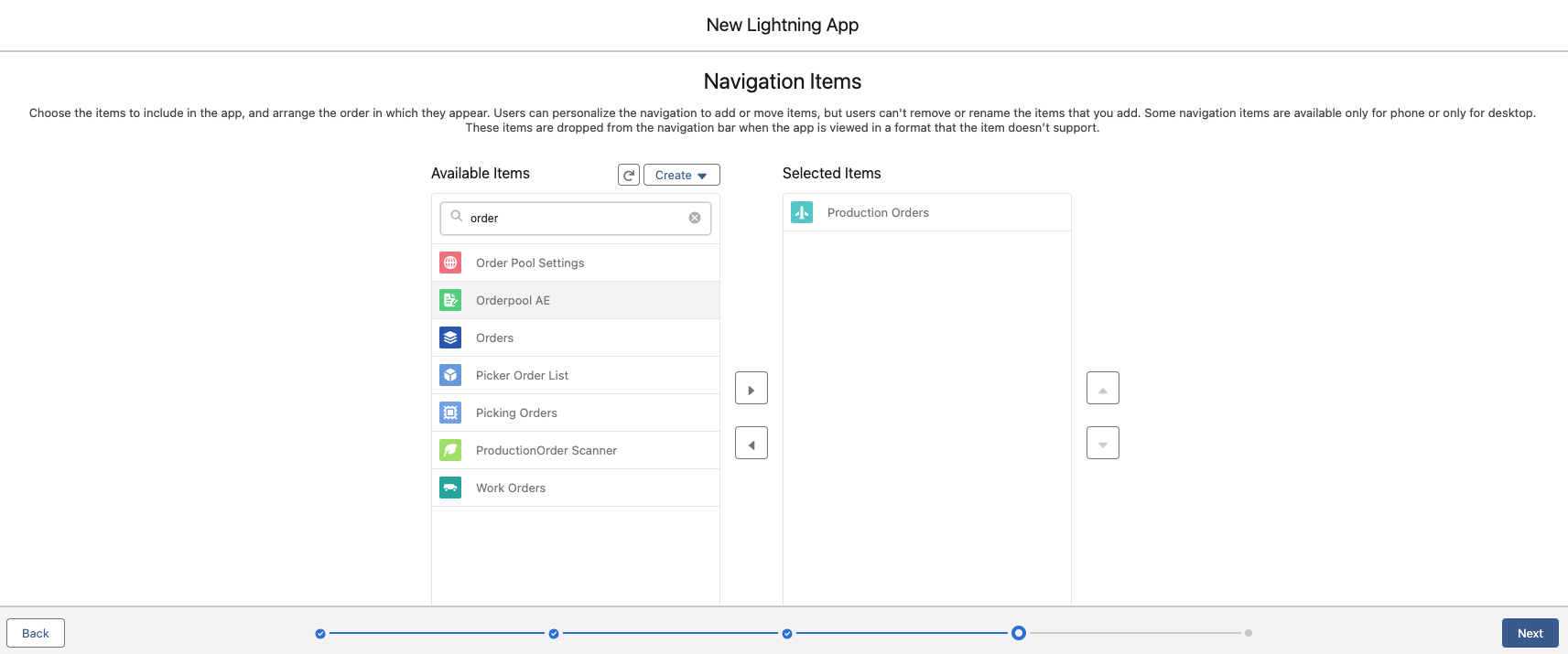
Choose which tab should be available and in which order they should be displayed.
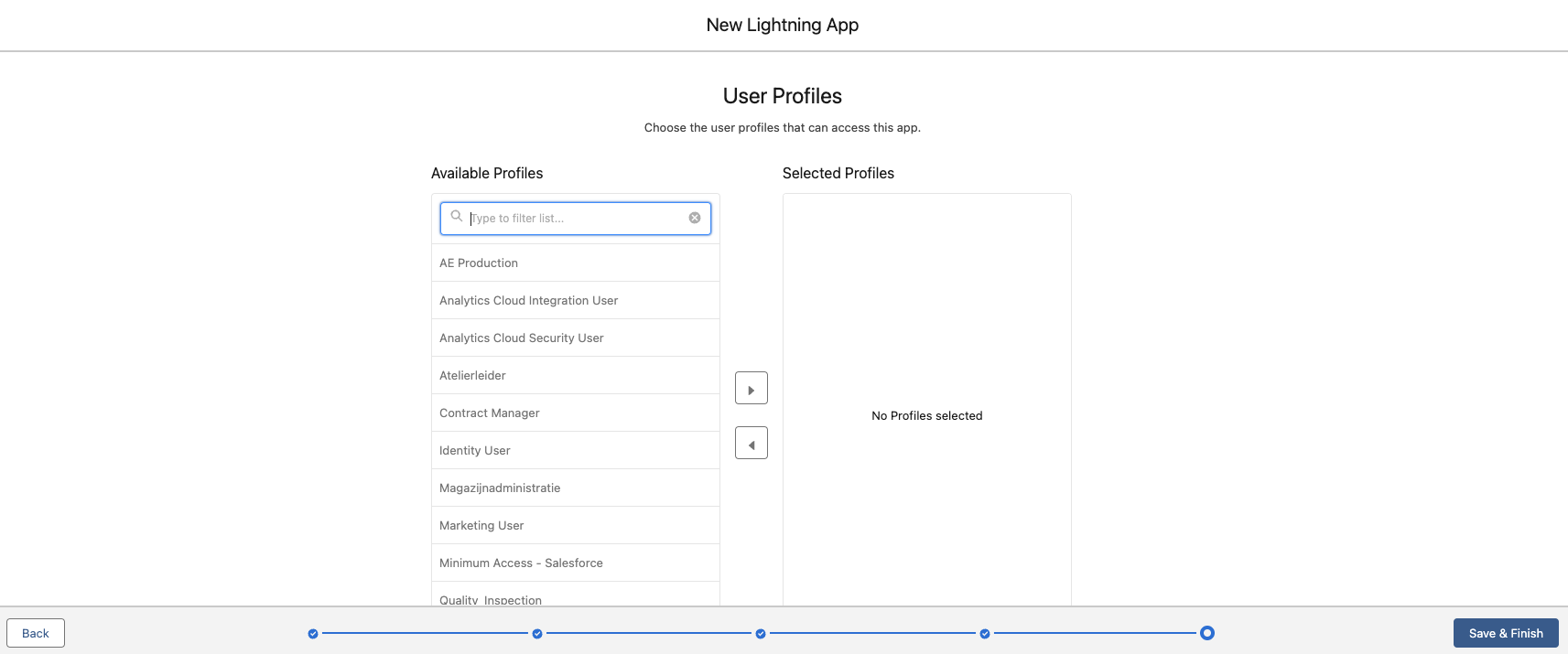
Choose for which profiles the app will be visible.