
Status Info & Notifications
General
Users of 24Flow can monitor their organization's status via status.salesforce.com by accessing this site to check the current status and any updates regarding the Salesforce services they utilize. This platform provides real-time information on system performance and security, ensuring users stay informed about any incidents or maintenance activities that might impact their operations. It's a valuable resource for proactive management and troubleshooting.
Enter your domain that you see in the url of your 24Flow org, this should be “24flow-companyname”
The search result should return 1 “My Domain”
Click on this and then you see the status of all the platforms services
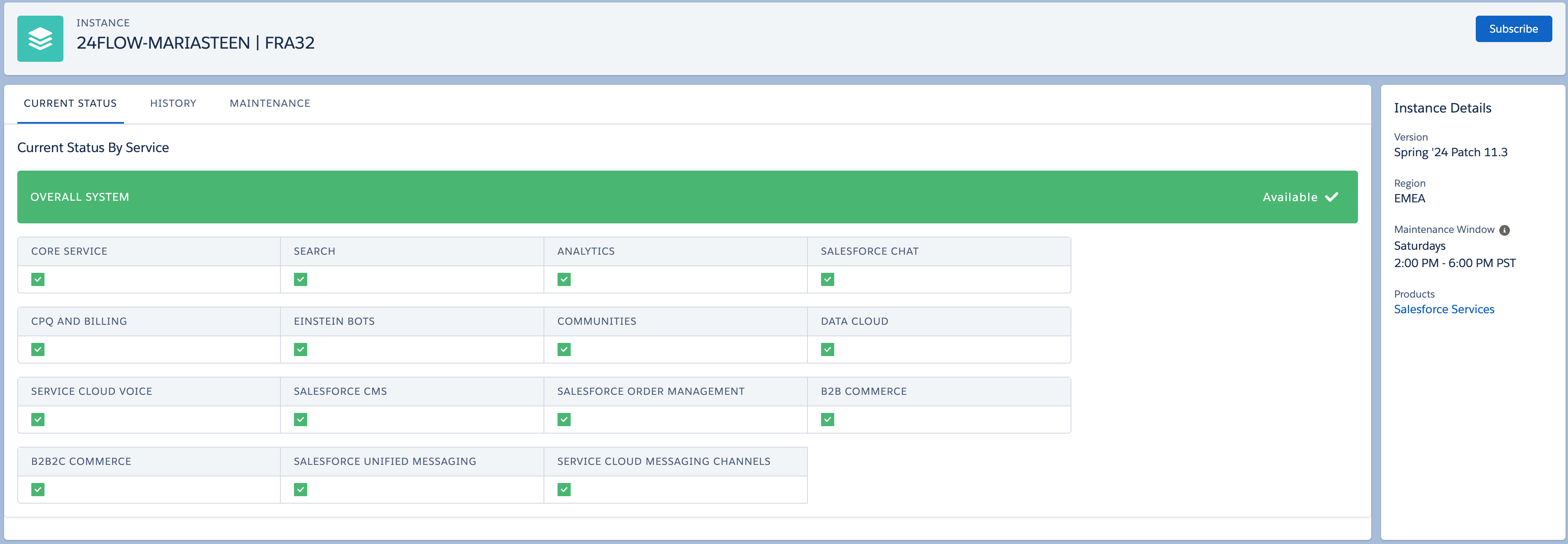
Would you like to receive email notifications, great! Hit the subscribe button in the right upper corner
Enter your email to sign in/ sign up.
Web
Info regarding in-app popup for maintainance
System Maintenance is for sustaining the security, availability, and performance of the infrastructure supporting Salesforce services.
Approximately one week before the scheduled maintenance, we communicate the dates and times via the in-application pop-up window upon login to 24Flow. This is sent to all users who login, there is no way to configure it.
The below article explains more about the entire maintenance notifications in Salesforce:
https://help.salesforce.com/s/articleView?id=000386064&type=1
How to disable Product & Service mails
"Product & Service Notifications" are sent to admins and this gets defined based on user permissions.
An Admin is defined by the following permissions enabled:
Manage Users
Modify All Data
These permissions are by default part of the profile system administrator and therefore users with this profile will receive product & service mails.
How to Configure in-app guidance
Go to Setup
Search for Guidance Center
Toggle on / off what seems relevant to you
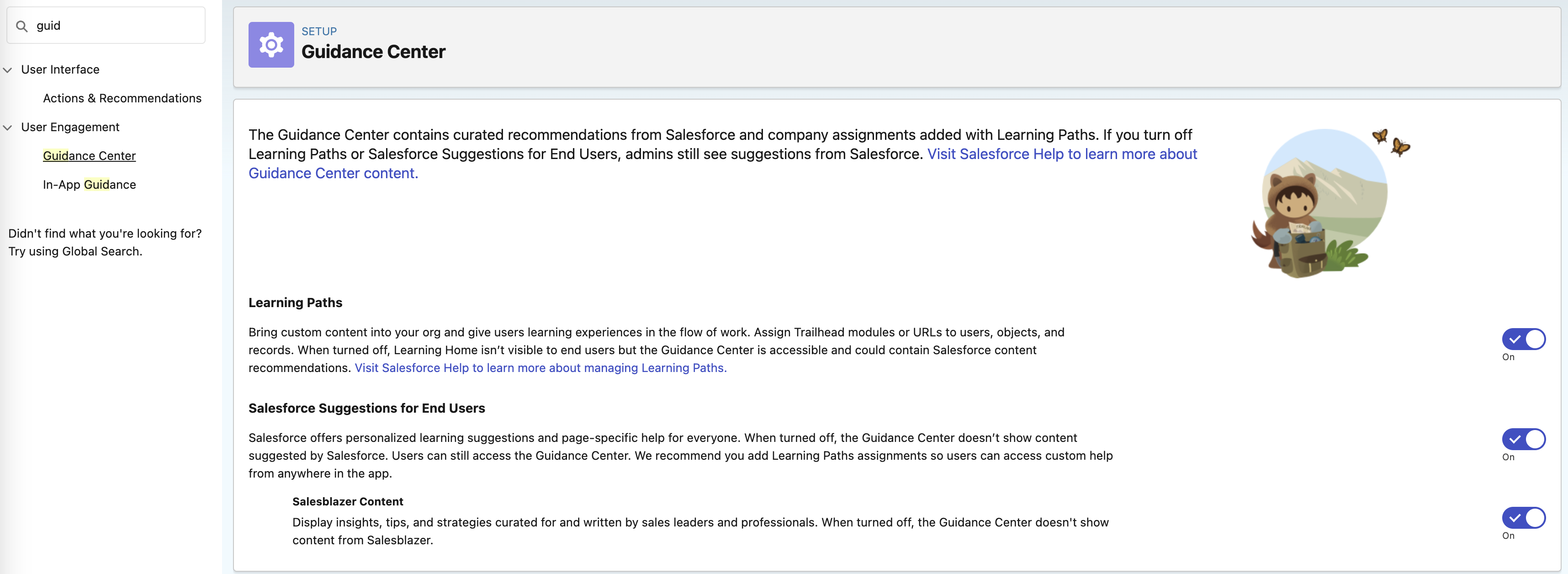
How to Disable in-app guidance
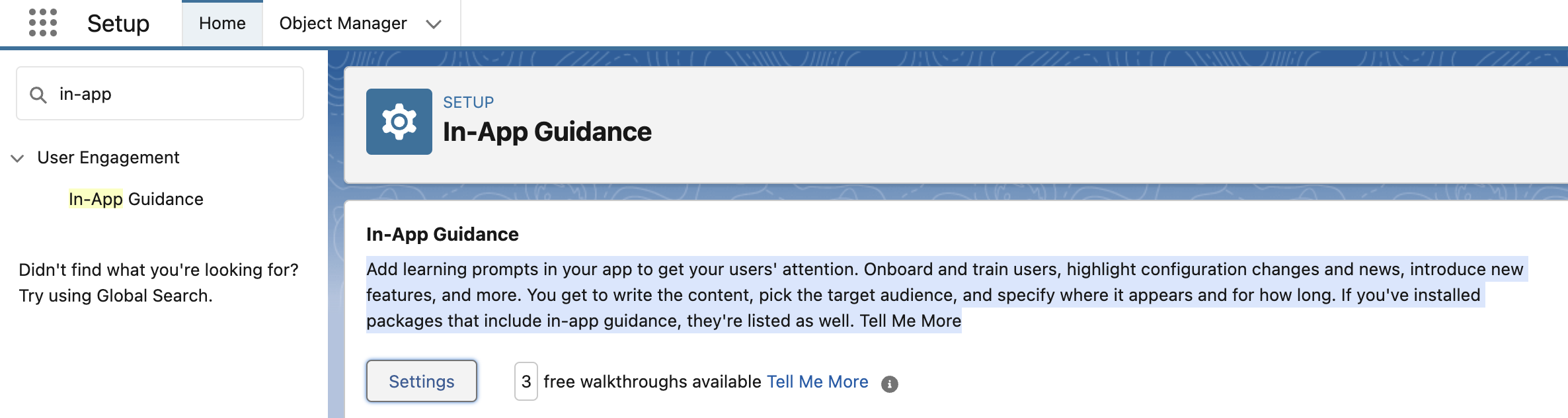
Go to Setup
Search for In-App
Click on settings
Disable “Salesforce Standard In-App Guidance” and hit save
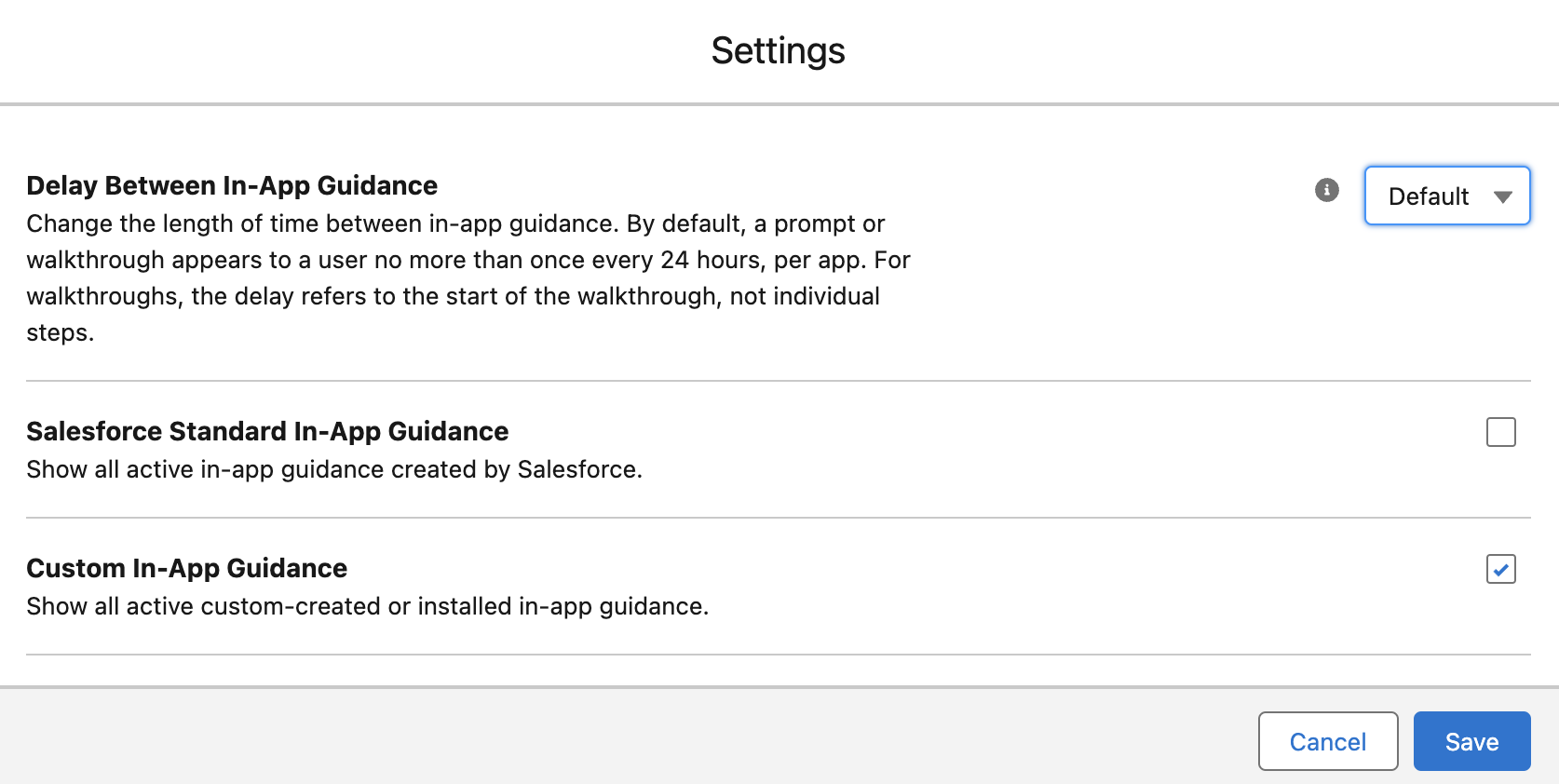
More info : https://help.salesforce.com/s/articleView?id=sf.customhelp_lex_prompt_sfdc.htm&type=5
Mobile
How to Disable mobile Enablement
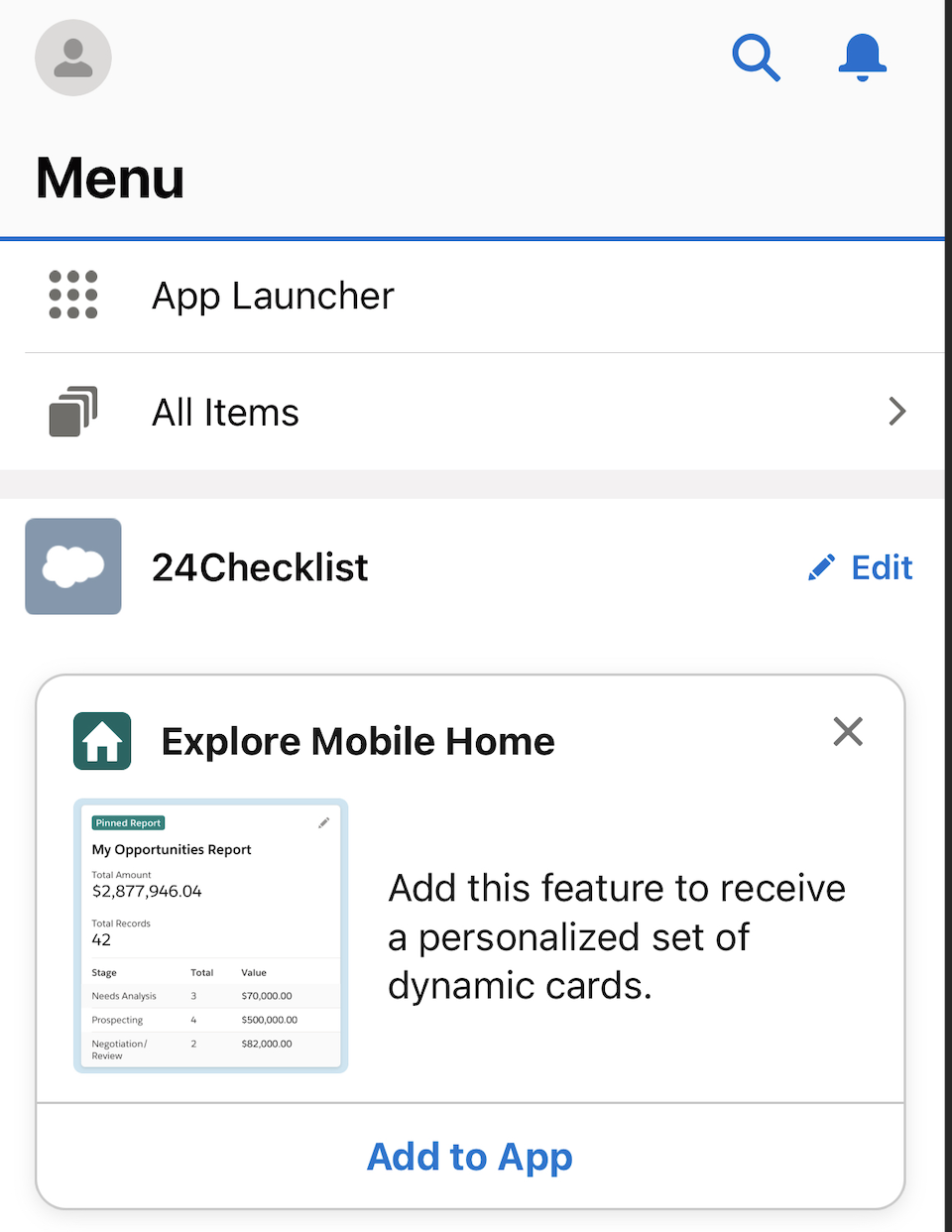
Admins can disable user's access to Mobile Home enablement from Setup (eg: Explore Mobile Home card).
In the Quick Find, enter Connected Apps then select Manage Connected Apps.
Open Salesforce for iOS or Salesforce for Android.
Navigate to Custom Attributes and select New.
For Attribute key, enter ENABLE_MOBILE_HOME_PROMPT.
For Attribute value, enter "FALSE" - (quotes ““ included) - then select Save.