API integration with 24Flow
Connected App
Create a Connected App
Below you can find the API documentation of 24Flow.
Before you start, please create a Connected App in your Salesforce environment. We support the Client Credentials flow.
You can follow this guide (https://help.salesforce.com/s/articleView?id=sf.connected_app_client_credentials_setup.htm&type=5 ) to create the Connected App. Don’t forget to navigate to Manage and to configure the user on whos behalf you will execute the app. Select an API-only user with the right permissions for the best security standard.
Once you have created the Connected App, you can retrieve an access_token from your environment. You can use the request OAuth2 - Client Credentials for this.
In the page of the request you will be asked to set the parameters client_id and client_secret. After you've filled in these parameters, you can request the access_token.

WARNING Before you set up the client credentials flow, it’s important to understand its security risks. With this flow enabled, any person or app that has access to your connected app’s client key and client secret can get an access token. Maintain security by periodically changing your client secret, and change it immediately when it gets compromised. See Rotate the Consumer Key and Consumer Secret of a Connected App.
Manage Permissions
Make sure the user you have selected in the connected app has the correct permission sets to access the data you want to retrieve, create or modify.

This is simply done by navigating to Setup> users> select user & click Edit Assignments next to Permission Set Assignments.
Validate Callback URL
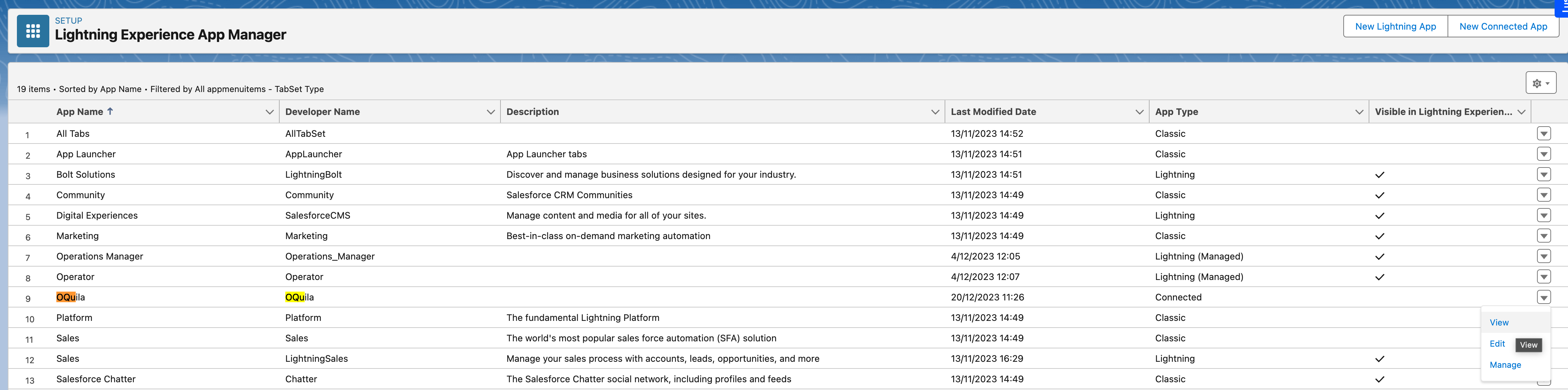
Navigate to the App Manager.
Click on the dropdown menu to the right of the connected app and select edit.
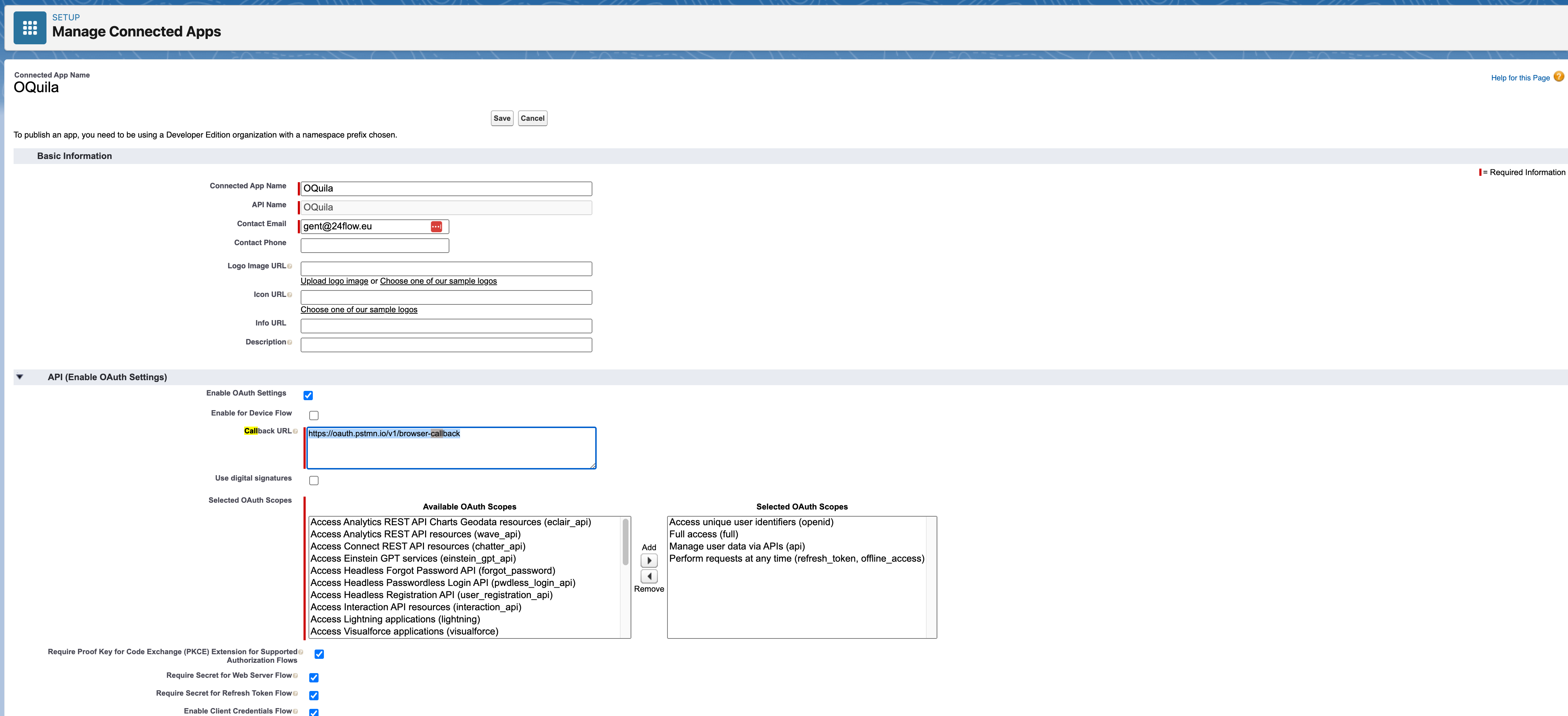
The client credentials flow does not really require a callback URL, so you can configure something like https://localhost
Postman
In case you would like to test the API using Postman, you will need to properly set up the connection between Postman and your Salesforce ORG. Luckily, this is explained well in this guide (https://trailhead.salesforce.com/content/learn/projects/quick-start-connect-postman-to-salesforce/set-up-and-connect-postman).
Note that you are not required to fork the mentioned Collection all the time since you can easily take over the OAuth2 configuration in your collection.
24Flow API Documentation
The 24Flow API documentation can be found here: https://api-docs.24flow.eu/.
You will find more details including a description of the various fields.
API - External ID
Frequently Occurring Errors
”401: [{"message":"Session expired or invalid","errorCode":"INVALID_SESSION_ID"}]”
Please check whether the request contains “.my.salesforce.com” instead of “.lightning.force.com”.
Tips and Tricks
Patch requests should contain the id of the record you are trying to update in the URL
An example of (the end of) a patch request is: “/services/data/v59.0/sobjects/sfy24__ProductionOrder__c/:id” where “:id” should be the id of the record you want to update.Also note that not all fields can be updated and when trying to update these fields, the request will fail. The response will clearly say which field(s) can’t be updated and should be removed from the request.
To retrieve all records of a certain object, you can send a query in a get request like this: “/services/data/v59.0/queryAll?q=SELECT+Id,Name+FROM+sfy24__Operation_Product__c“.
You can replace “Id,Name” by all fields you want to retrieve, separated by commas, like you would in any other query.
You can replace “sfy24__Operation_Product__c” by any object you want to retrieve the records of.
You can retrieve all records of a type matching a condition by sending a query in a get request like this: “/services/data/v59.0/queryAll?q=SELECT+Id,Name+FROM+Product2+WHERE+Name='test'+LIMIT+1“.
The SELECT and FROM fields work in the same way as the info above.
In “Where Name” you can replace “Name” by any field of the object where ‘test’ is the value this field should match. Note that in case of a string these single quotes are important for the query to work.
You can also set a limit to determine how many objects should be retrieved by adding “LIMIT+:limit” where “:limit” should be a number. (This will also work without the where condition.)
Platform Events
You can find the generic platform events docs on https://developer.salesforce.com/docs/atlas.en-us.platform_events.meta/platform_events/platform_events_intro.htm.
Pub Sub
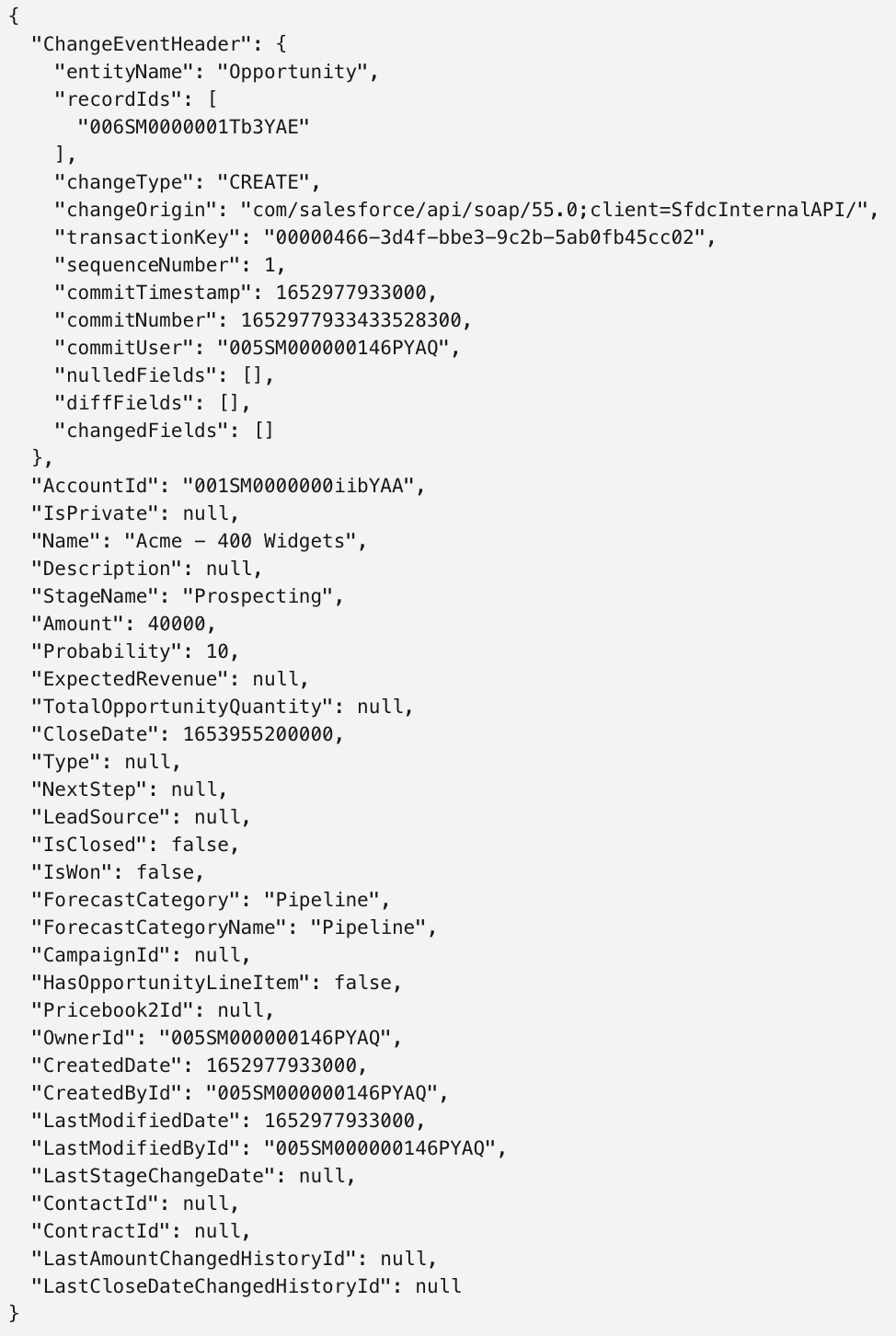
For pub/sub or in Salesforce termen Change Events, you can find the necessary documentation on this page: https://developer.salesforce.com/docs/atlas.en-us.change_data_capture.meta/change_data_capture/cdc_subscribe.htm
The data of these events will look like this: