
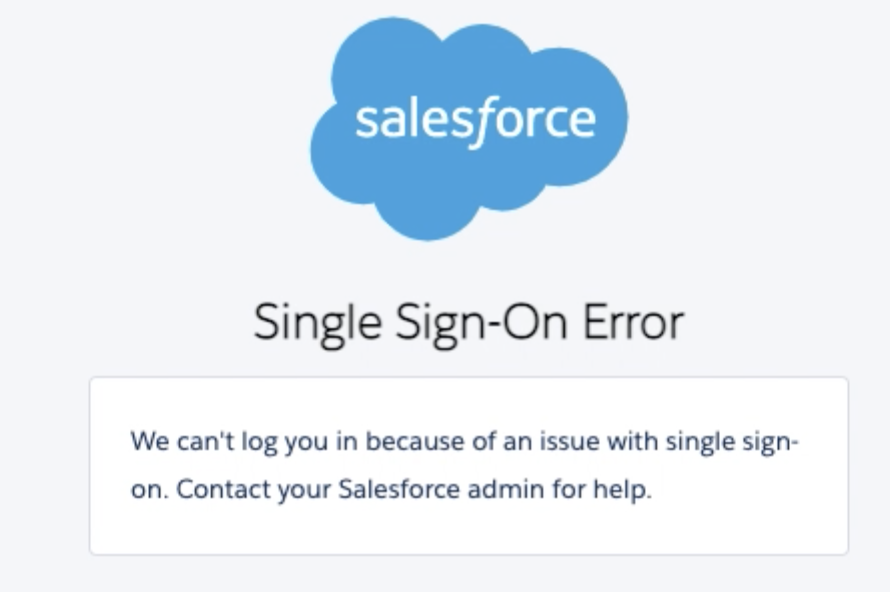
How to Troubleshoot a Single Sign-On Error
SAML Assertion Validator

The SAML Assertion Validator is an out-of-the-box feature from the Salesforce setup menu that helps to debug the last SAML operation on your organization.
It might not help a lot in production if you are concerned about one specific user, when you may have thousands of other users connecting at the same time. However, it will help you in identifying what might be wrong with your current SAML configuration in a sandbox or if you have very few connections.
Where Is the SAML Assertion Validator?
In the setup menu, of course! Log in to your organization as a System Administrator. In the setup menu, look for Single.

The “Single Sign-On Settings” page appears, and on top, a button called “SAML Assertion Validator”. What are you waiting for? Click it!
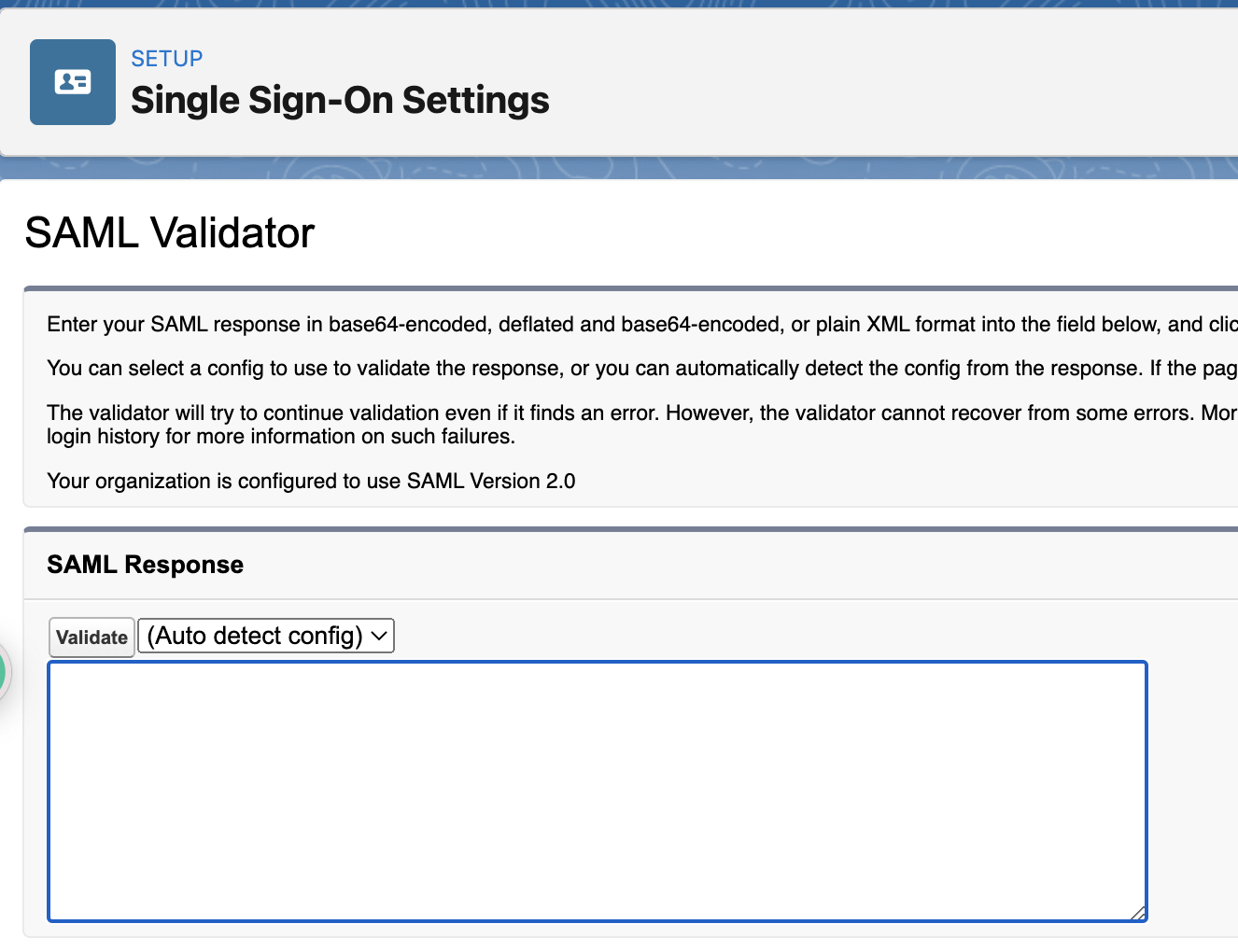
Now you are on the page, it doesn’t look so great, does it? Well, wait for it…
Let the Magic Begin!
Ask your user to perform the login process one more time. When the user sees the error message on screen, refresh your own screen.
Magic! You’ll see a full description of the validation process including the success (bravo!) and the failure (oh no!).
At the end of the list, you’ll have the full error message, which may explain your issue.
Let’s take a look at an example:

Here we see two issues:
Something seems to be wrong with the timestamps (step 4).
The subject does not match a Salesforce user (message at the bottom of the second image).

Timestamps Issue
Did you notice that there is a mismatch about timestamps in step 4? What does this mean?
Well, when Salesforce receives the data from the identity provider (aka. the SAML envelope), it contains a timestamp: a date and a time. This timestamp represents the current time when the envelope was created by the identity provider server. This server uses a specific time setting. Note that the setting may not be identical to the one that Salesforce uses.
So, in other words, this happens when the identity provider server is not totally in sync in terms of time with Salesforce. For example, on one side, at the same exact instant of time, it’s 7.45am. And on the other side, it’s 7.48am.
The server creating the assertion is using its own time. When Salesforce receives this with its own time, the value seems way too far in the past (or even in the future). Therefore, the test is failing.
How do you resolve this? You can try checking the identity provider to have a better server time. Or you can try to set a validation period larger than “currently”.

The InResponseTo value is generated as soon as the My Domain page loads, and expires after 8 minutes.
As a result, this error is returned if the SAML response is sent to Salesforce more than 8 minutes after loading the My Domain page.
Subject Mismatch Issue
The error message is quite clear in the previous page. The “subject” (identifying the user trying to connect to Salesforce, who was identified from the Identity Provider) is not found in the table “User” in Salesforce.
In which field (in the table) “User” is used to search for a user depends on your Single Sign-On setting – it could be the Email, the FederationId, or any other field.
How do you resolve this? Simply align the two sources of information so that the subject sent by the identity provider is identical in the field you choose on the User table. Additionally, please note that the matching is case-sensitive!