
Flow Integrations
The flow integration concept allows you to extend the 24Flow functionality with Flows and Screenflows. There are multiple types of Flow Integrations each supporting a specific set of use cases. Before we go into the configuration details, here are the main use cases for each type of Flow Integration:
Action type: Pass the eventIds of selected events to a Screenflow. In case your Flow makes changes to event fields, those will be saved in the backend, and you need to refresh your screen to make the changes visible in the Planning interface.
Transform type: Pass all events in the current time selection (e.g. all events in a week view) to the Screenflow. Changes to events are immediately visible in the front-end and can afterwards be saved.
Rule type: apply a validation rule, e.g. whenever an event changes.
Configuration
Type: The type of integration flow
Action Type
eventIds: Use the variable as an input in your flow to retrieve the IDs of the selected events in 24Planning.
dataSourceId: When events are selected, the datasource ID is also available as the input variable
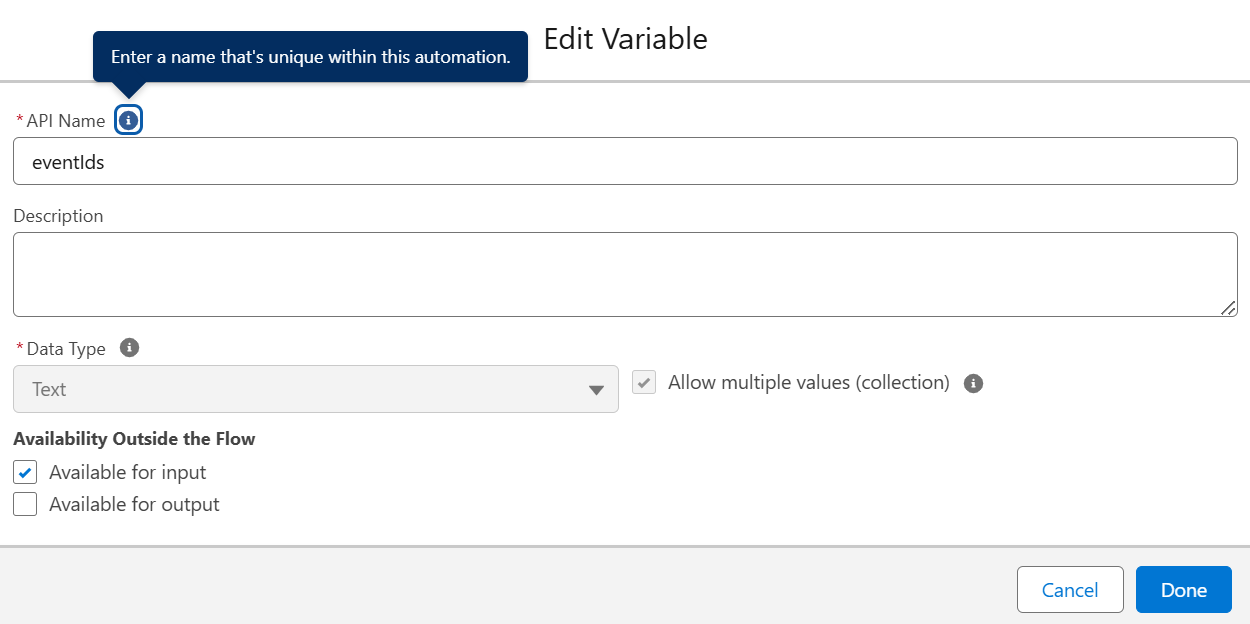
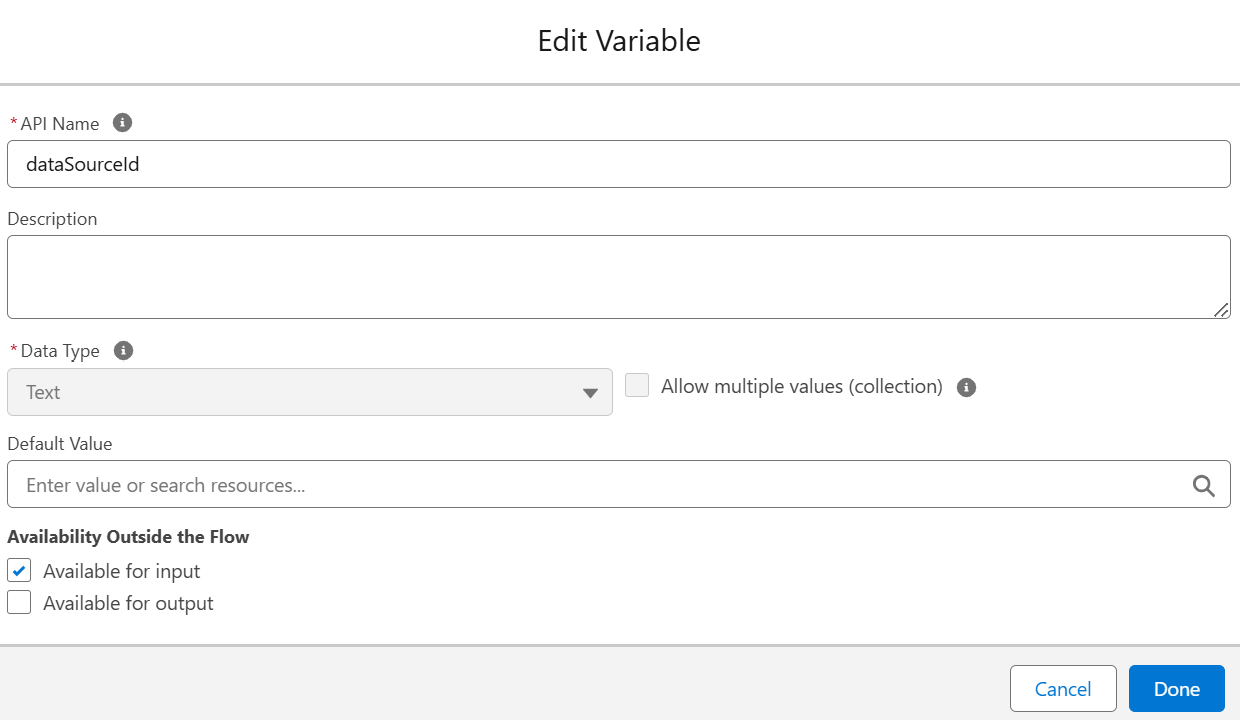
Transform Type
Define the following two variables in your Flow:
events: list of all event records in the current view are passed to the Flow.
changeEvents: list of event records that were changed in the Flow and passed back.
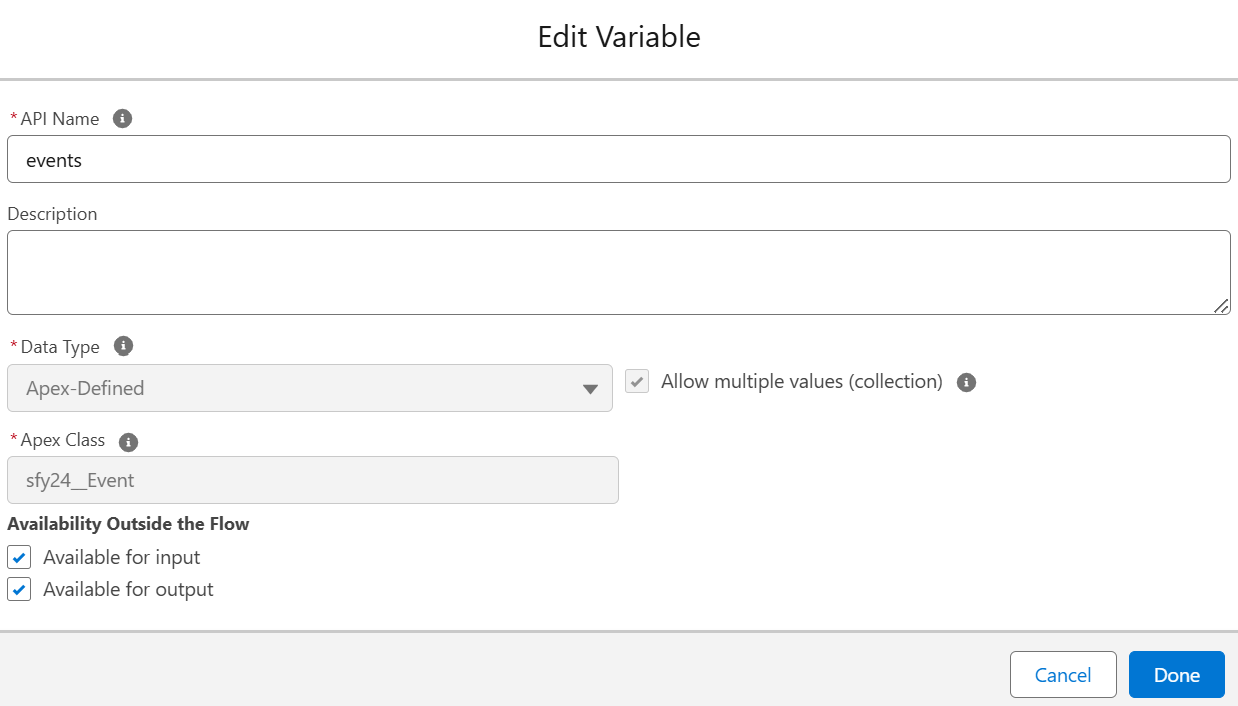
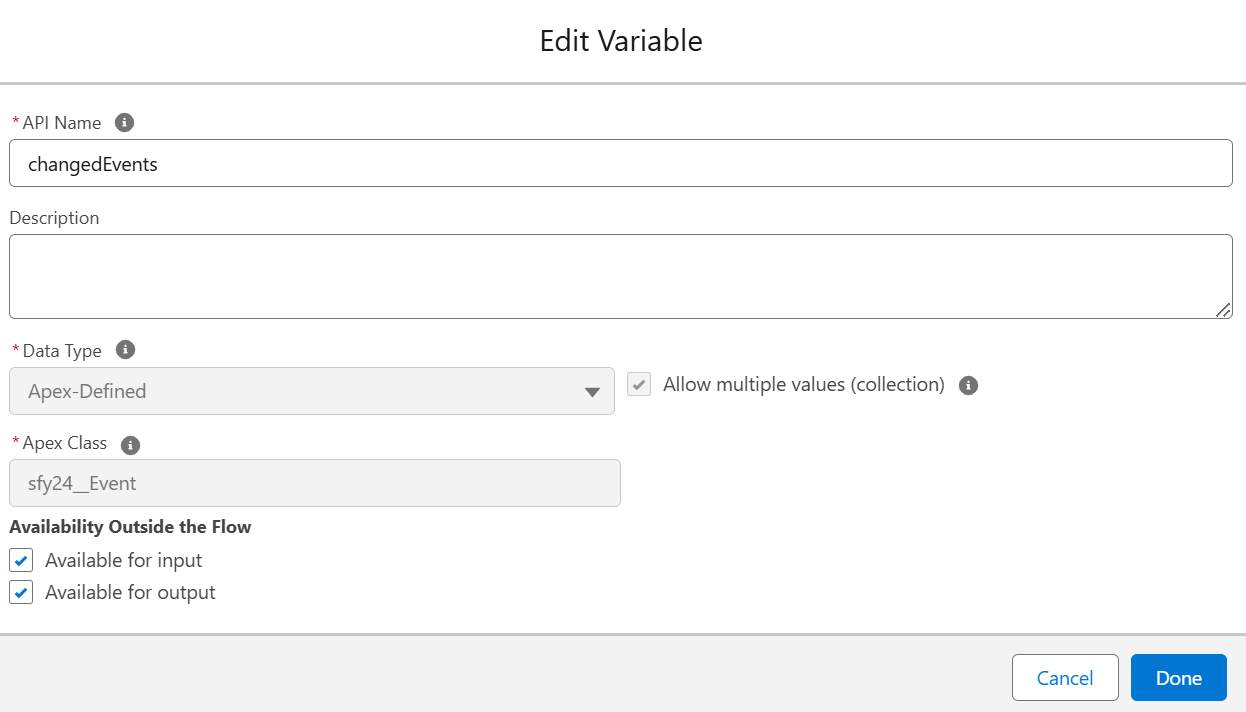
Rule Type
Verify whether an event meets the validation criteria defined in the specified flow.
events: Pass events records that have been updated to the Flow.
violatedEvents: return the list of events for which you throw an error.
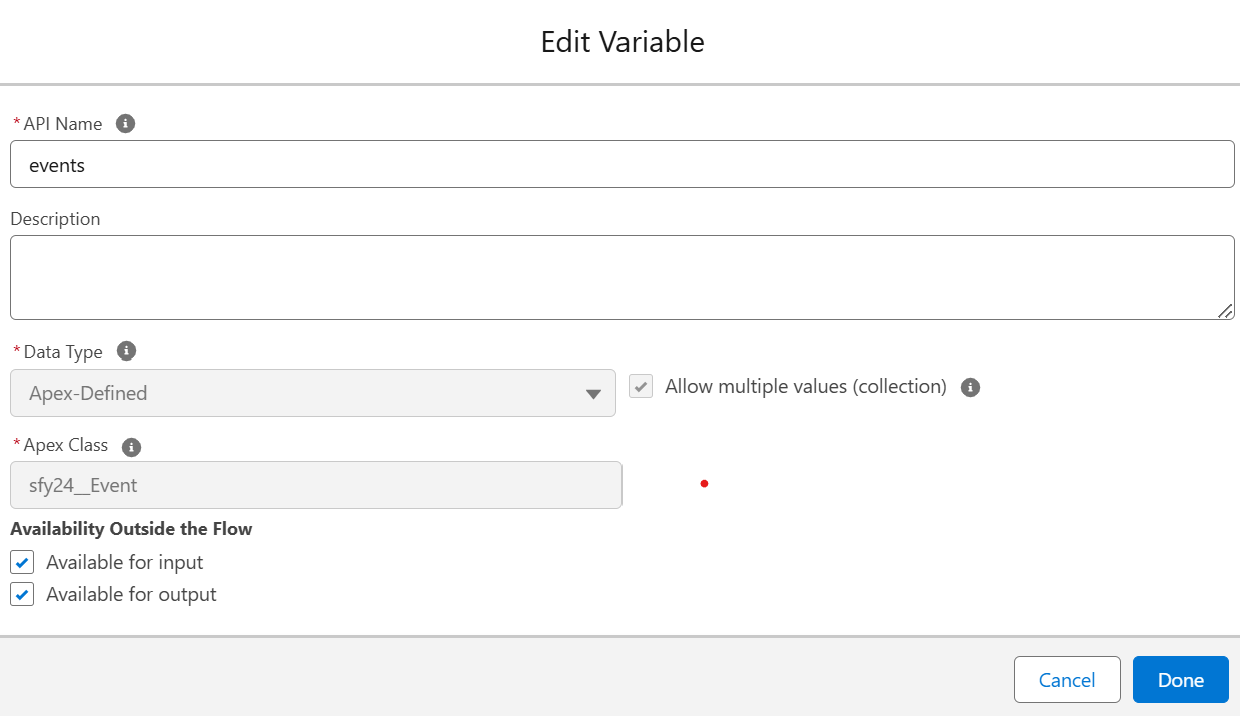
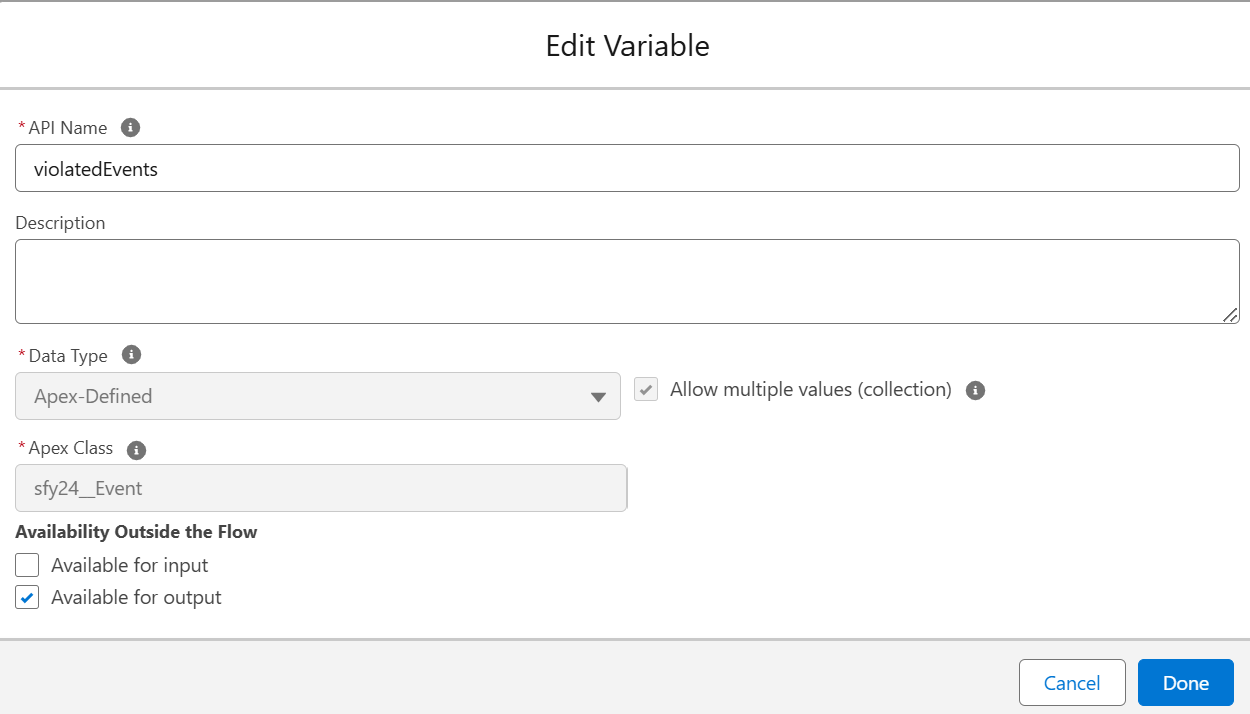

There is an example Flow shipped with the package called Test Flow 24Planning, that will give you a better understanding on how to build your own integration Flows of the type Rule.
Other Configuration Parameters
Flow Integration Name: name of the flow integration.
Flow API Name: API name of the Salesforce flow.
Namespace: Namespace of the Salesforce flow. If the flow does not have a namespace, you can leave this empty.
Triggers: Determines where Flow Integrations should be available in the case the Type is Action: in the right-click menu of (un)planned events, the toolbar for (un)planned events, or in the Gantt Left Pane. Note that if you e.g. add the Flow Integration to the top toolbar, it will be visible both in the resource scheduling and the Gantt Chart.
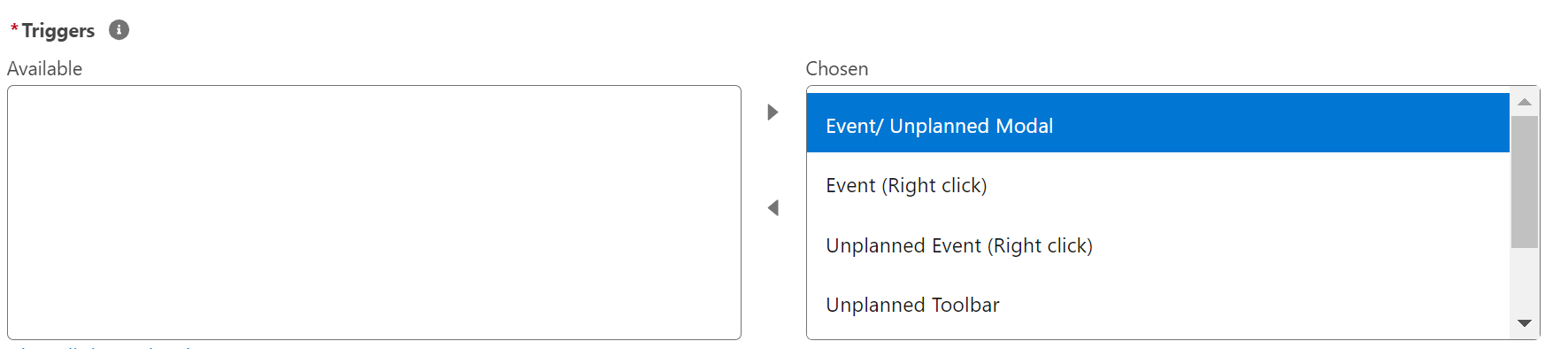
Refresh Events on Complete: Determines whether events on the planning board should be refreshed after the completion of the flow.
Button Icon: Select the icon in case the Flow Integration is of the type Action or Transform.
Order: Flow Integrations are ranked from high to low.
Once you have created a Flow Integration, you need to link it to a datasource to become effective.
In case the “Is Explicit” flag has been set, the error cannot be overridden. When the “Is Explicit” flag is not checked, the error can be considered a warning that can be overridden. In this case, a Salesforce platform event will be raised whenever the warning has been overridden. This ‘Is Explicit’ flag is only applicable when the Flow Integration Type is set to Rule.