
Create a new Team Cockpit app
In case you want to create a new Team Cockpit for your operators, you can follow the following steps, these steps are more elaborated below:
Create new Team records
Create new Routings
Automatically assign Routings (i.e. production type) to production orders via flow
Create new Team Cockpit settings pages
Create new app pages and add a Team Cockpit to this page
Create new apps and add the Team Cockpit app page.
Assign the new apps to profiles.
Create a Team
Make sure the required Team is present in your 24Flow org as you will need to link a Team to a Team Cockpit page. Create a Team record in case it is not yet present by executing the following steps:
Search for Team in your app or in the app launcher when it’s not visible as a tab.
Click on New.
Fill in the Name of the Team and copy the name value into the External Id field.
Click Save.
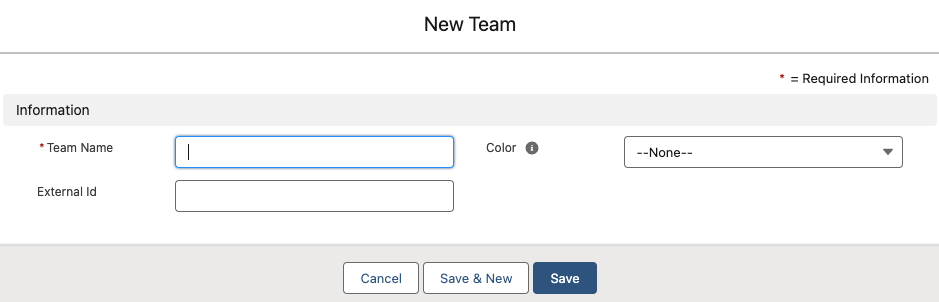
Create a new team.
Create a Routing

Please read the “Configuring production types, operation types and operation type assignments” in the basic concepts section.
Assign a routing to a production order
Fill in field Production Order Type on the production order. This can be done manually or automated via a flow.
Create new Team Cockpit settings
Create new app page for each team cockpit
Please proceed as follows:
Navigate to Setup and use Quick Find to search and select Lightning App Builder.
Click New, select the App page type,
Note : you can also clone an existing cockpit App page
Give it a relevant name and choose a layout template template
Once this is done click on edit and the Lightning App Builder will open
Drag the cockpit LWC element from the left-hand panel under Custom to the desired location on the page layout.
Select the cockpit LWC to configure its properties in the right-hand panel as necessary such as the preferred cockpit setting
Activate and save the page
Save your page and use Preview to test its appearance and functionality.
Activate the page by setting visibility and assigning it as the default for the intended users or profiles.
Test the page in its intended location to ensure it functions correctly.