
Competence Matrix
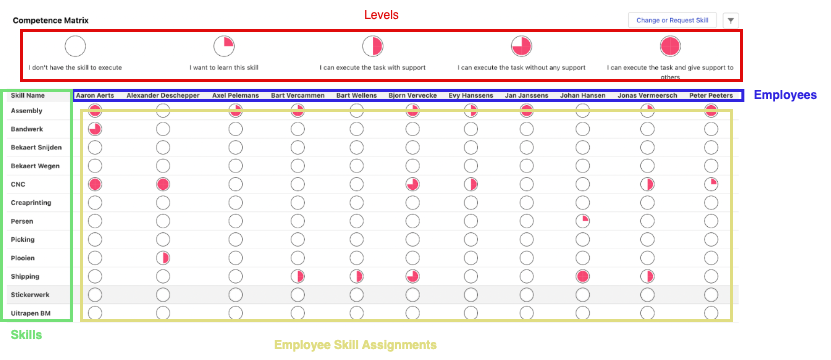
The 24Flow Competence Matrix is a component of the 24Flow suite. The Competence Matrix gives the user an overview of the skills and skill levels for all or a certain set of employees.
The competence matrix can be modified to your own needs, by default the competence template and configurations described below are available in the 24Flow suite.
Configuring the Competence Matrix
The 24Flow suite provides you with an object structure and approval template to define skills and trainings, request / approve / finalize trainings and update the skills and skill levels of employees.
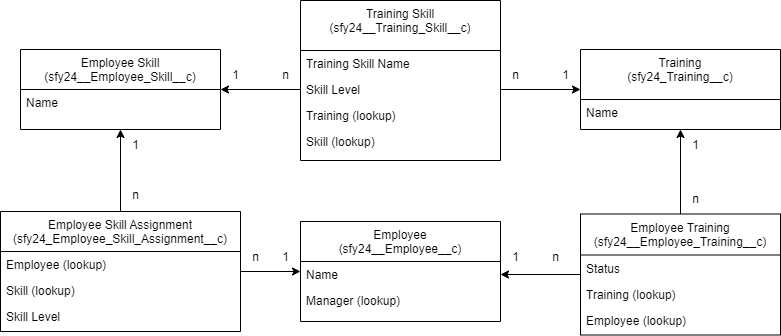
Employee
Each employee has an overview of his current skills and corresponding skill levels (Employee Skill Assignment records) as well as an overview of his open and finished trainings (Employee trainings).
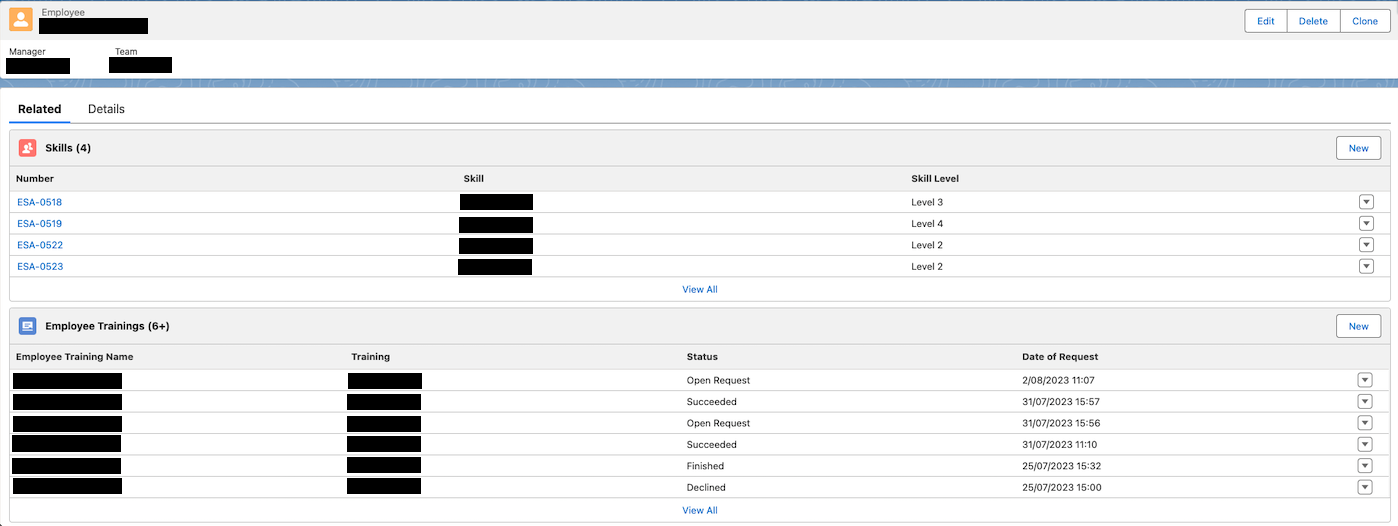
Each employee has an overview of his current skills and corresponding skill levels as well as an overview of his open and finished trainings.
Employee Skill
On Employee Skills you define the name of the skill. You can assign them to an employee with a certain skill level via the Employee Skill Assignment object.
Skill Name: The name of the skill.
Employee Skill Assignment
With an Employee Skill Assignment record you can assign a certain skill to a certain employee. On the Employee Skill Assignment record you can assign a skill level.
Number: Each record automatically has a number assigned to it in format ESA-xxxx.
Employee: Lookup to the employee that obtained this skill.
Skill: Lookup to the skill that the employee obtained.
Skill Level: The skill level the employee obtained. In the standard 24Flow template this consists of the following levels (You can define additional skill levels and/or adjust the definition of each level if required):
Level 1: I want to learn this skill.
Level 2: I can execute the task with support.
Level 3: I can execute the task without any support.
Level 4: I can execute the task and give support to others.

The Skill levels are defined in Custom Metadata Types (Navigate to Setup> Custom Metadata Types). Select Manage Records for Competence Matrix Settings and add new levels if required.
Training
On Training you define the name of the training, add files to assist employees that are following this training. For each training you can also define the skills and skill levels that will be obtained when successfully finishing the training (for more Information, see section “Training Skill”).
Training Name: The name of the training.
Notes & Attachments: Add training documentation to assist an employee when he follows this training.
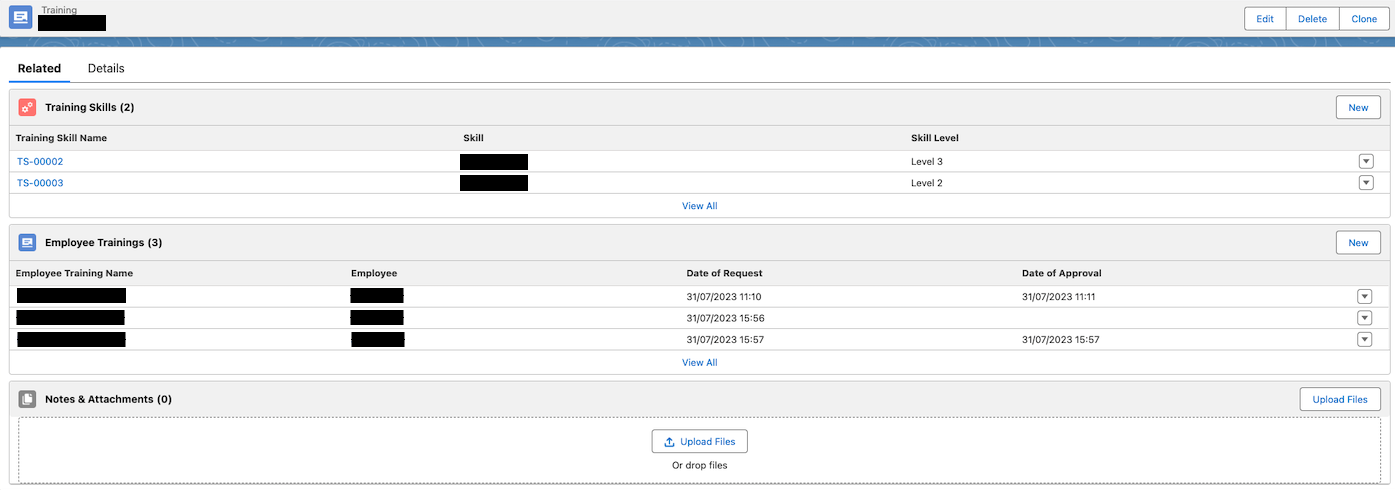
For each training you can add Notes & Attachments that will be provided to the employee that follows this training. You can also define the skills and skill levels that will be obtained when an employee successfully finishes this training.
Training Skill
Via training skills you can define which skills will be obtained by an employee when (s)he successfully finishes the training that is linked to the training skill.
Training Skill Name: Each record automatically has a name assigned to it in format TS-xxxxx.
Training: Lookup to the training for which this skill is relevant.
Skill: Lookup to the skill that will be obtained by following the training.
Skill Level: The skill level the will be obtained for the skill when following the training.
Employee Training
An employee training can be requested by an employee. The approval flow is described in section “Template Approval Flow”. Once the employee has successfully finished the employee training, his skills and skill levels are updated.
Employee Training Name: The name of the employee training. This is a concatenation of the training name and the name of the employee.
Employee: Lookup to the employee.
Training: Lookup to the training.
Status: The status of the employee training, this will be updated via the approval flow.
Open Request: The employee requested to follow this training to improve his skill set. The employee training can also be created for an employee by the manager or by a responsible for competence management.
To Start: The request was approved, the employee can start his training.
Declined: The request was declined, the employee can’t start this training.
Ongoing: The employee started the training.
Finished: The employee indicates that he finished the training.
Succeeded: The manager of the employee or a responsible for competence management reviewed the training and confirms that the employee has obtained the skill set learned via the training.
Failed: The manager of the employee or a responsible for competence management reviewed the training and confirms that the employee didn’t sufficiently learned the relevant skill set from the training.
Date of Request: Date/time when the employee training has been requested.
Date of Approval: Date/time when the employee training request has been approved.
Date Declined: Date/time when the employee training request has been declined.
Date Started: Date/time when the employee training has been started by the employee.
Date Finished: Date/time when the employee training has been finished by the employee.
Date Succeeded: Date/time when the employee training has been confirmed as succeeded.
Date Failed: Date/time when the employee training has been confirmed as failed.
Competence Matrix
(Re)Defining Skill Levels in the Competence Matrix
The 24Flow Competence Matrix gives an overview of employee skills and their levels. These levels are set up using competence matrix custom metadata type.
Previously, these skill levels were managed in the package, so they couldn’t be updated. We’ve now made it possible for users to fully manage these themselves. The managed metadata records have been removed from the package, so existing users can remove them from their org when ready and define their own. This gives full control to define, translate, or adjust skill levels as needed.
An example is provided below to illustrate the naming convention and structure for updating this data via the Competence Matrix custom metadata type.
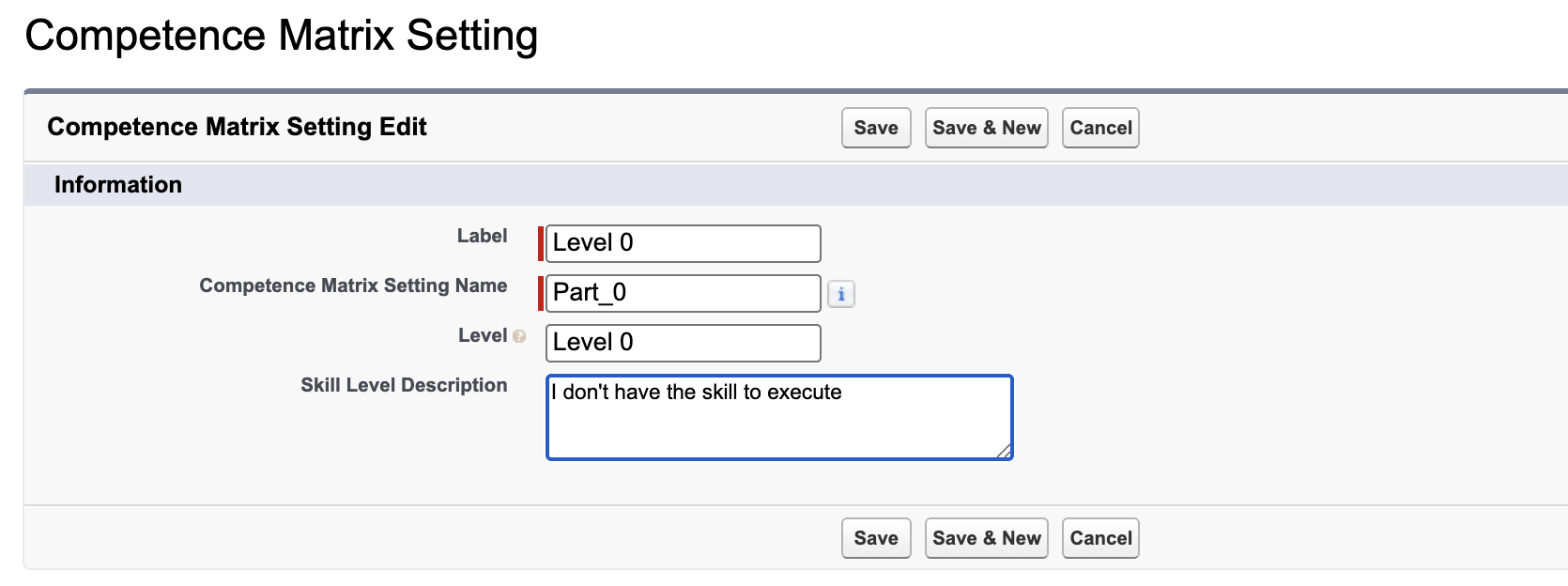
competence matrix - skill level
Template Approval Flow
The 24Flow suite provides you an approval flow template to request / approve / finalize trainings and update the skills and skill levels of employees. The different phases and corresponding flows of this approval flow are described below. The approval flow consists of multiple salesforce flows, described in the following section.
Flow: Employee Training - Create Request
Search for a training or a stand alone skill?
Check if there is already a similar open request. If yes, do not proceed.
Training: Which skills do you want to learn? → Show which trainings there are available for these skills → Select a training → Create the employee training.
Skill: Select one or multiple skills → Show for each skill the next level that the employee can obtain based on his current competences → Create the employee training.
Overview for employee of:
which new skills he will obtain (all skills with levels higher than his current skill levels)
which skills will be refreshed, i.e. refresh date obtained (all skills and corresponding levels that match training skills)
Flow: Employee Training - Review Request
Select the request you want to review.
If available, show the open employee trainings (i.e. employee trainings that have an overlap in competences)
Show the envisioned relevant new competence levels wrt the current competence levels
Approve: Update Status to To Start
Decline: Update Status to Declined and provide a reason of rejection
Flow: Employee Training - Review Approved Requests
Succeeded
Update status employee training to succeeded
Flow Employee Training - Status Changed to Succeeded - Update Employee Skill Assignments: update the skill levels that are higher than the current skill levels and create the employee skill assignments that are not yet present.
Failed
Update status employee training to failed
Flow: Employee Skill Assignment - Update Skill Level
Higher or lower, provide a reason
Flow: Employee Training - Create Informal Training and Update Employee Skill Assignments
Create Employee Training
Set status to Succeeded
Flow: Employee Training Created- Status equals Succeeded - Update Employee Skill Assignments
Flow: Employee Training - Status Changed - Set Timestamps
Timestamps
Estimated and actual duration training