
24Flow Winter '24 Release
Team Cockpit: Multi-Sorting
Benefit:
Create your own sorting logic to visualize the priorities via an easy-to-use admin user interface.
Description:
You can add one or more fields to sort by on the Team Cockpit settings page. For each field, choose whether to sort it in ascending or descending order.

Add one or more fields for sorting, taking into account the hierarchy of these fields. Each field can be sorted in either ascending or descending order.
Team Cockpit: Set View Type
Benefit:
More straightforward user interface when routing steps are not complex.
Description:
When the bill of labor is straightforward, the admin user can opt to show the operations without showing the corresponding operation routings.
On the Team Cockpit settings page, choose between Operation and Operation Routing for View Type.
Operation: Display only the operation records.
Operation Routing: Display the operation routing and the underlying operation records.
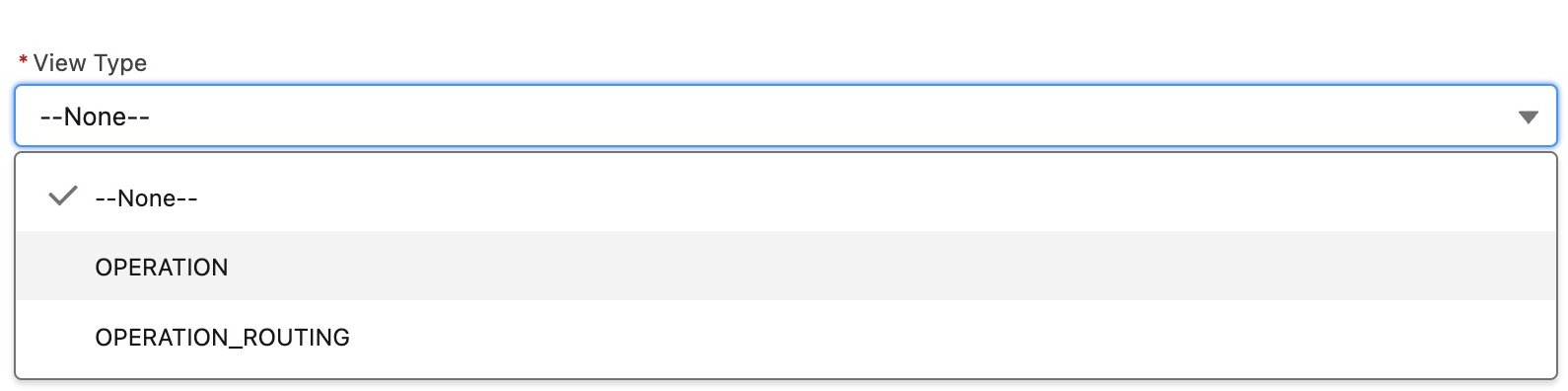
Choose your View Type for each Team Cockpit Settings record.
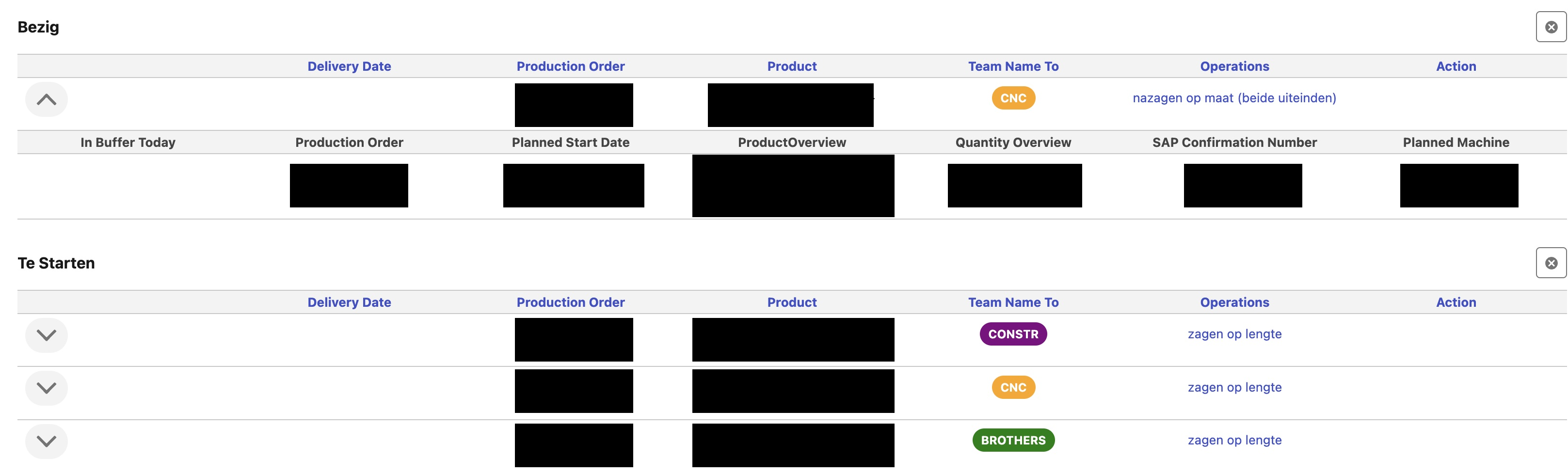
Team Cockpit when View Type = Operation Routing. Expand the operation routing row to see the related operations.
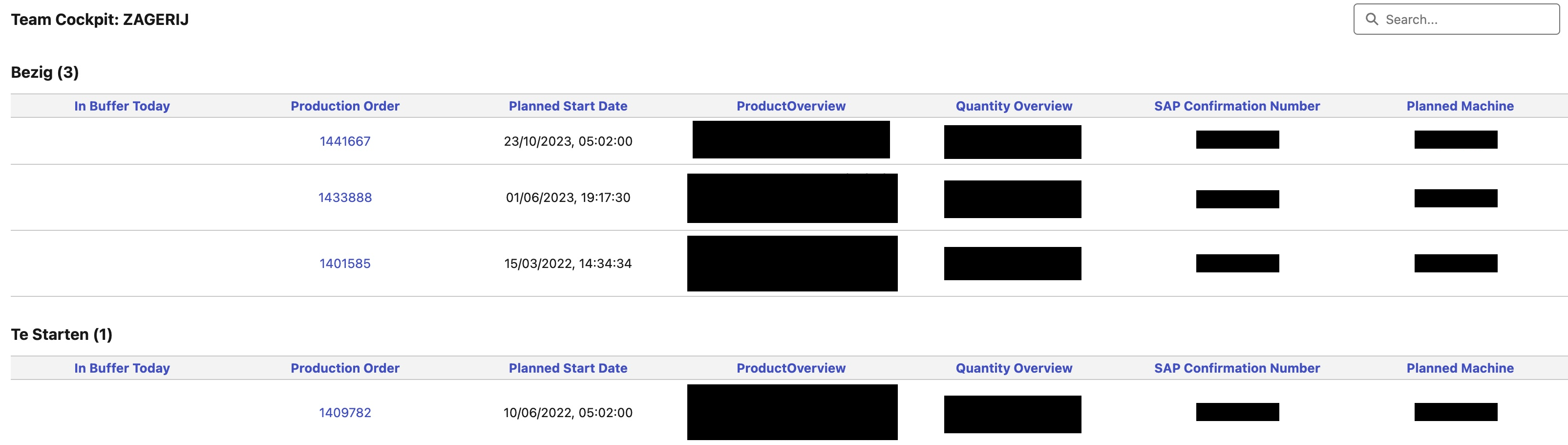
Team Cockpit when View Type = Operation Routing. Each Operation is displayed in the status of its Operation Routing.
Team Cockpit: Search Functionality
Benefit:
Search on relevant inputs to immediately see the statuses of the operation routings and/or operations in the respective Team Cockpit.
Description:
Set on which fields the user can search via section Select Fields to Search in the Team Cockpit Settings record.
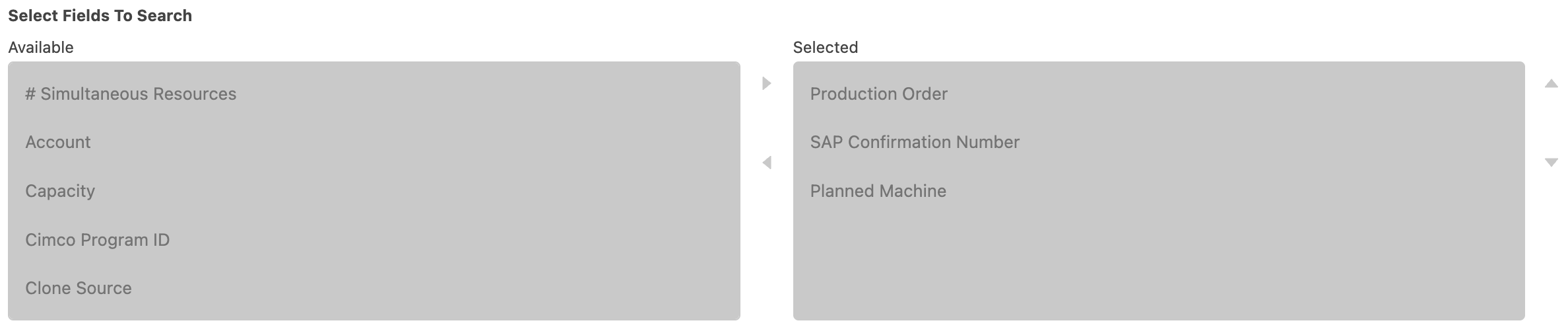
Add fields to Select Fields to Search in the respective Team Cockpit Settings record.
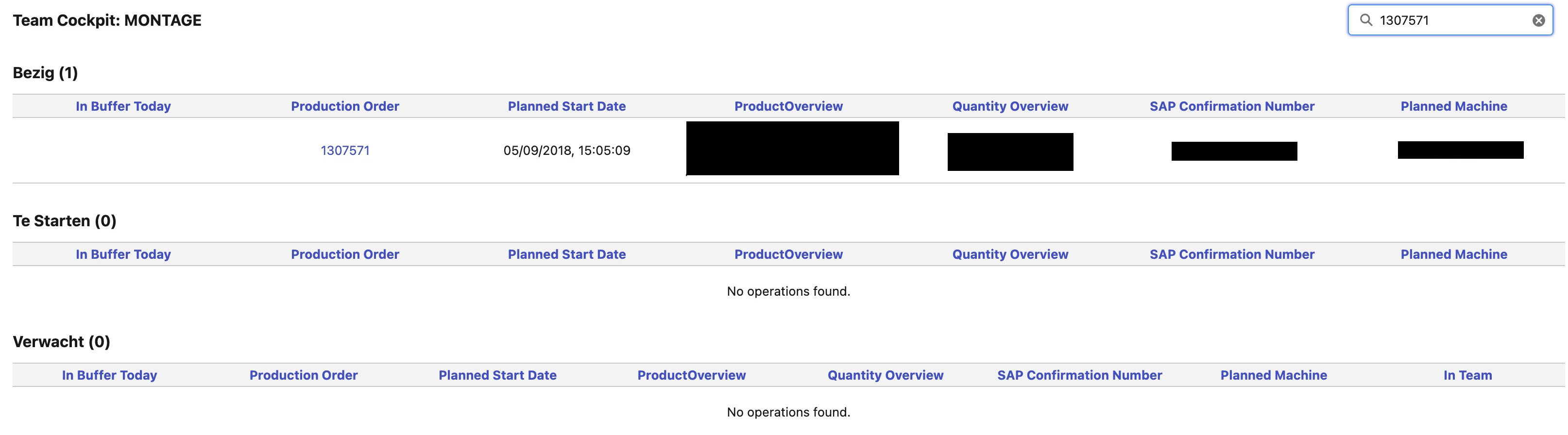
Search Bar has been added on the top right. In this example, the user searched on the production order name to display all relevant operations in the Team Cockpit.
New Routing Generation Mode: Generate Operation Routing per Operation
Benefit:
Enables a detailed visualization of the operation status in the respective Team Cockpit.
Description:
Each operation routing record will only have one related operation record. This is relevant if you want a detailed visualization per operation step in the respective Team Cockpit.
Set checkbox Generate Operation Routing per operation to true on the production order record for which this routing generation mode needs to be executed. You can do set this via a record triggered flow in order to automate this.
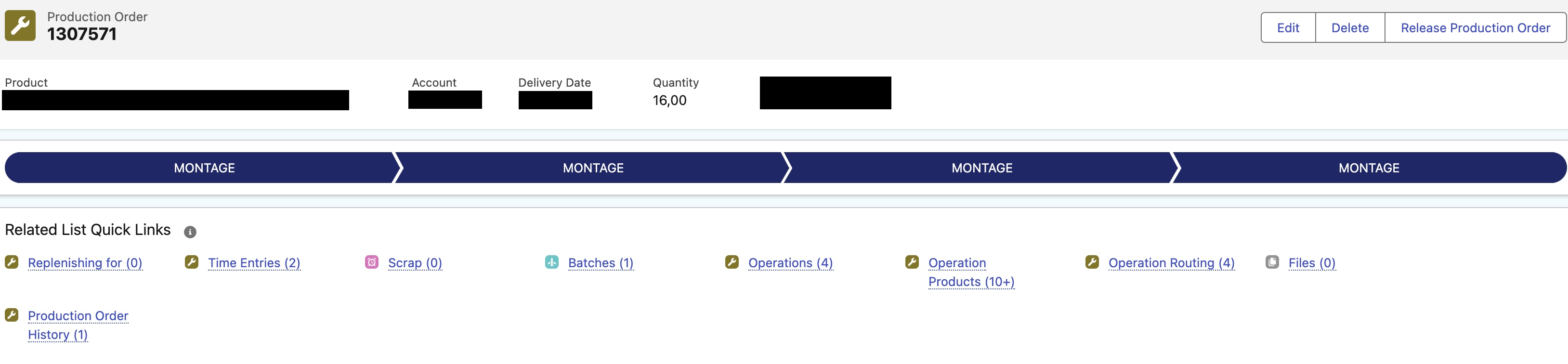
When checkbox Generate Operation Routing per operation is set to true, an operation routing will only have one related operation record. In this example, instead of one operation routing record for team Montage with 4 related operation records, 4 operation routing records are created for the 4 operation records.
WMS: Core Functionality
Benefit:
Functionality to kick start WMS logic.
Description:
The following objects were introduced:
WMS Handling Unit: A handling unit is a physical unit consisting of packaging materials (load carriers/packing material) and the goods contained on/in it. (e.g. a pallet with boxes of certain material(s)).
WMS Location: A Warehouse Management Location is part of a WMS Zone (see below) and marks a certain coordinate where the product is stored.
WMS Product Movement: Product Movements in the warehouse for production orders/operations/transfers/...
WMS Product Stock: Product Stock Overview.
WMS Zone: A Warehouse Management Zone classifies a set of locations that share common properties. A warehouse is divided into multiple zones based on its attributes, like package type and velocity codes. Inventory for an SKU is either stocked in a specific zone or in multiple zones and locations.
Flow Component: Flexible Barcode Scanner
Benefit:
Add and configure an omni-device barcode scanner for screen flows.
Description:
Auto Navigate: When set to TRUE, the Flow will go to the next element when an input has been provided.
Button Icon: Icon shown, default set to a scan icon.
Button Label: Label for button, default set to Scan.
Continuous Scan: When set to TRUE, it allows for multiple barcodes to be scanned in one session, the results are stored in a string collection called scannedBarcodes.
Label: Title shown above the input field.
Scanner Instructions: Instruction text that will be shown in the input field of the barcode scanner.
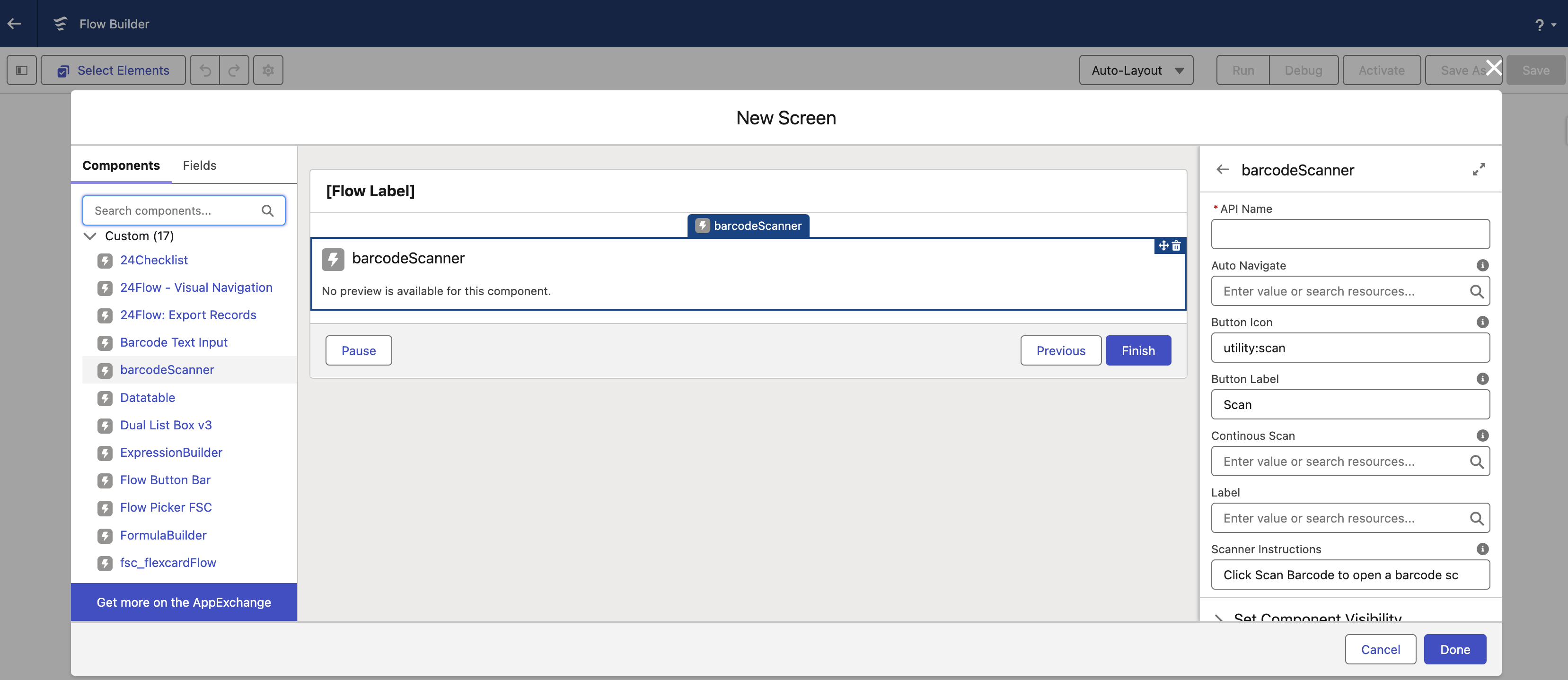
Add the custom barcodeScanner to a screen in flow.
Flow Component: Visual Navigation
Benefit:
Create your own custom navigation user interface.
Description:
Below screenshots briefly explain how to use the visual navigation component in a screen flow.
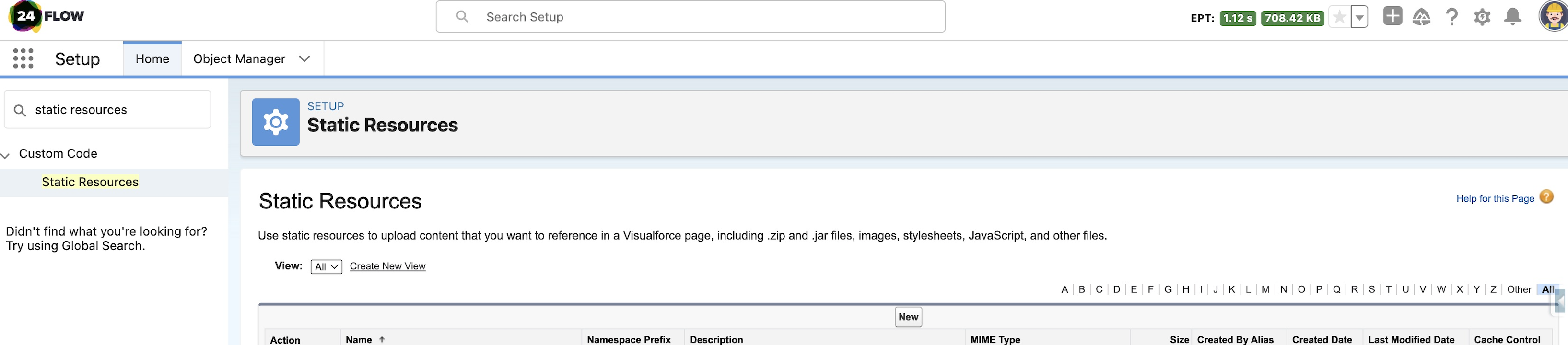
If you want to add icons to your tiles, upload all your images in one zip file as a static resource. All files should be in .svg format.
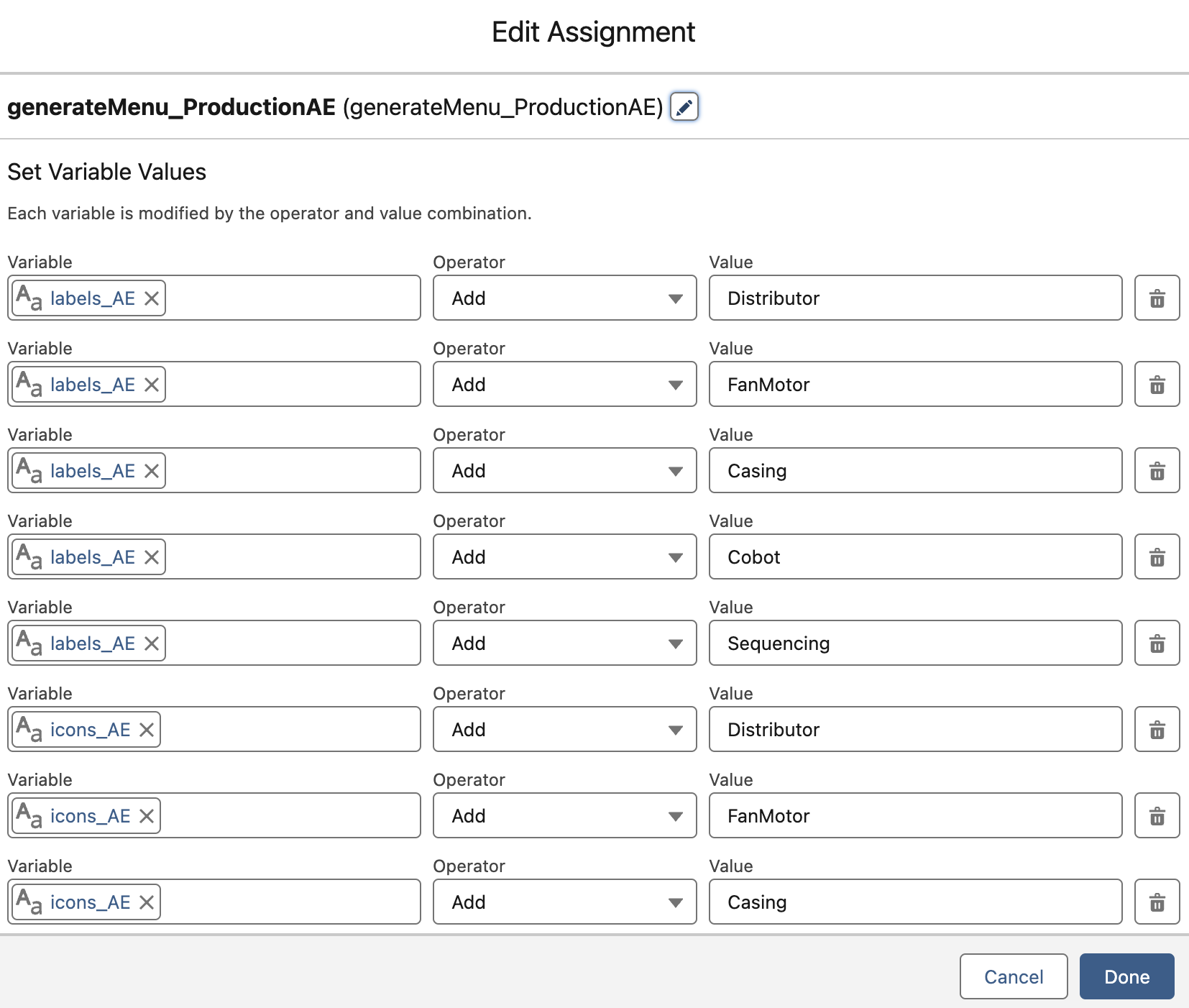
Add your labels, sub labels and icons to text collection variables in your screen flow.
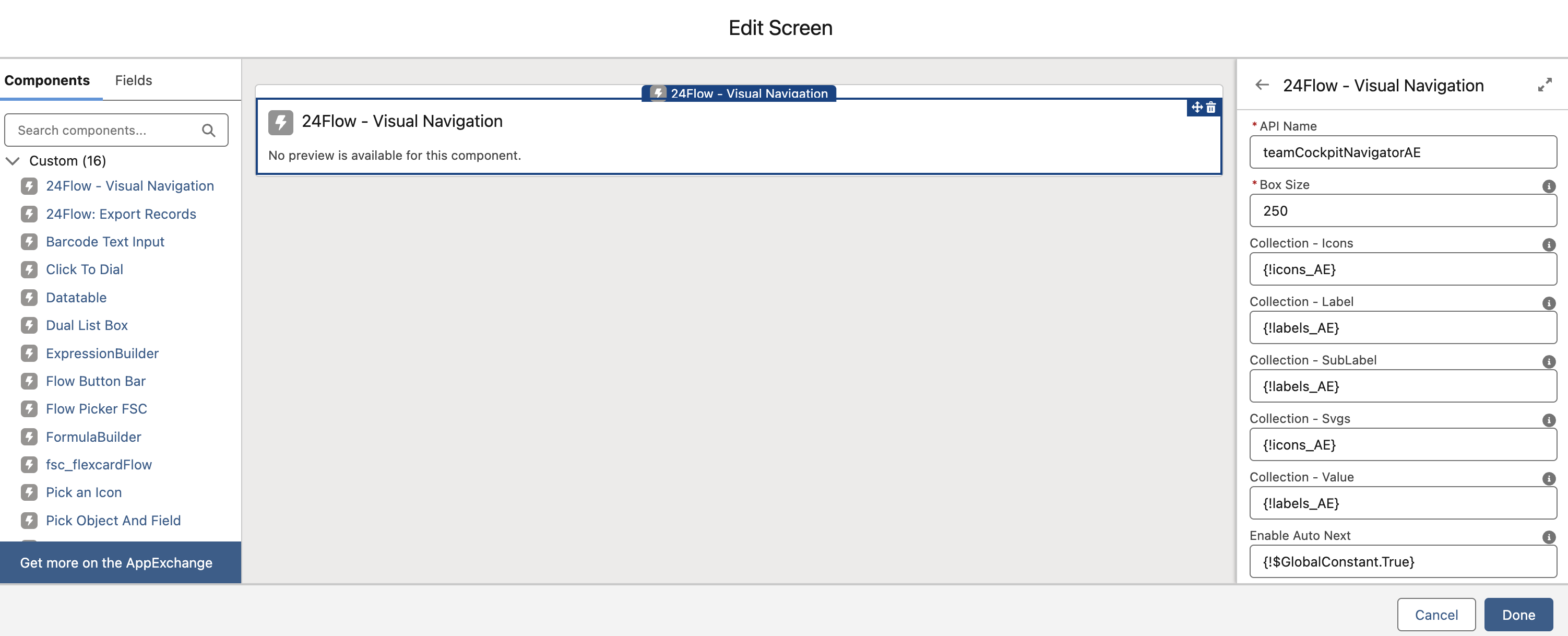
Create a screen and add component ‘24Flow - Visual Navigation’. Configure the component with the text collection variables.
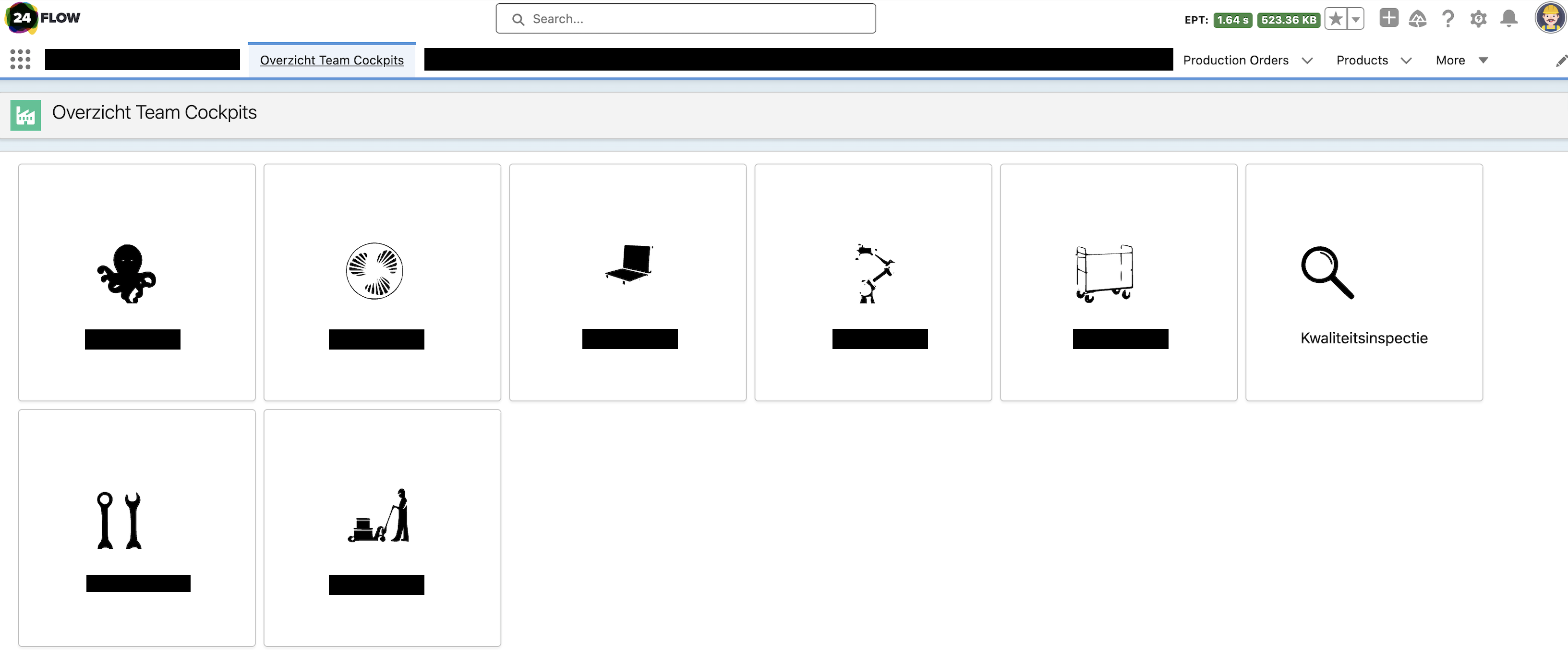
The result is an overview of different tiles. In your screen flow you can create an action when the user clicks on one of the tiles (Navigate to a tab, create a record, go to a new screen, …).
Exact Online Connector: Improvements
Benefit:
More robust, easier configurabilty and scaleability.
Description:
Bulk sync
Configure which fields need to be synced
Scaleability
Competence Matrix: Improved Performance
Benefit:
Smaller loading time when visualizing competence levels.
Description:
Lazy loading has been added.
Documentation: Printing Agent - Installation Manual
Benefit:
Download and use the 24Flow Printing Agent without 24Flow support.
Description:
The 24Flow Printing Agent manual can be found on https://docs.24flow.eu/.
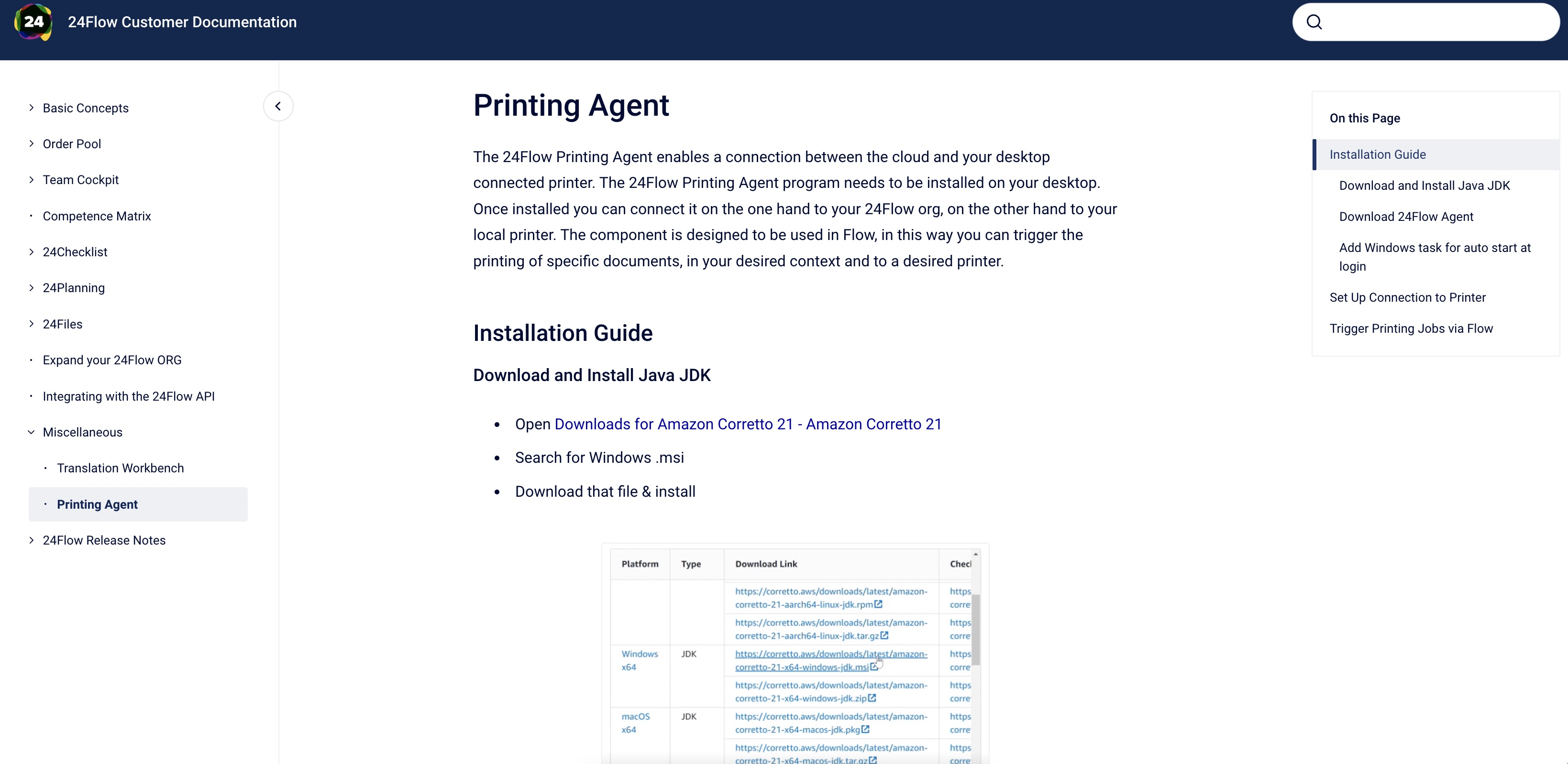
The 24Flow Printing Agent Manual
Documentation: OpenAPI
Benefit:
Easily integrate with 24Flow via our API documentation.
Description:
You can find the 24Flow API documentation in our product documentation at https://docs.24flow.eu/.
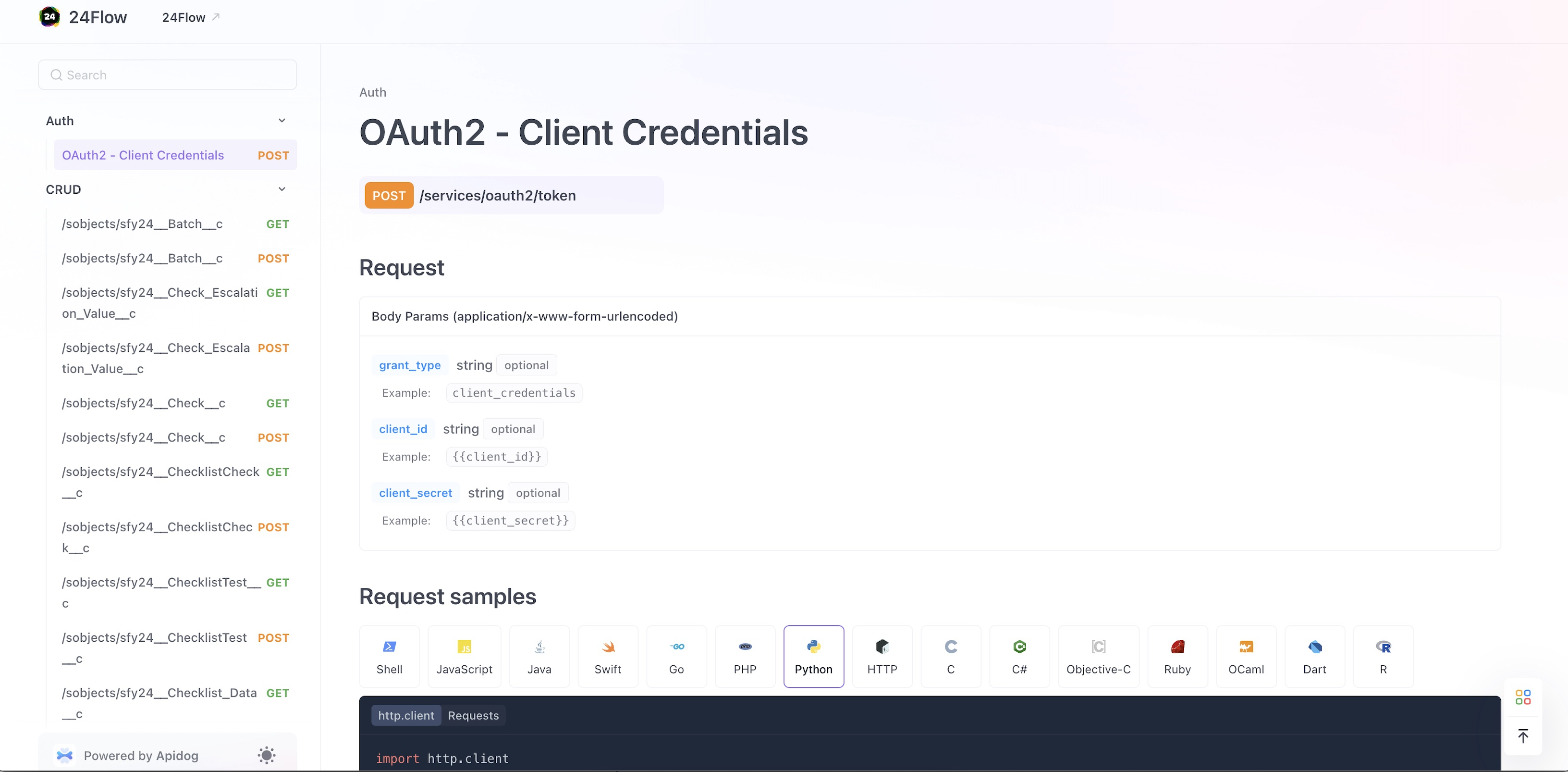
The 24Flow API documentation
Sub Releases
24Flow:
v1.32.1
v1.33.0
v1.34.0
v1.35.0
v1.36.0
v1.37.0
v1.38.0
v1.39.0
v1.39.1
v1.39.2
v1.40.0
v1.41.0
v1.42.0
v1.43.0
v1.44.0
v1.44.1
v1.45.0
v1.46.0
v1.47.0
v1.48.0
v1.49.0
v1.50.0
v1.51.0
v1.52.0
v1.53.1
v1.55.0
v1.56.0
Utils:
v1.12.0
v1.13.0
v1.14.0
v1.15.0
v1.16.0
v1.17.0
v1.18.0
v1.20.0
v1.21.0
v1.22.0
v1.23.0
v1.24.0
v1.25.0
v1.26.0