
Configuring 24Flow MCT Maps
Introduction
MCT maps can be added to a record page layout. As you will notice throughout the configuration described in this section, the configuration of MCT is quite generic and flexible. We will illustrate the concepts via a concrete (and the most common) example, where we want to visualize the MCT for one or a set of production orders.
Before starting a detailed discussion on the configuration parameters, let’s first look at a concrete example of the end result.
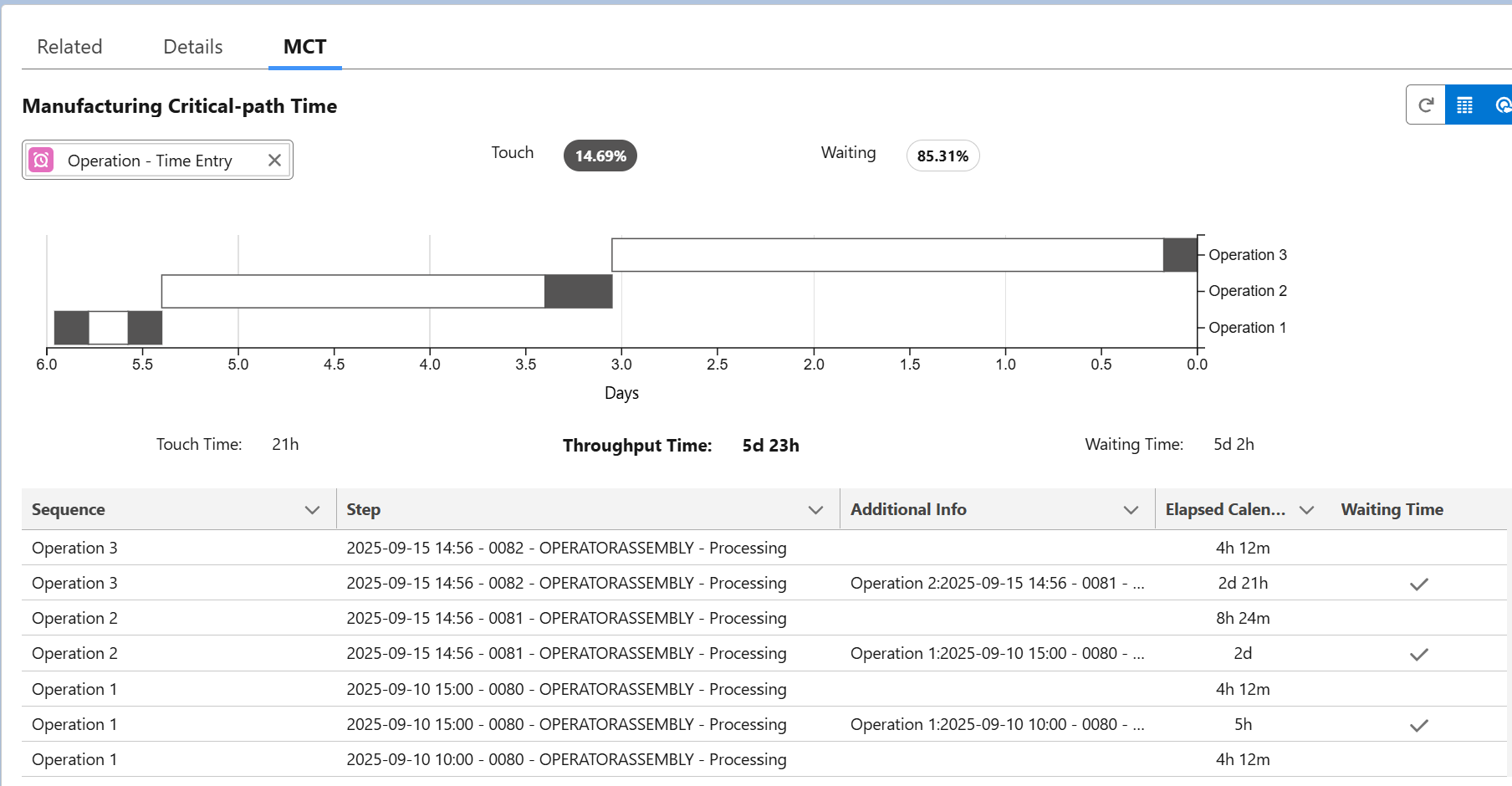
We see the MCT map for the MCT configuration named Operation - Time Entry. The MCT map shows the touch time (grey blocks) as well as the waiting time (white blocks) for the different operations (sequences). Each sequence can contain multiple steps (time entries), see also the table below the MCT map for details.
The section below details the MCT map configuration parameters. In the final section we apply these concepts to a number of concrete use cases.
MCT Maps Configuration
The MCT is configured via a configuration app named MCT Maps (FTMS). Via the app, you create configurations that can then be applied to a record page.
The MCT Maps app has the following settings:
Name: Name of the configuration.
Technical Name: External ID of the MCT Map.
Object Name: this is the main object for which you want to create MCT maps, so in our example this is the production order.
QRM Number Baseline Date: The QRM Number Baseline Date refers to the calculation date field of an MCT Calculation record. The MCT of the record with this calculation date will be used as the Base Period MCT for calculating the QRM number.
In addition, it is possible to define a filter. If the MCT map is computed for a group of orders, it makes sense to group orders that are similar, e.g. for the same product type or Focus Target Market Segment (FTMS) in QRM terms.
An MCT map consists of one ore more sequences and each sequence contains one or more steps.
Sequence
A sequence has 3 attributes:
Sequence number: A sequence has a sequence number, which can either be a numeric value or a reference to a field where the sequence number value is stored.
Sequence Parallel number: Field or numeric value that determines whether sequences can be executed in parallel.
Sequence Name: Name of the sequence, the sequence can either be hardcoded or defined by reference.
It is also possible to define a filter at the sequence level. In our example, the map is constructed for a production order and the sequences are operations. This filter can be used to take into account a subset of operations in the MCT map.
Steps
A sequence consists of one or multiple steps. In our example, the step are time entries, where each operation can comprise one or multiple time entries.
Step Relationship: Relationship field between the step and the sequence.
Step Name: can be either hardcoded or defined by reference.
Start Reference: Field that contains the start value of the step, in date/time format.
Stop Reference: Field that contains the stop value of the step, in date/time format.
There are 3 additional configuration parameters:
Filter: you can select a subset of steps.
Touch Time Filter: define criteria that determine when a step can be considered as touch time. Without filter, every step will be considered as touch time.
Waiting Time Filter: define criteria that determine when a step can be considered as waiting time.
In the Touch Time Filter, there are two additional configuration options. These parameters are optional, but you can use them to ensure that the resulting MCT maps complies with the formal definition as it being used in Quick Response Manufacturing (QRM):
One End Item: In the QRM definition of MCT, the touch time is computed as the time needed to complete one end item, and not all items from a batch. The One End Item settings allow you to correct the step duration for the duration to complete one end item. If left blank, the complete step duration will be considered touch time. The overrule parameter allows you to include e.g. the complete setup time and a fraction of the actual processing time to produce one item.
Working Time to Calendar Time: MCT is expressed and computed in calendar time. As an example, if the shopfloor is closed over the weekend, the 2 weekend days will be taken into account in the MCT for orders that run over the weekend. The Working Time to calendar time setting is there in case you have time stamps that are not in calendar time, e.g. just the working time. The system can convert actual working time to calendar time by using the value of the step record set in the given 'Weekly Working Minutes Field' using the Formula: (Raw Data Minutes) * 7 / (Weekly Working Minutes from Field). Suppose a task is 480min on a machine that runs 2400min/week. The calendar time is : 480 * 7 / 2400 = 1.4 days. If this field is left empty or the step record has no value, the system will assume the data already represents calendar time-stamps.
Schedule and the QRM Number
The QRM number tracks the improvement in lead time reduction over time. 24Flow implements this by periodically computing the lead time and creating a corresponding record for the object MCT Calculations.

The Schedule tab in the MCT maps allows you to define this schedule.

The next section provides a concrete example on how to work with the QRM number.